
Employees Unable to Request Leave because of Shift Schedule
Chinaza Okafor · Apr 7, 2026 · 1 min read
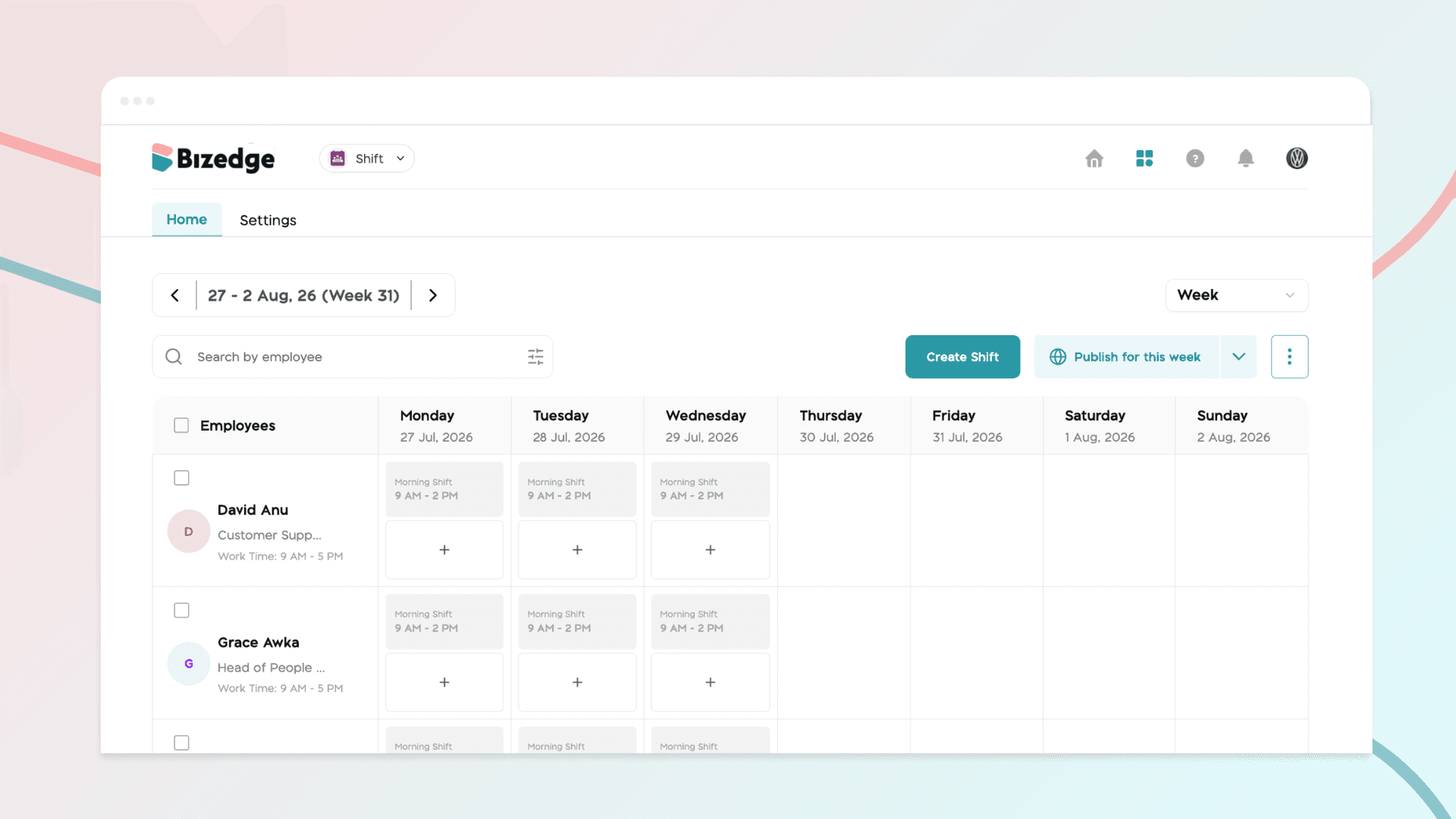
If an employee on a shift schedule is unable to request leave, it is usually because they have not been assigned a work schedule for the days they intend to take off.
For shift employees to successfully request leave or time off, a work schedule must first be assigned to them for the specific period they plan to be away. If there is no schedule assigned for those selected dates, the system will not allow them to submit a leave request. Firstly, ensure the employee’s shift schedule is properly assigned for the intended leave period before they attempt to request time off.
Secondly, set up your time off configuration, and here’s how to do this:
Click on the Settings page from the People app and select Time-off configuration.
Click on the time off setup you’d prefer; the Shift mode allows time off requests only for public shifts, and the Flexible mode allows time off requests regardless of the shifts assigned to the employee.
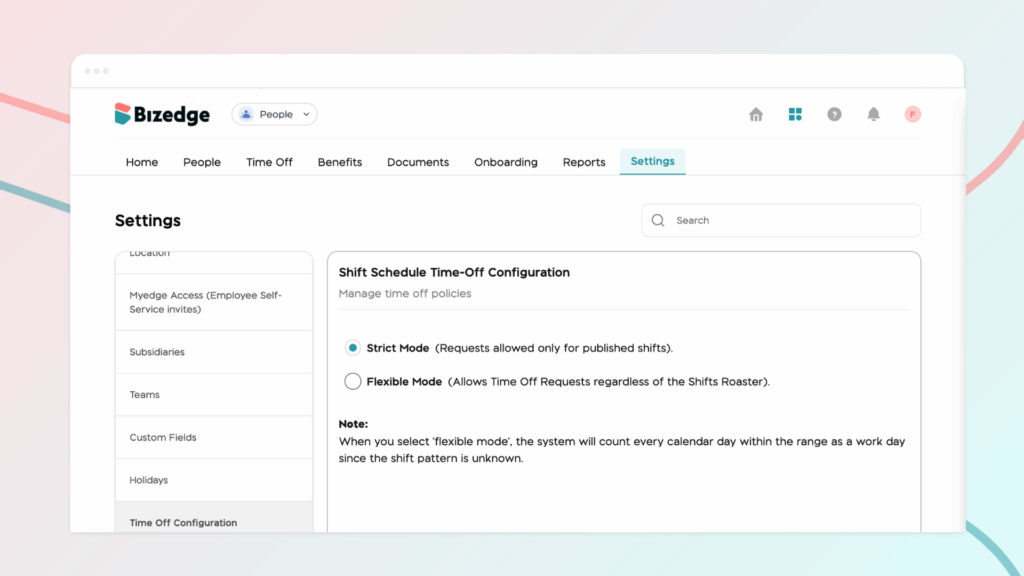
Note: When you select 'flexible mode,' the system will count every calendar day within the range as a work day since the shift pattern is unknown.
Comments
Leave a comment
Related posts
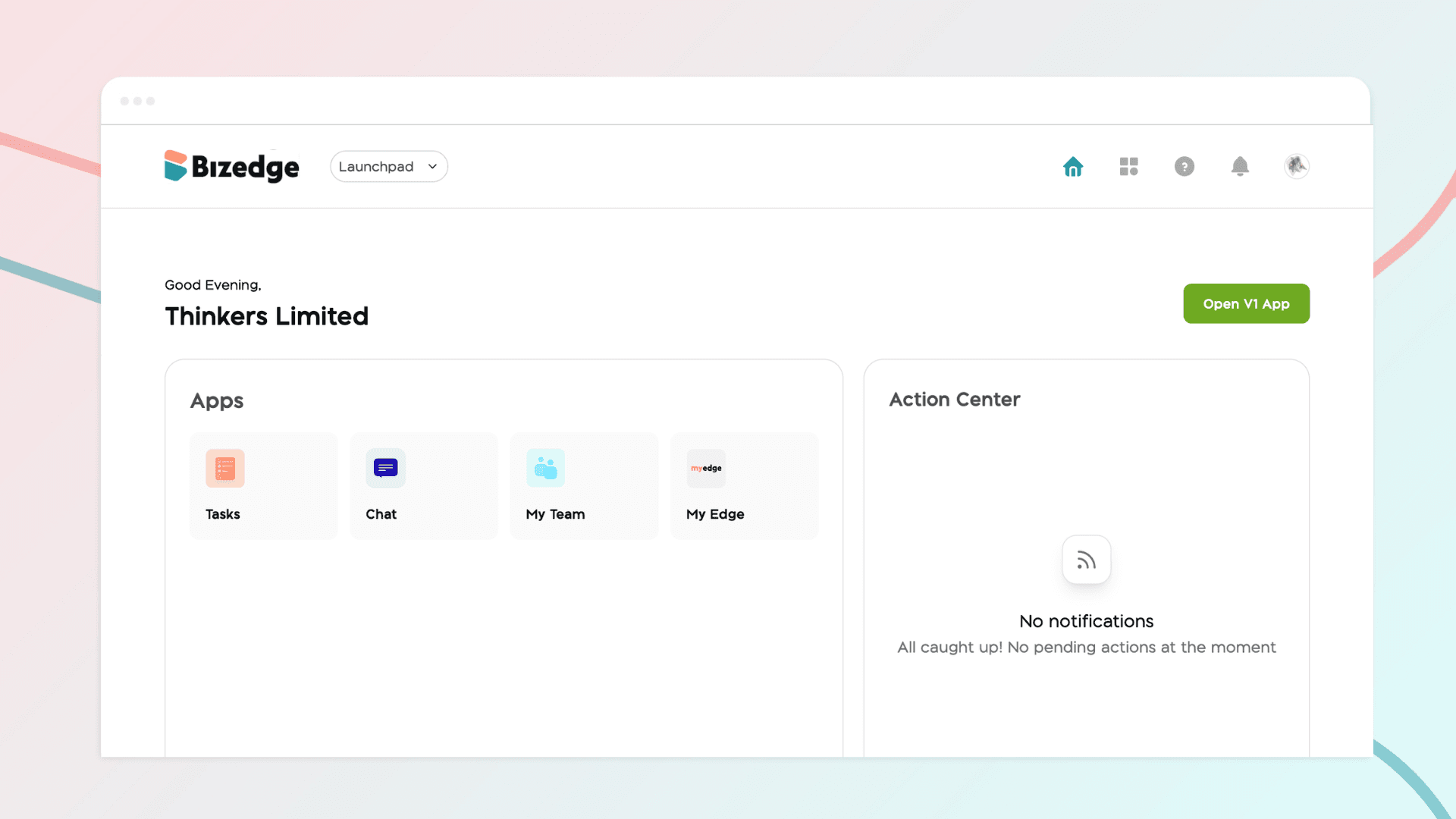
How to Use the MyTeam App
The MyTeam App on BizEdge helps line managers effectively oversee their teams. It provides visibility into team attendance, leave requests, time off schedules, and appraisal, making team supervision and approvals easier and more organized.
Apr 14, 2026 · 1 min read
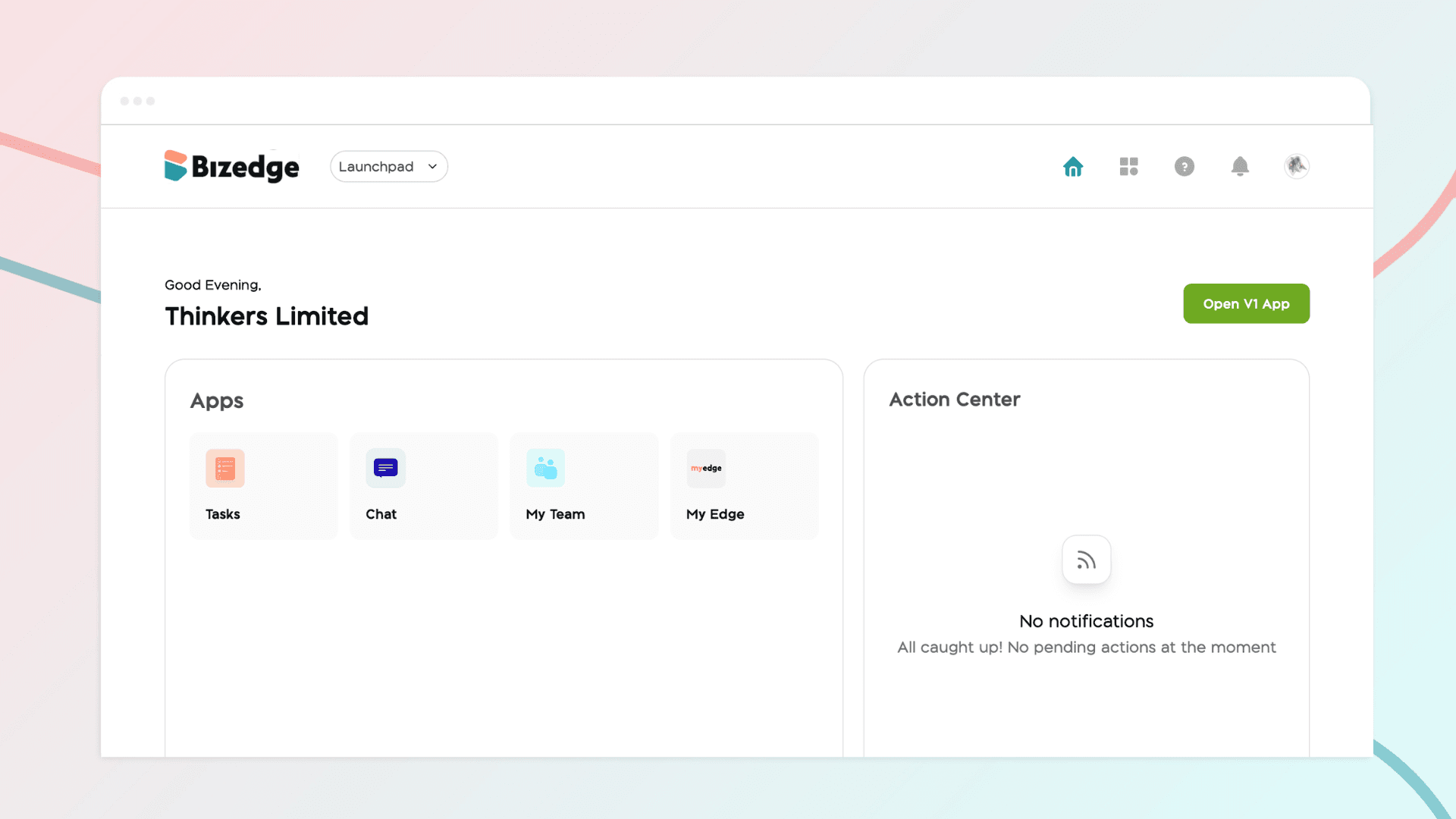
How to Grant Line Managers Access to the MyTeam App
The MyTeam App on BizEdge helps line managers effectively oversee their teams. It provides visibility into team attendance, leave requests, time off schedules, and appraisal, making team supervision and approvals easier and more organized.
Apr 14, 2026 · 1 min read
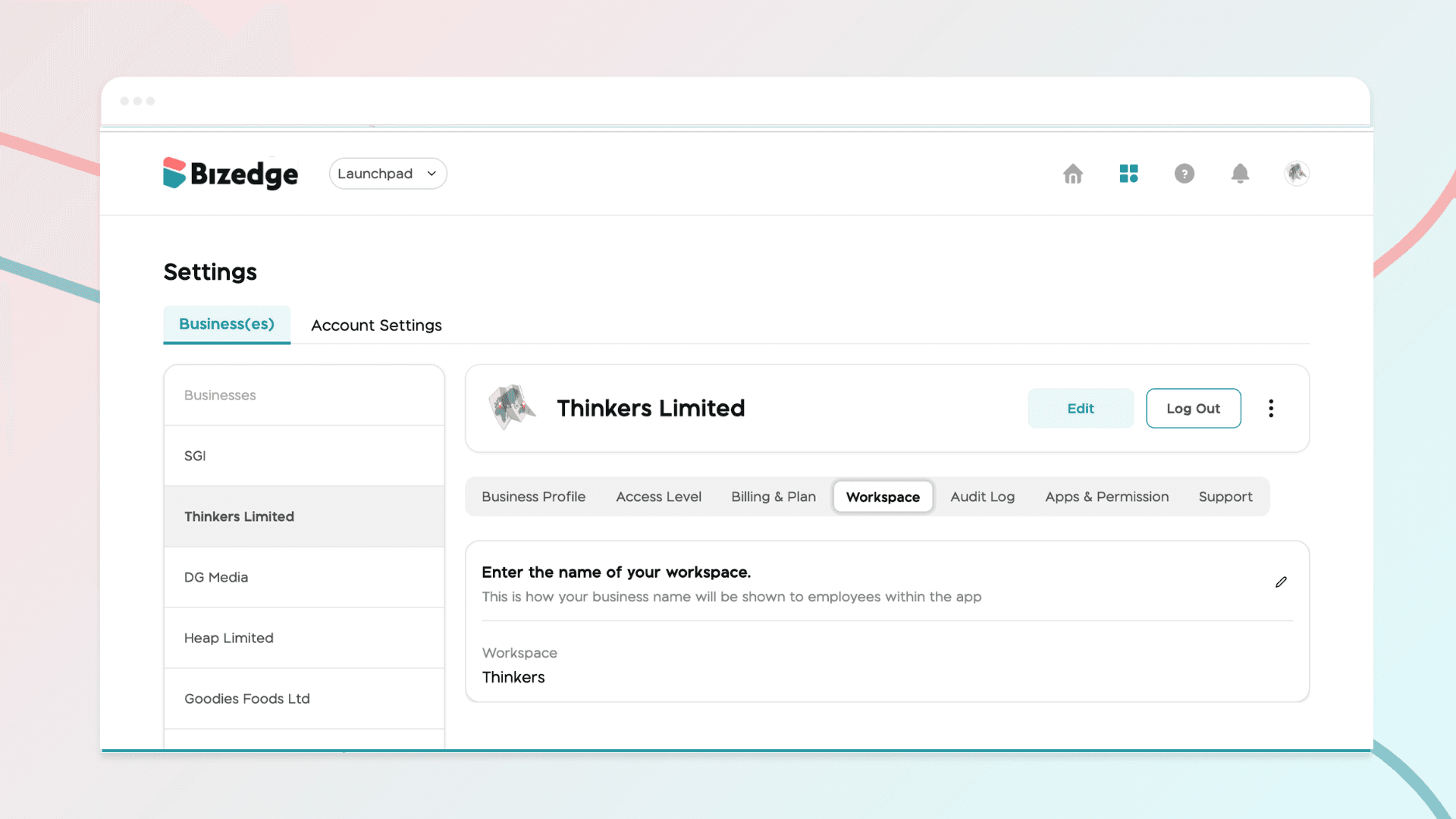
How to Set Up Your Workspace Name on BizEdge
Your Workspace Name is how your business appears to employees across the BizEdge platform. Setting it up correctly ensures that your organization is easily recognizable to your team from the moment they log in. Follow these simple steps to update it:
Apr 14, 2026 · 1 min read