
How to Add Goals and Review Employee Appraisal as a Line Manager on the BizEdge App
Chinaza Okafor · Jun 24, 2024 · 1 min read
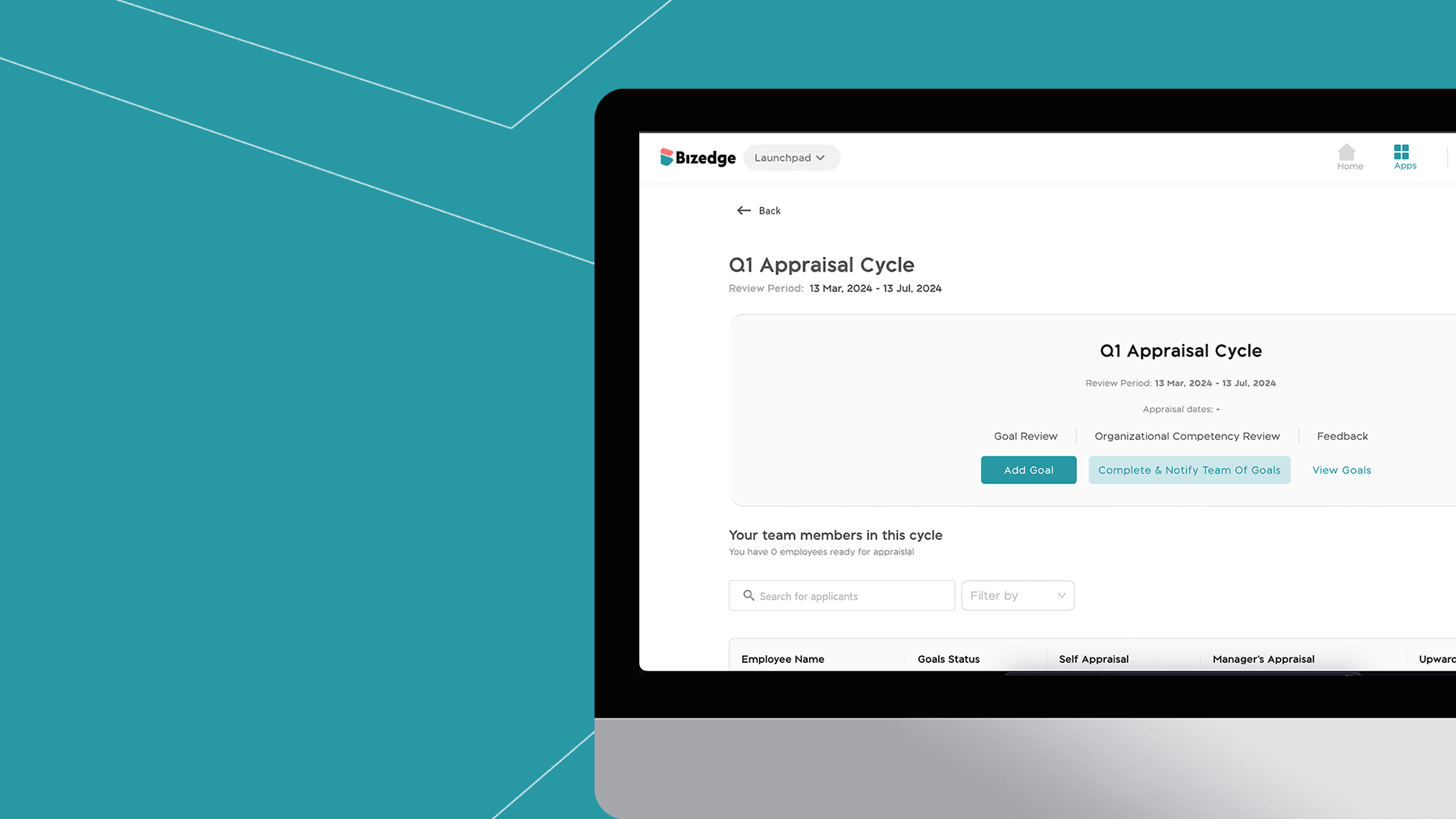
The BizEdge Performance app allows companies to optimize their performance processes and improve efficiency and productivity in the workplace.
To set up a successful appraisal cycle, line managers need to set up appraisal on the MyTeam app for their employees. Here is how to do this:
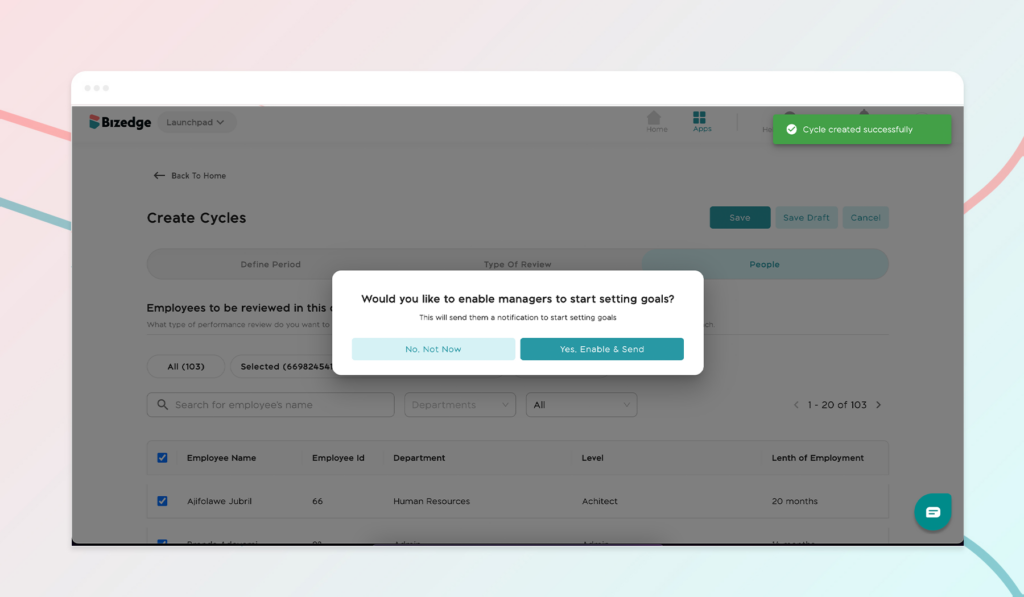
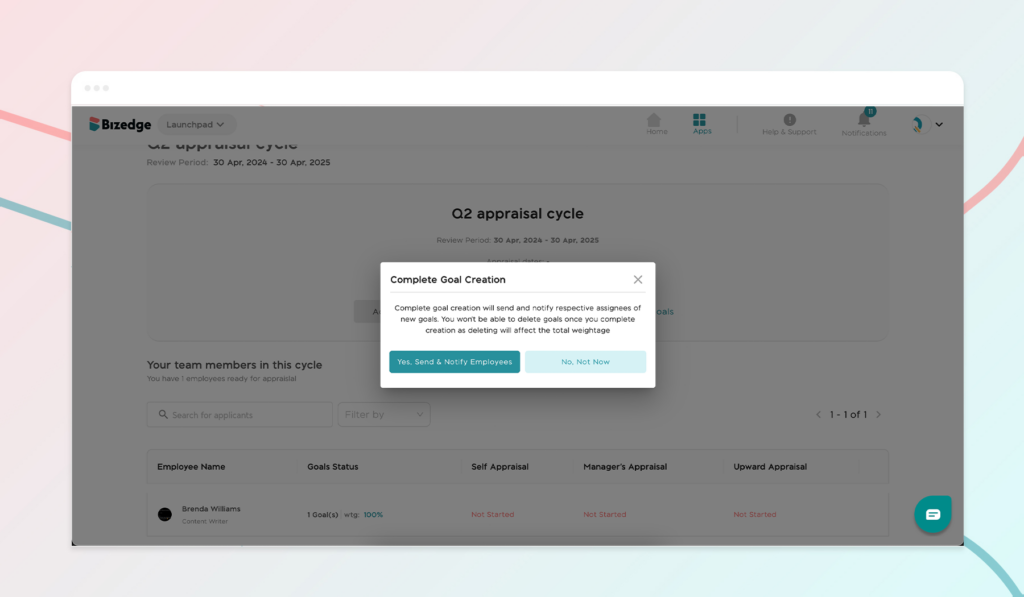
Step 1: As an HR, after clicking the save button in creating the appraisal cycle, you will get a pop up to enable managers to start setting goals. This will send managers or line managers a notification to start setting goals for the selected employees on MyTeam App. Click on the ‘Yes, enable & send’ button.
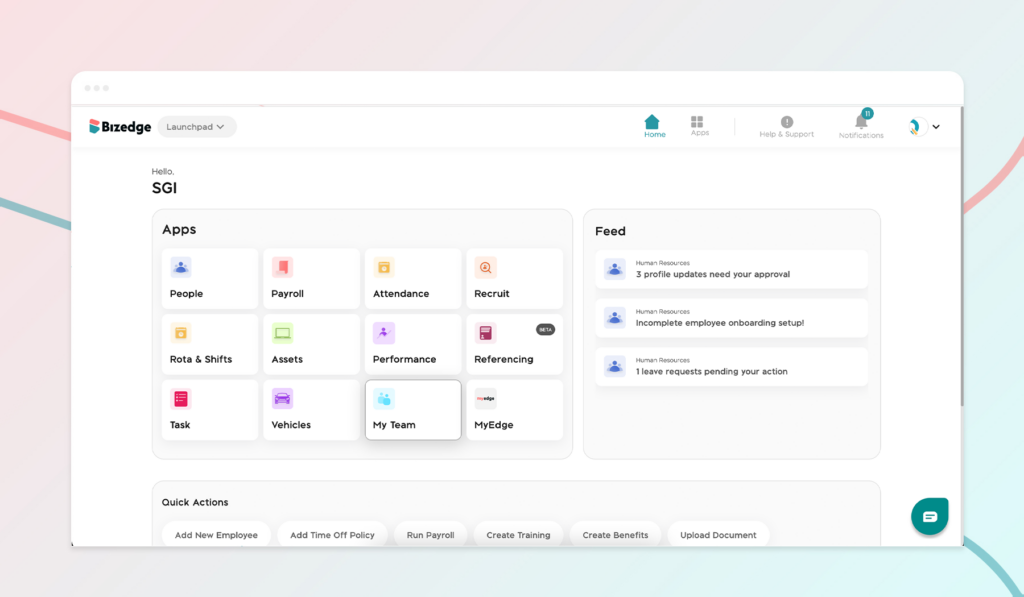
Step 2: As a line manager, sign in to Bizedge app then go to MyTeam app (you should have been granted user access to MyTeam as a line manager from the admin).
Step 3: Go to the performance review section, and click open to add goals. Fill the competency title, weightage percentage, description, select the assignees and select from the option your preferred grading method. Then click create. You can add as many goals as you want.
Step 4: Once you are done with adding your team goals, click on the ‘Complete and Notify Team of Goals’ button to notify your team members about their goals.
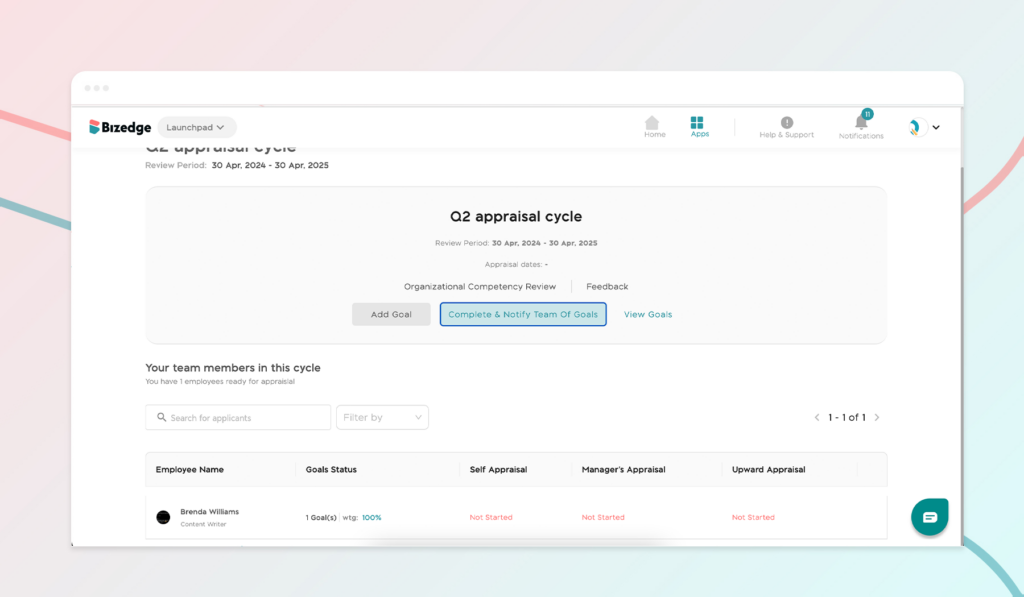
Would you rather watch a step-by-step video guide? click on the play button below:
Chinaza Okafor
Author
Comments
Leave a comment
Related posts
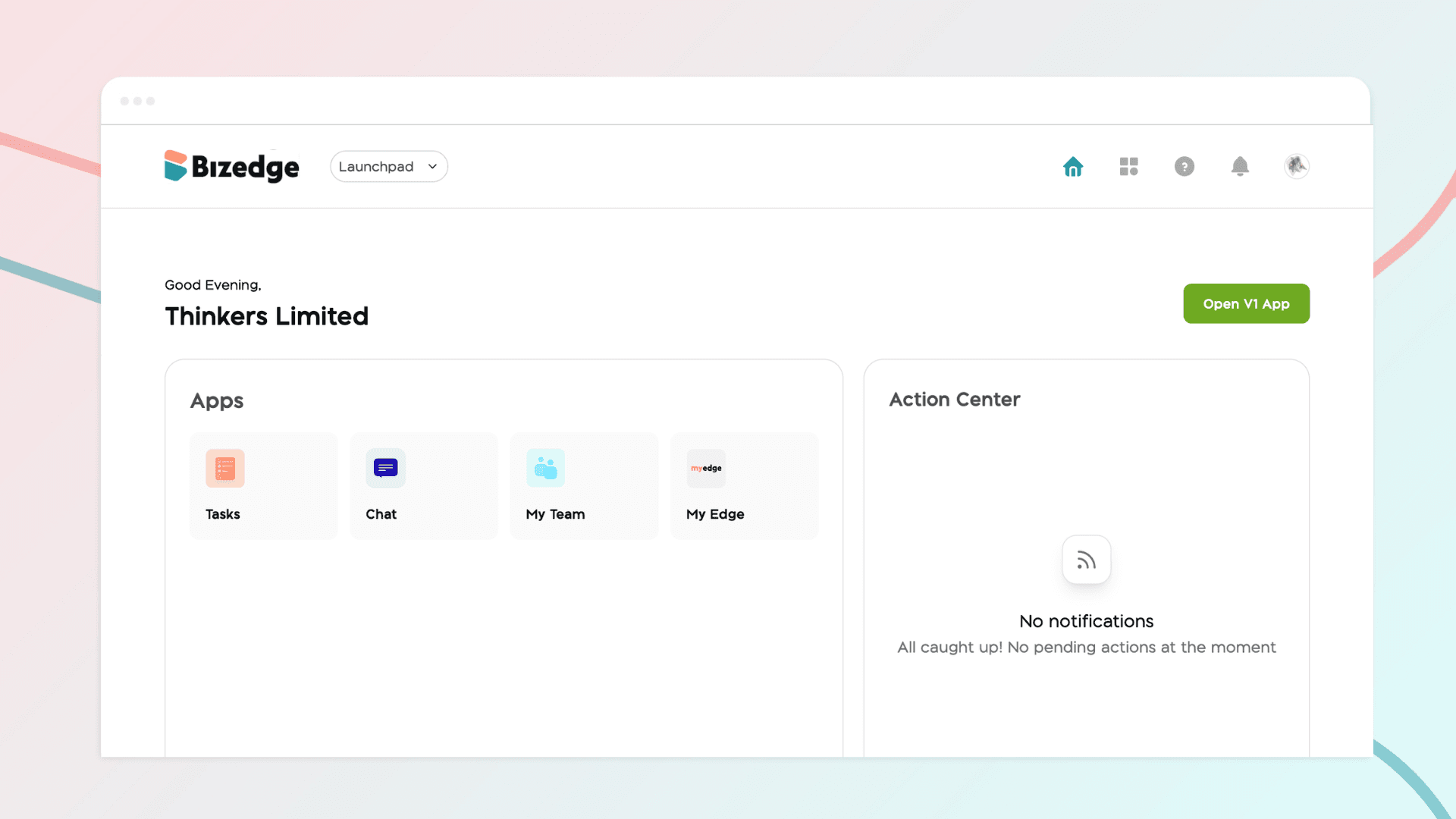
How to Use the MyTeam App
The MyTeam App on BizEdge helps line managers effectively oversee their teams. It provides visibility into team attendance, leave requests, time off schedules, and appraisal, making team supervision and approvals easier and more organized.
Apr 14, 2026 · 1 min read
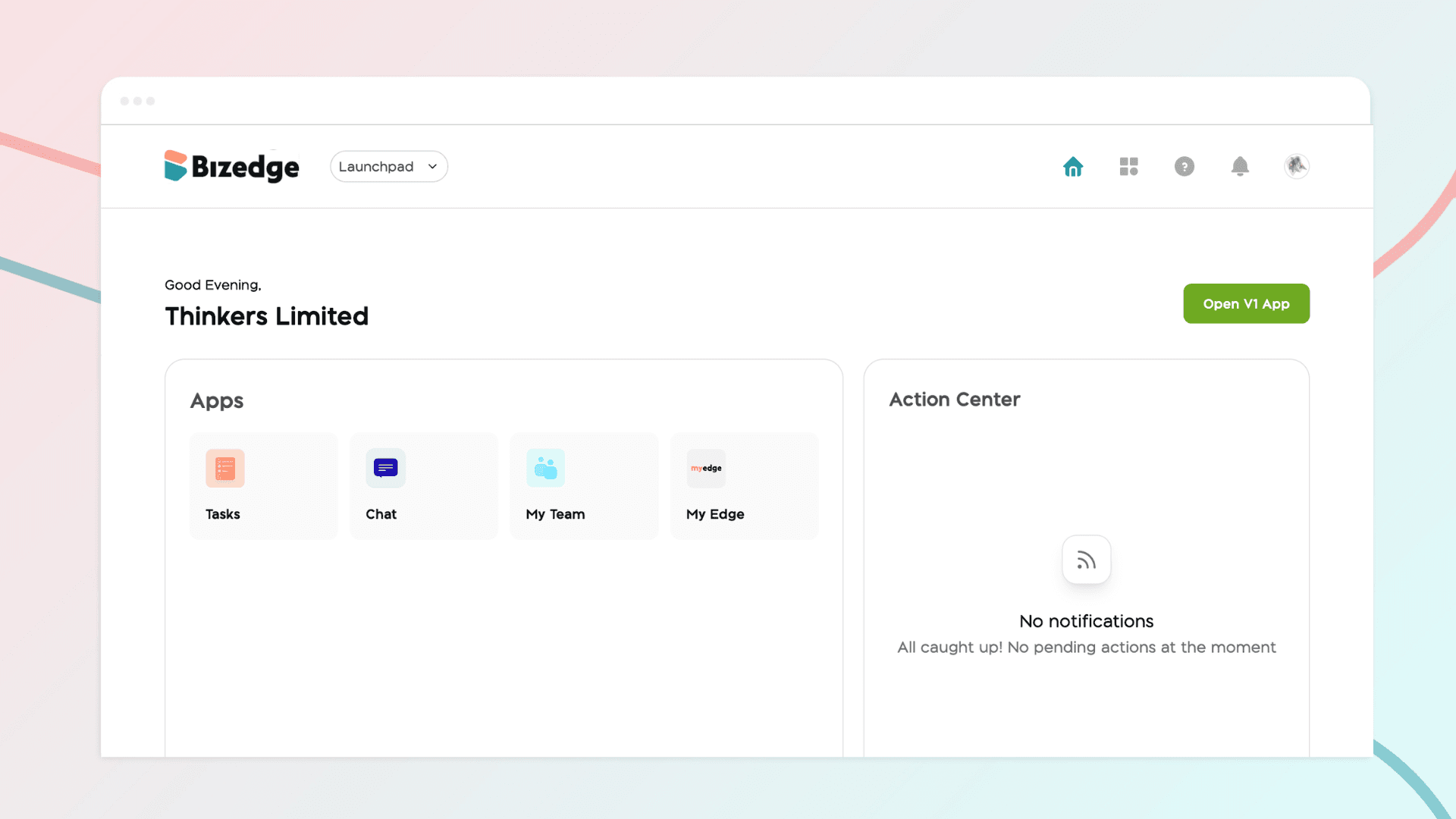
How to Grant Line Managers Access to the MyTeam App
The MyTeam App on BizEdge helps line managers effectively oversee their teams. It provides visibility into team attendance, leave requests, time off schedules, and appraisal, making team supervision and approvals easier and more organized.
Apr 14, 2026 · 1 min read
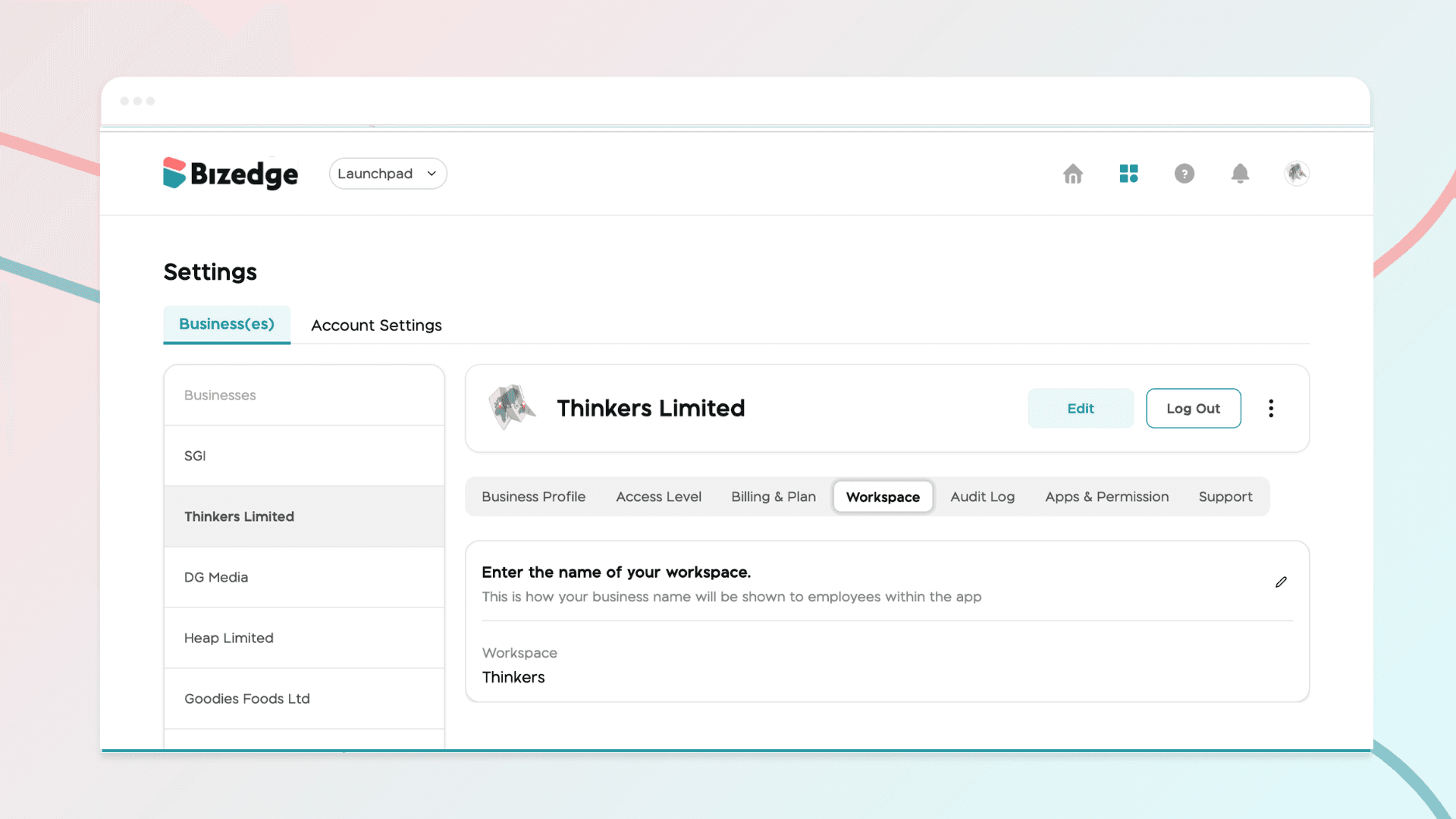
How to Set Up Your Workspace Name on BizEdge
Your Workspace Name is how your business appears to employees across the BizEdge platform. Setting it up correctly ensures that your organization is easily recognizable to your team from the moment they log in. Follow these simple steps to update it:
Apr 14, 2026 · 1 min read