
How to set up Payroll Access Levels
Chinaza Okafor · Apr 10, 2026 · 1 min read
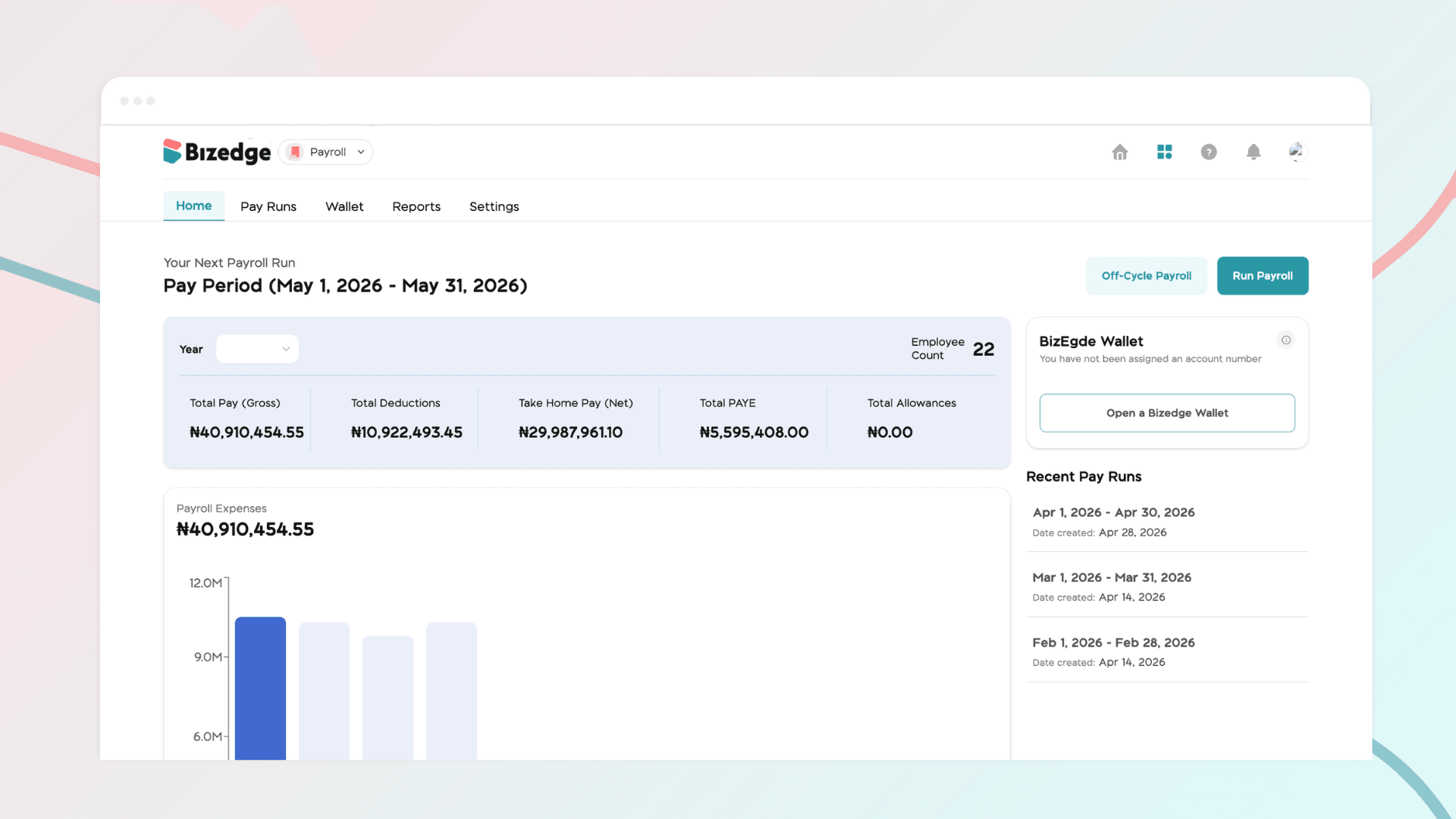
Payroll access levels determine who can view, initiate, review, and approve payroll within your organization. Properly configuring these levels ensures accountability and helps prevent errors throughout the payroll process.
Step 1: Go to Settings
From the BizEdge dashboard, navigate to the Settings section. This is where you manage user access, permissions, and system preferences across your organization.
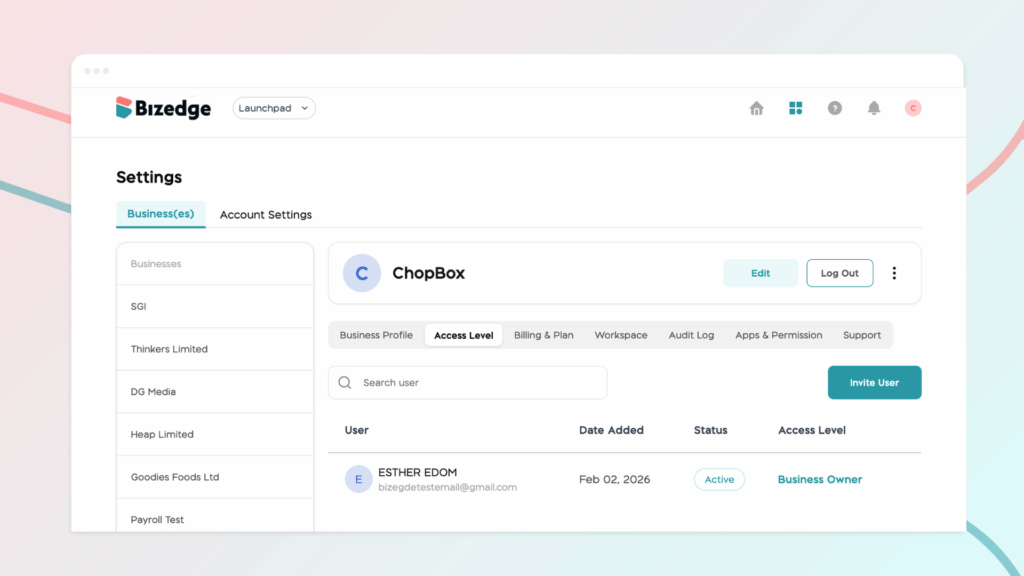
Step 3: Click on "Invite User"
Select the Invite Access option to send a secure invitation to the employee. Inviting them through the system ensures that their login credentials are correctly linked to the appropriate access level from the start.
Step 4: Select the Appropriate Approval Level
BizEdge offers three payroll approval levels to accommodate different organizational structures. The Single-Level Approver assigns one employee to handle the entire payroll process from start to finish, making it ideal for smaller teams. The Two-Level Approver introduces an Initiator, who prepares the payroll, and an Approver, who reviews and authorizes payments. The Three-Level Approver adds a Reviewer to the process, sitting between the Initiator and Approver, providing an extra layer of oversight suited to larger organizations. Select the level that best fits your company's payroll workflow.
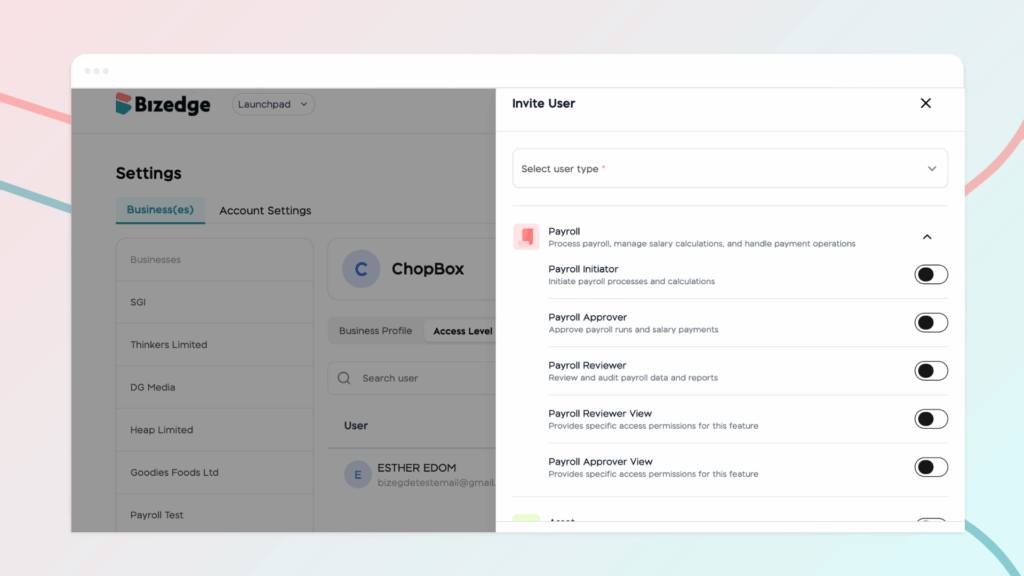
Step 5: Send the Invite Link
Once the appropriate access level has been selected, send the invitation. The employee will receive an email containing a link to set up their BizEdge Payroll account and activate their assigned permissions.
Step 6: Employee Login
After accepting the invitation, the employee can log in using their MyEdge credentials. They will immediately have access to the payroll options and tasks permitted under their assigned access level.
Comments
Leave a comment
Related posts
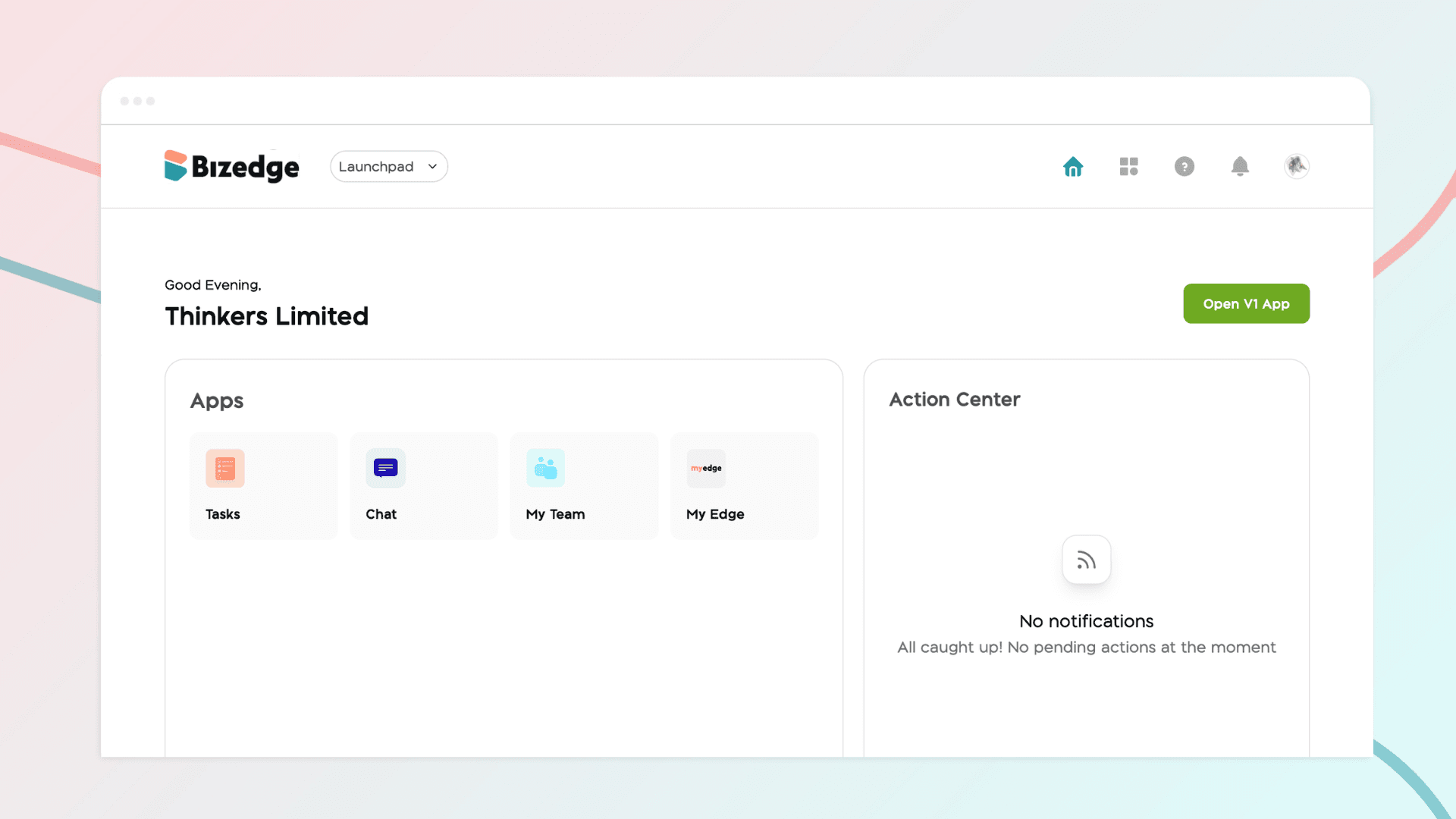
How to Use the MyTeam App
The MyTeam App on BizEdge helps line managers effectively oversee their teams. It provides visibility into team attendance, leave requests, time off schedules, and appraisal, making team supervision and approvals easier and more organized.
Apr 14, 2026 · 1 min read
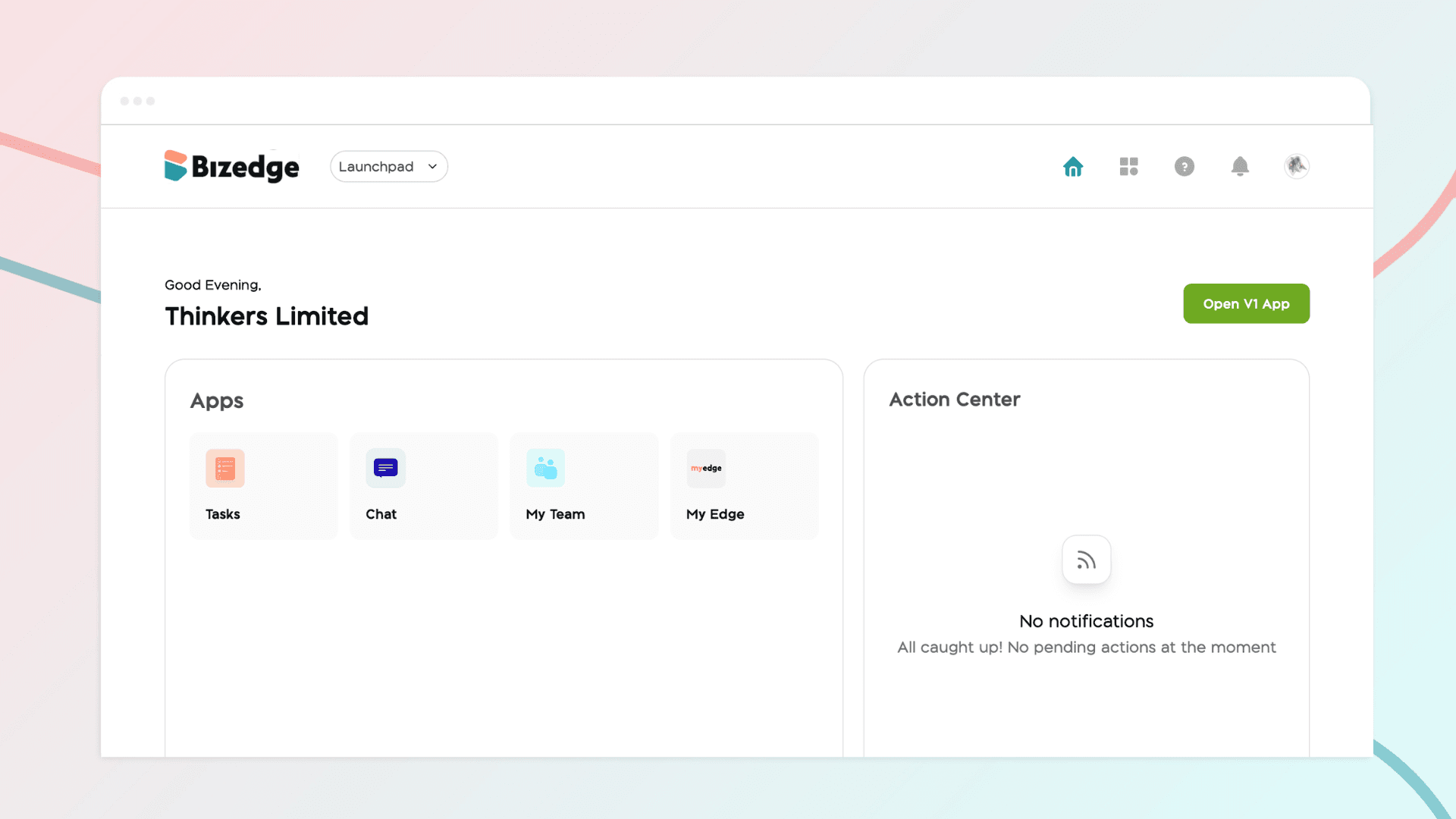
How to Grant Line Managers Access to the MyTeam App
The MyTeam App on BizEdge helps line managers effectively oversee their teams. It provides visibility into team attendance, leave requests, time off schedules, and appraisal, making team supervision and approvals easier and more organized.
Apr 14, 2026 · 1 min read
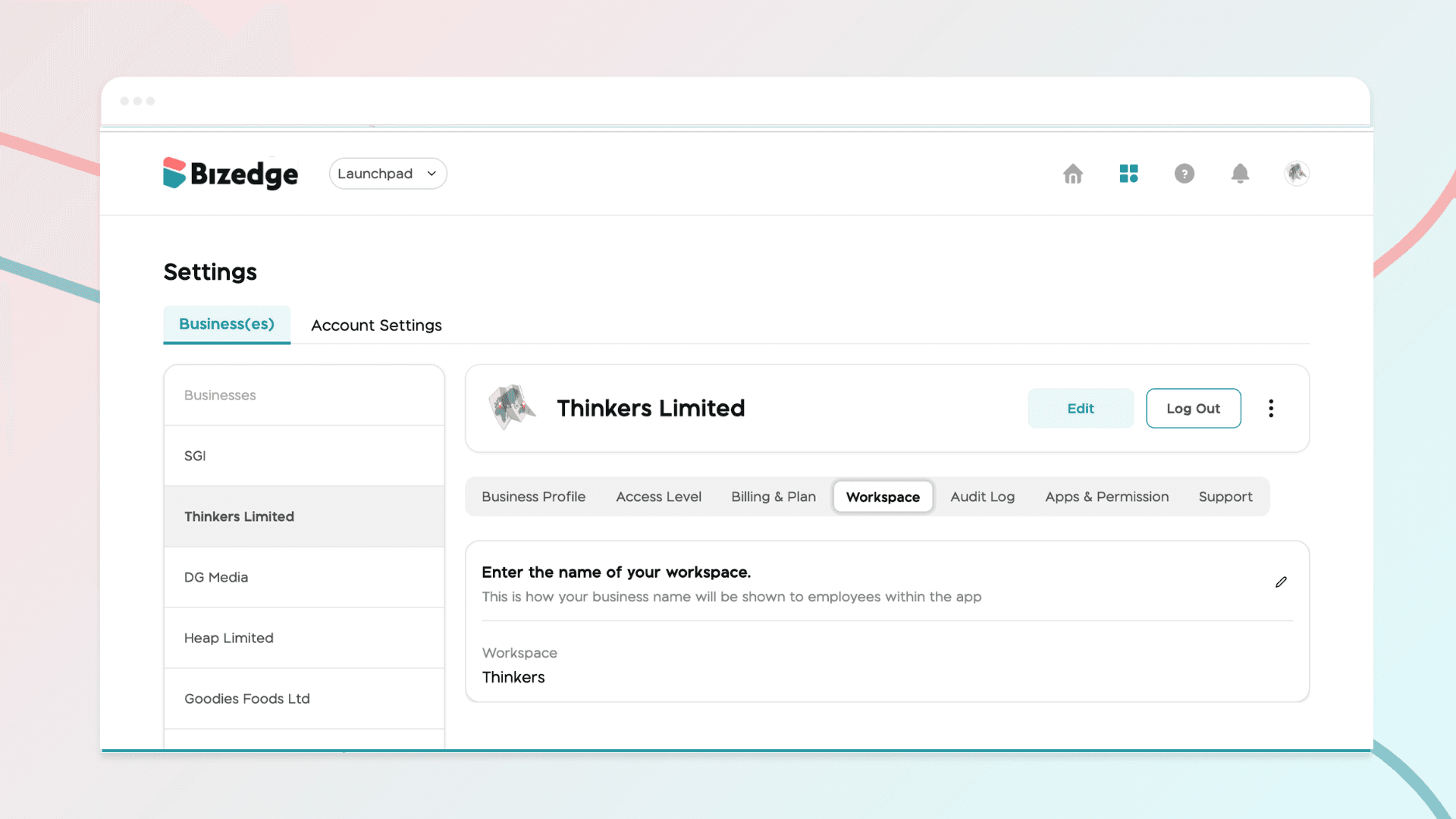
How to Set Up Your Workspace Name on BizEdge
Your Workspace Name is how your business appears to employees across the BizEdge platform. Setting it up correctly ensures that your organization is easily recognizable to your team from the moment they log in. Follow these simple steps to update it:
Apr 14, 2026 · 1 min read