
How to Add and Edit Employee Information on BizEdge
Chinaza Okafor · Dec 23, 2021 · 3 min read
On this page
How to Add Employees
There are two methods to add employees in the Bizedge People module. You can add an employee from the ‘Add Employee’ button on the People module (this allows you to add only one employee at a time) or you can add an employee from the ‘Import file’ button on the People module (this allows you to add multiple employees at a time).
Method 1 (Adding an Employee from the ‘Add Employee’ button on the People Module):
Step 1: From the BizEdge home page, click on the 'Add new button' and select ‘Add People’ from the drop-down list or click on the ‘People’ button located at the top of your screen then click on the ‘Add Employee’button by the right.
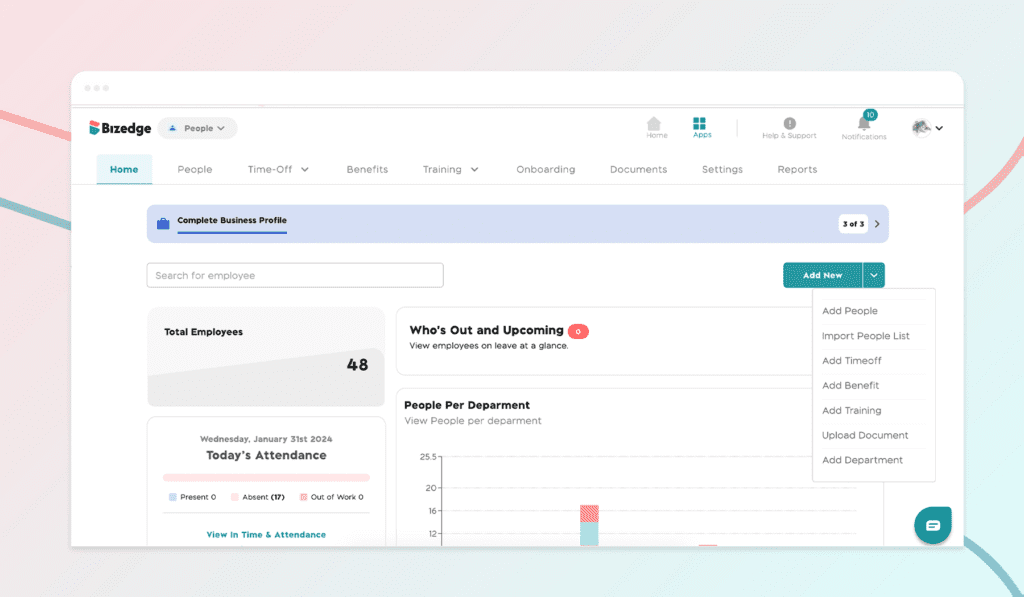
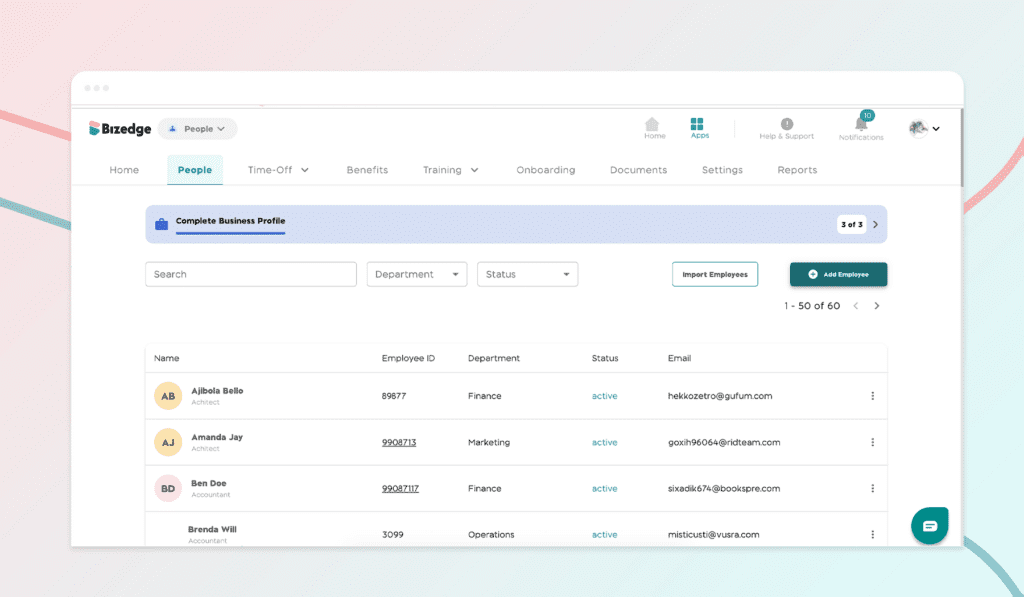
People dashboard in the People module - bizedgeapp
Step 2: Input all the basic information then add the employment & compensation information then add the contact, next of kin, emergency contact, banking & pension details but these are optional as the employee can fill this information on MyEdge; our employee self-service app.
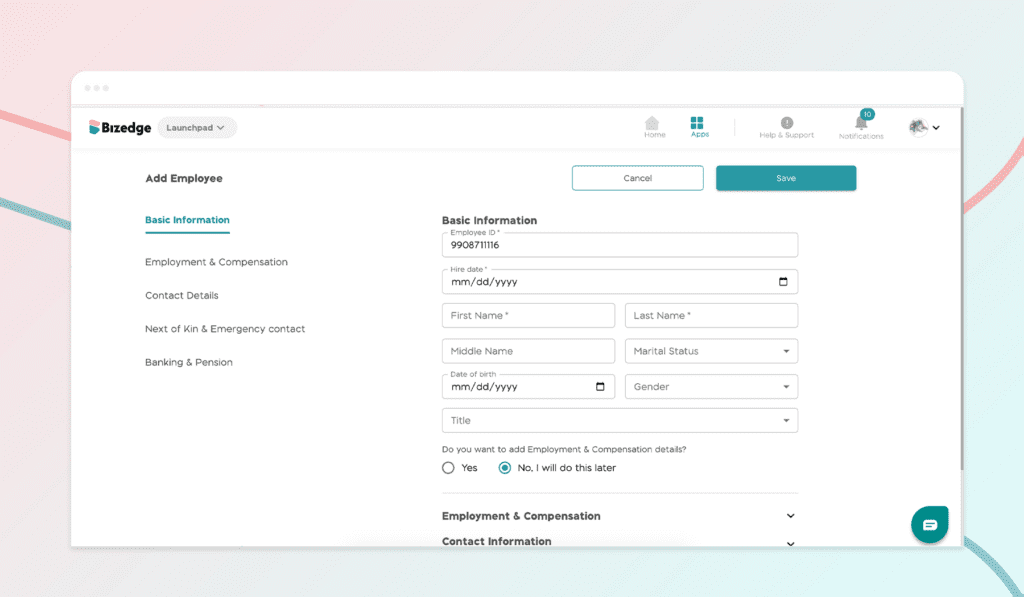
Step 3: Click on save. You have successfully added an employee.
Method 2 (Adding an employee from the ‘Import file’ button on the People module (this allows you to add multiple employees at a time:
Step 1: From the BizEdge home page, click on the add new button and select ‘Import People List’ from the drop-down list or click on the ‘People’ button located at the top of your screen then click on the ‘Import Employee’ button by the right.
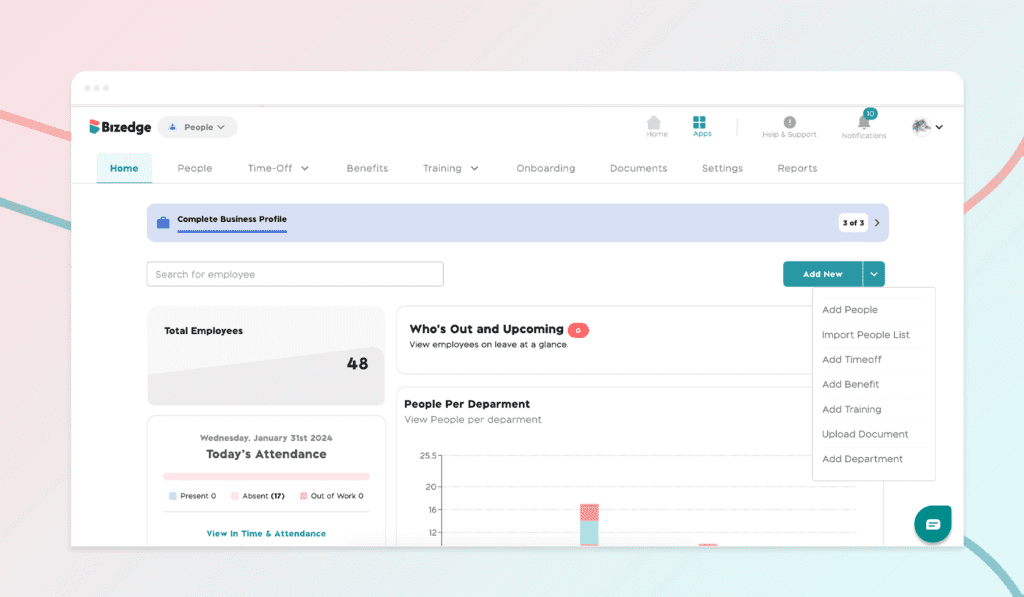
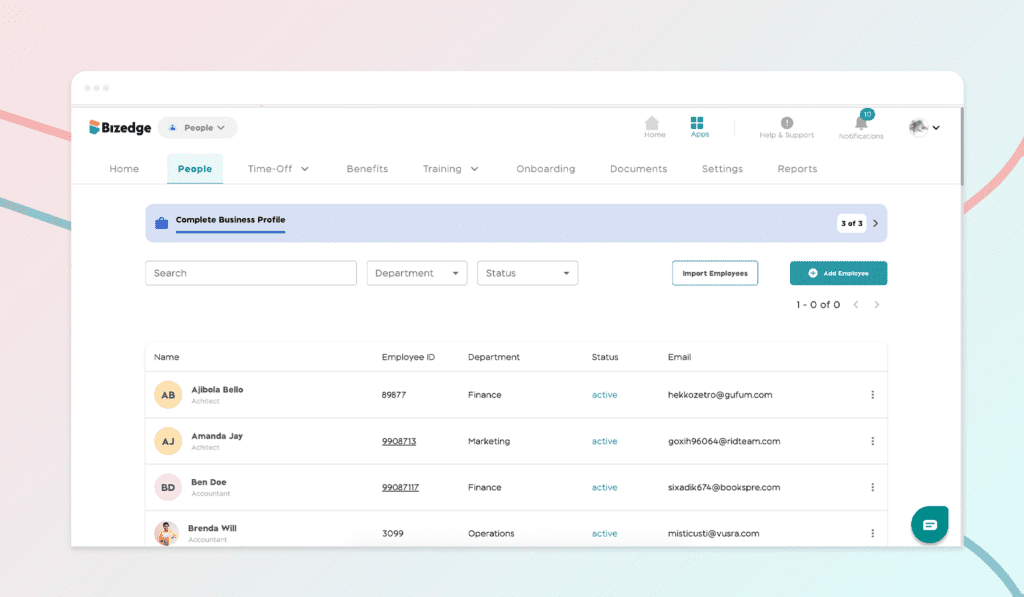
People dashboard in the People module - bizedgeapp
Step 2: An ‘Import Employee List’ box pops up. This section allows you to choose a file from your computer or laptop, or you can drag and drop a file into the ‘Import Employee List’ box. Note: The maximum size file and type is 5MB (Excel format CSV). If you do not know what a CSV file means, you can download the sample file.
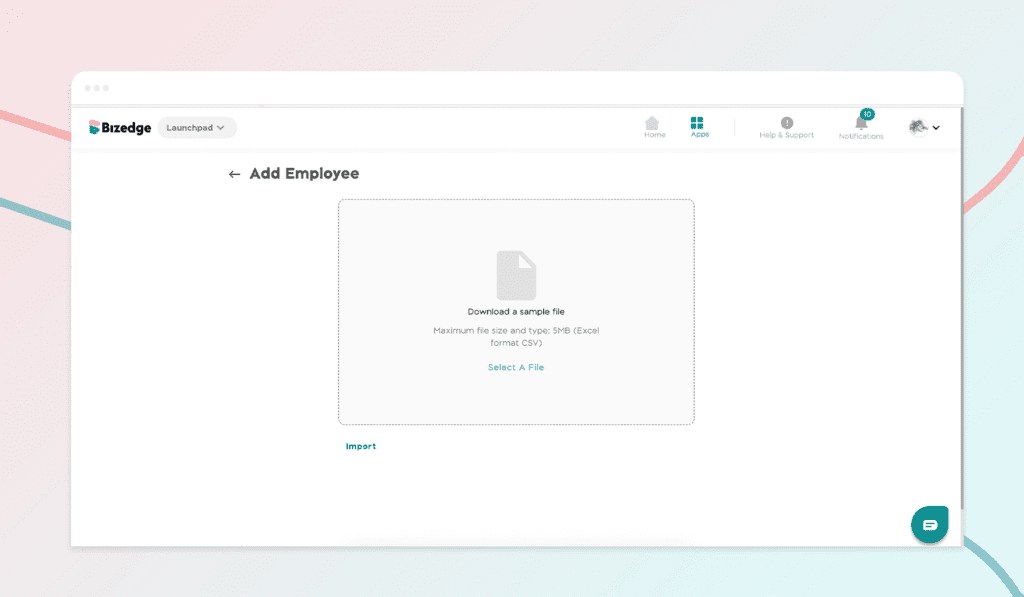
Import employees in the People module - bizedgeapp
Step 3: After uploading the file, click on Import. You have successfully imported your employees’ information.
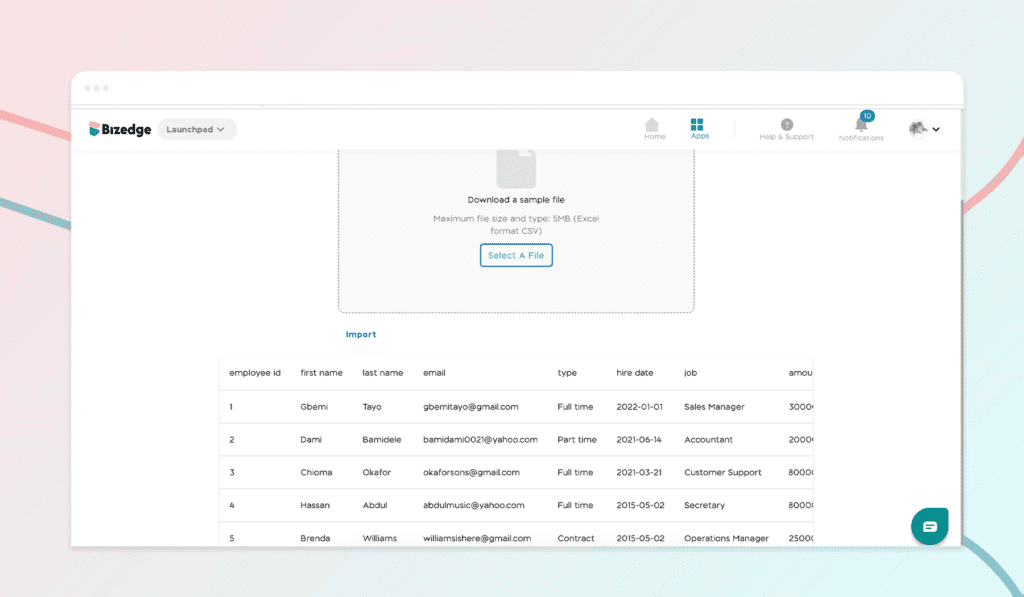
Import employees in the People module - bizedgeapp
Step 4: To invite each employee to MyEdge, click on the employee’s name and click on the grant access toggle button. Wait for an employee to accept the invite and update their information.
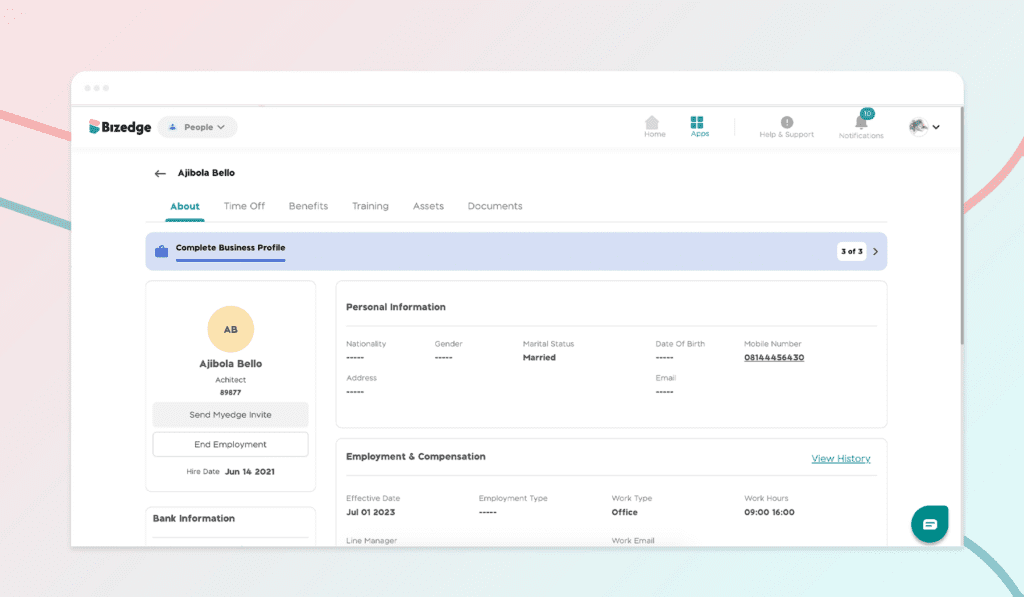
MyEdge invite in the People module - bizedgeapp
Update/Edit Employee Information
Step 1: To edit employee details, from the employee’s profile, click on the pencil edit icon beside ‘View History’ to add the edited information.
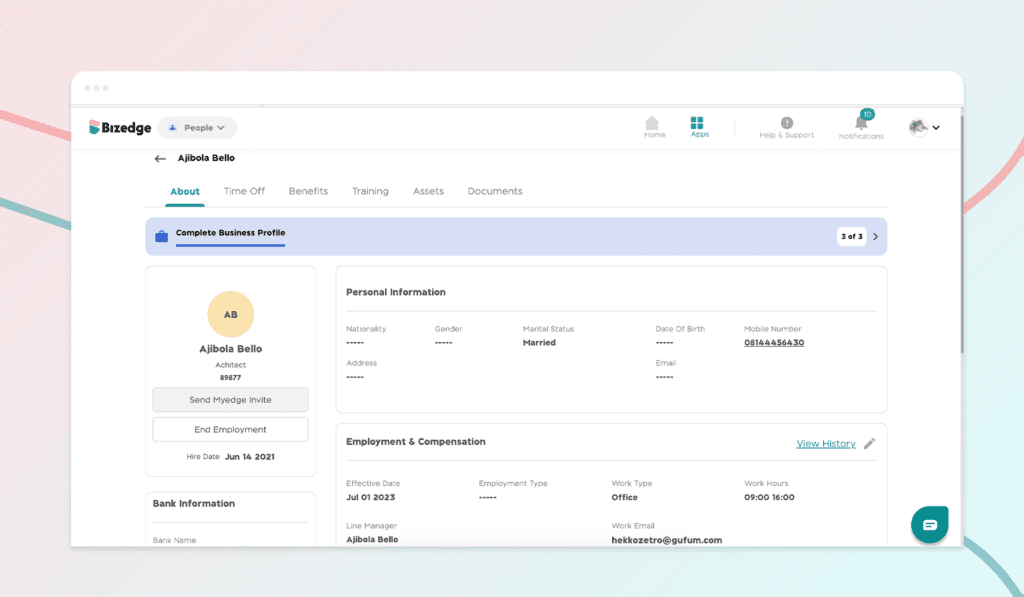
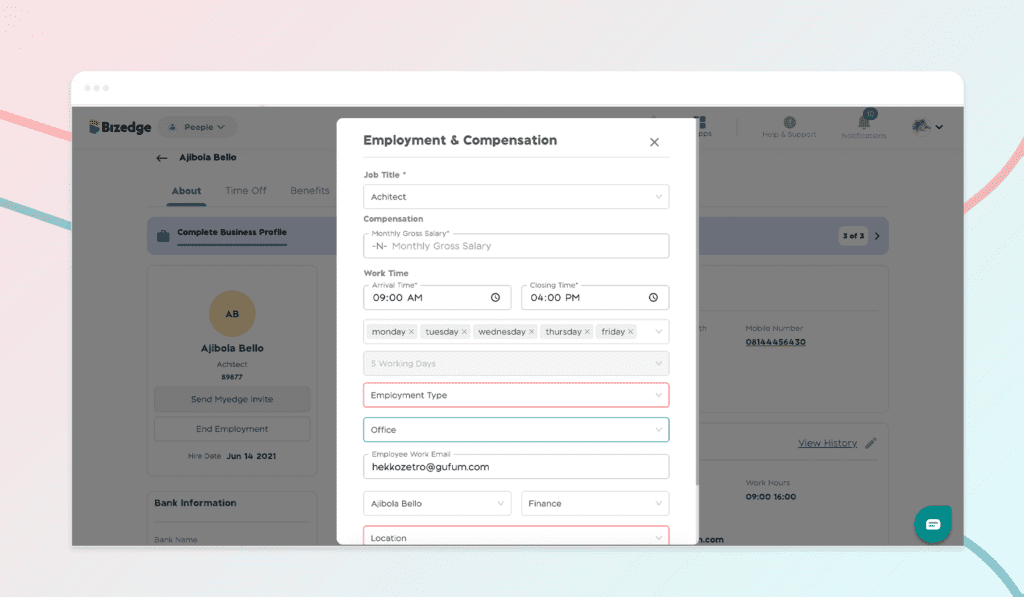
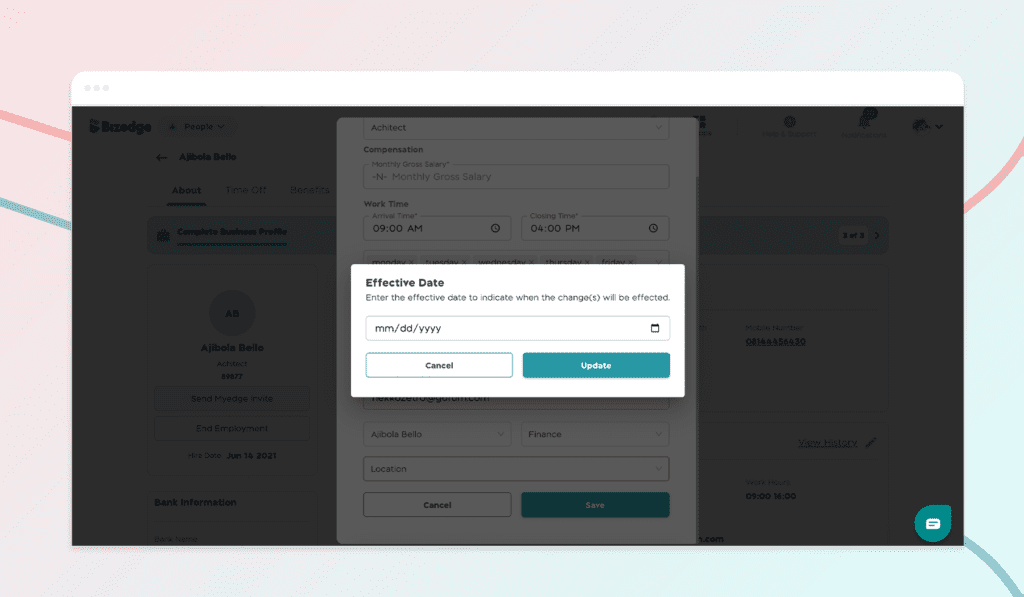
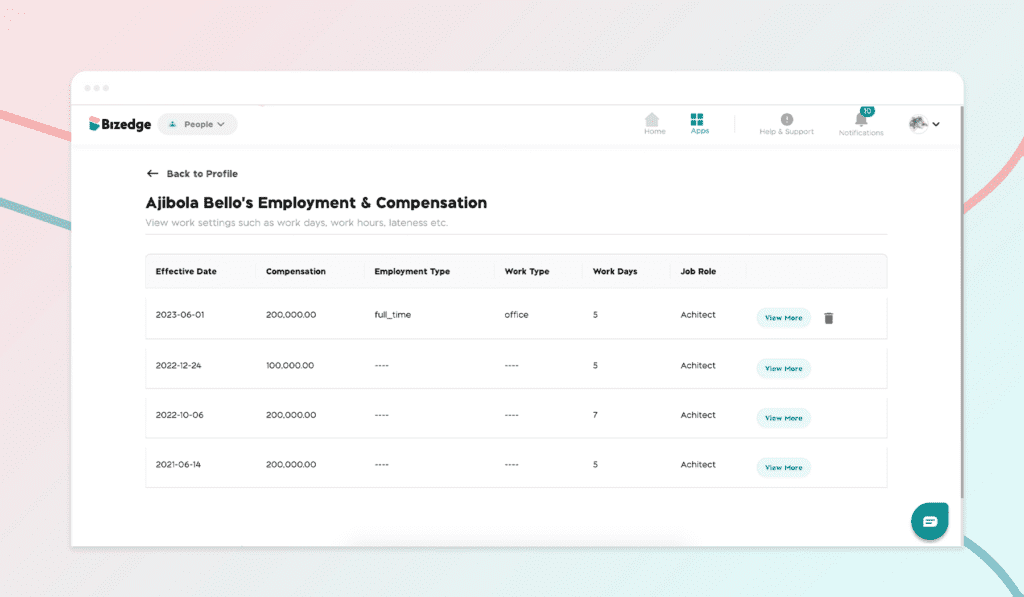
Edit employee's profile in the People module - bizedgeapp
Note: If you encounter an error in this process about an active payroll, this means you are runnng a payroll process. Kindly go to the Payroll app to cancel the active payroll.
Also, in instances where you are correcting an error in the employee’s profile and not updating the employee's salary, it’s important to click on the view history page to delete the previous record to include the accurate record.
Do you prefer a video walkthrough? Click the video below to watch a step-by-step guide.
Comments
Leave a comment
Related posts
How to Use the MyTeam App
The MyTeam App on BizEdge helps line managers effectively oversee their teams. It provides visibility into team attendance, leave requests, time off schedules, and appraisal, making team supervision and approvals easier and more organized.
Apr 14, 2026 · 1 min read
How to Grant Line Managers Access to the MyTeam App
The MyTeam App on BizEdge helps line managers effectively oversee their teams. It provides visibility into team attendance, leave requests, time off schedules, and appraisal, making team supervision and approvals easier and more organized.
Apr 14, 2026 · 1 min read
How to Set Up Your Workspace Name on BizEdge
Your Workspace Name is how your business appears to employees across the BizEdge platform. Setting it up correctly ensures that your organization is easily recognizable to your team from the moment they log in. Follow these simple steps to update it:
Apr 14, 2026 · 1 min read