
How to Bulk Assign Work Details
Chinaza Okafor · Mar 31, 2026 · 1 min read
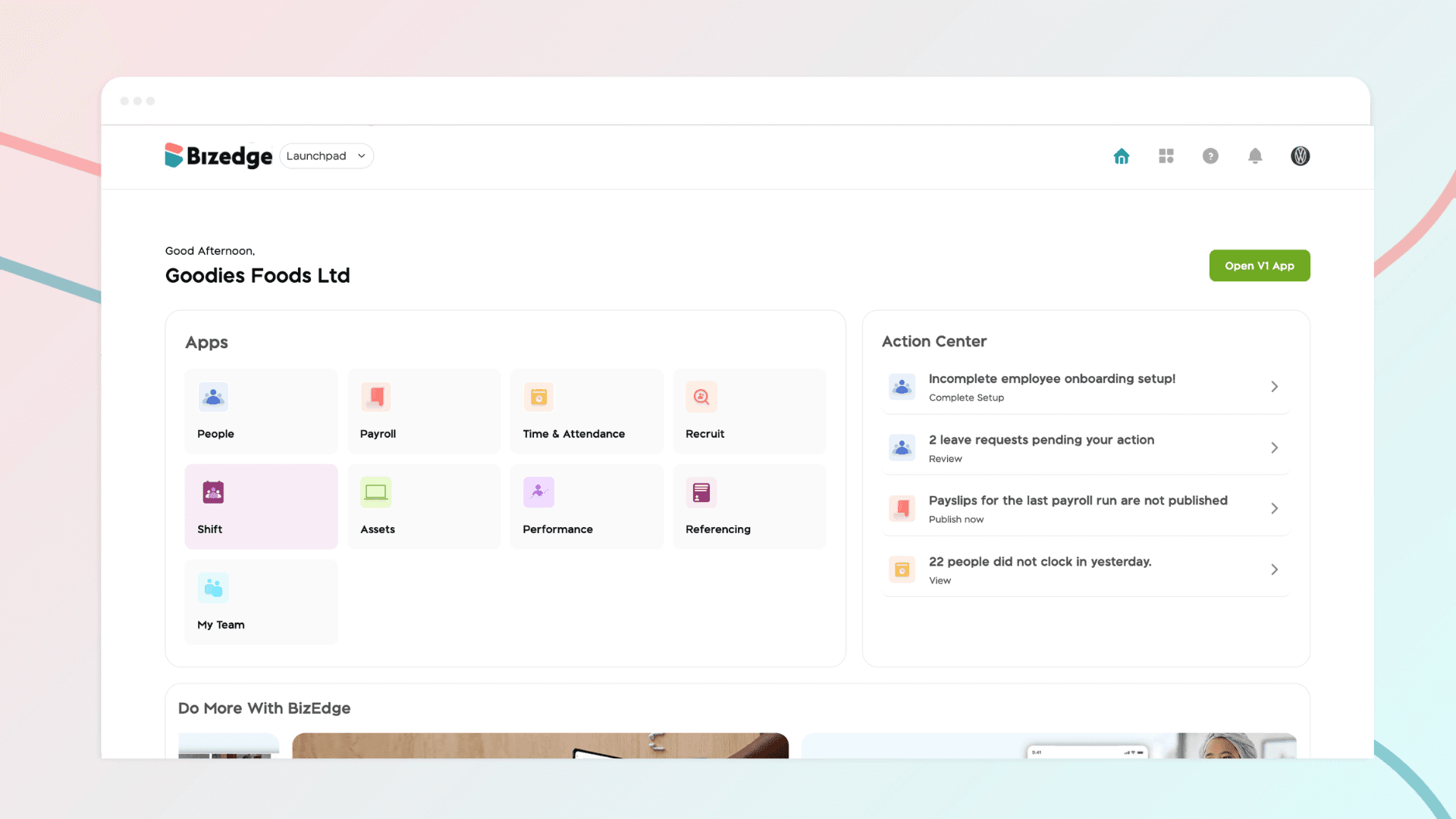
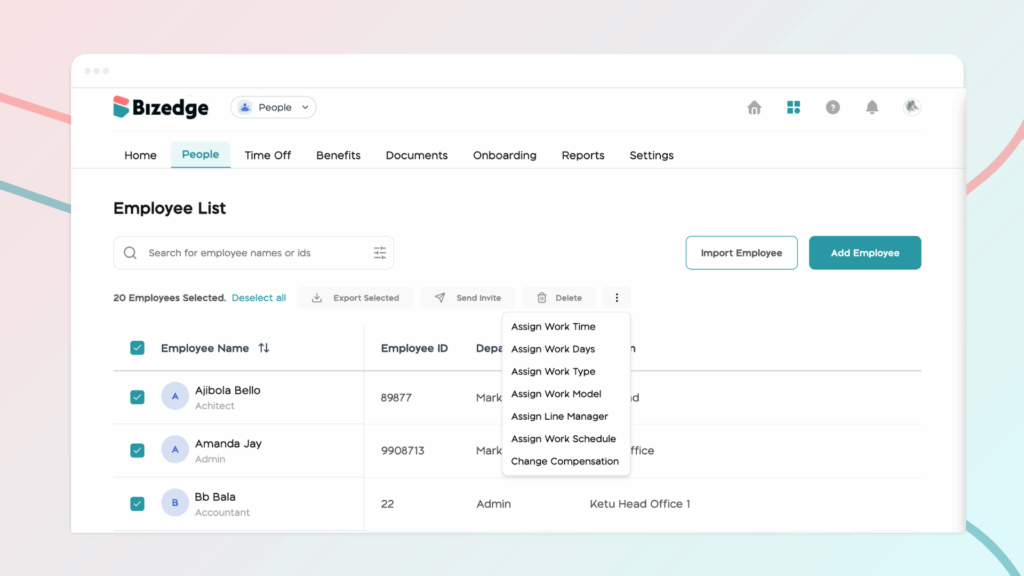
Step 1: To update work details or compensation for multiple employees at once, navigate to the People section within the People App on the BizEdge Dashboard. This feature allows you to apply the same updates to multiple employees at the same time, making the process faster and more efficient.
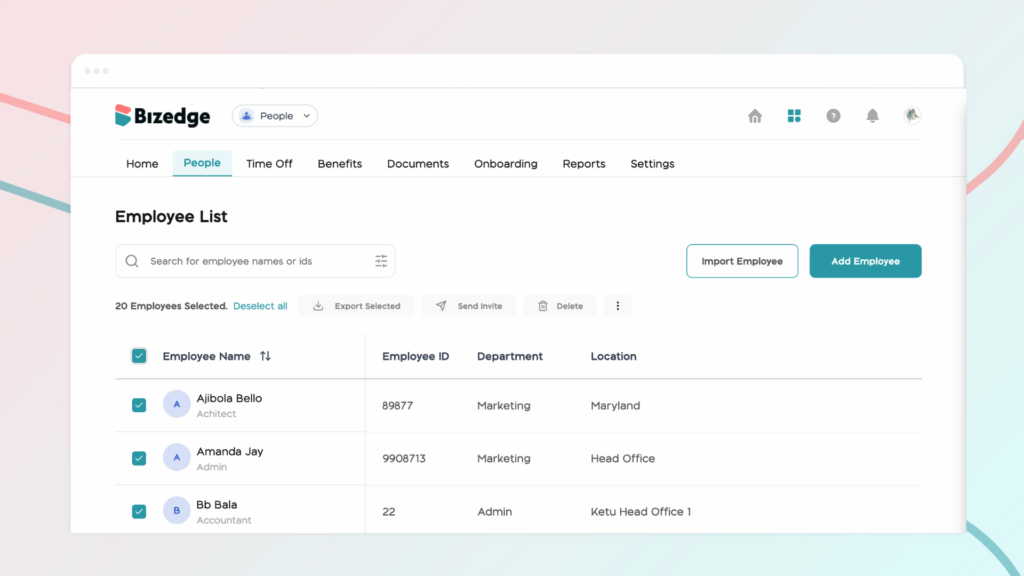
Step 2: Select the employees you wish to update by choosing them from the list provided. Once the employees have been selected, you can proceed to click on the ellipses button to assign or update specific work-related settings based on your organization’s requirements.
Comments
Leave a comment
Related posts
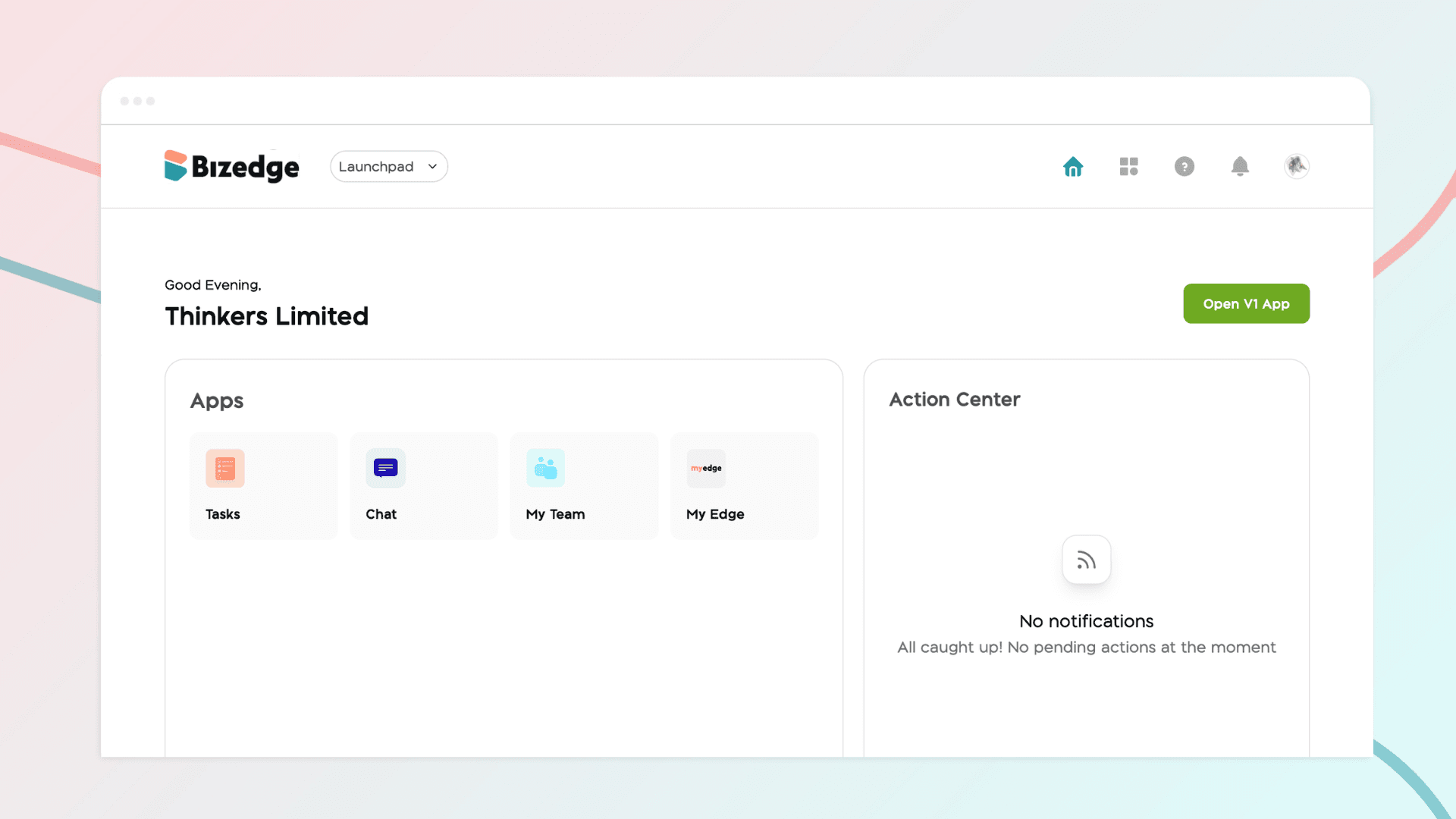
How to Use the MyTeam App
The MyTeam App on BizEdge helps line managers effectively oversee their teams. It provides visibility into team attendance, leave requests, time off schedules, and appraisal, making team supervision and approvals easier and more organized.
Apr 14, 2026 · 1 min read
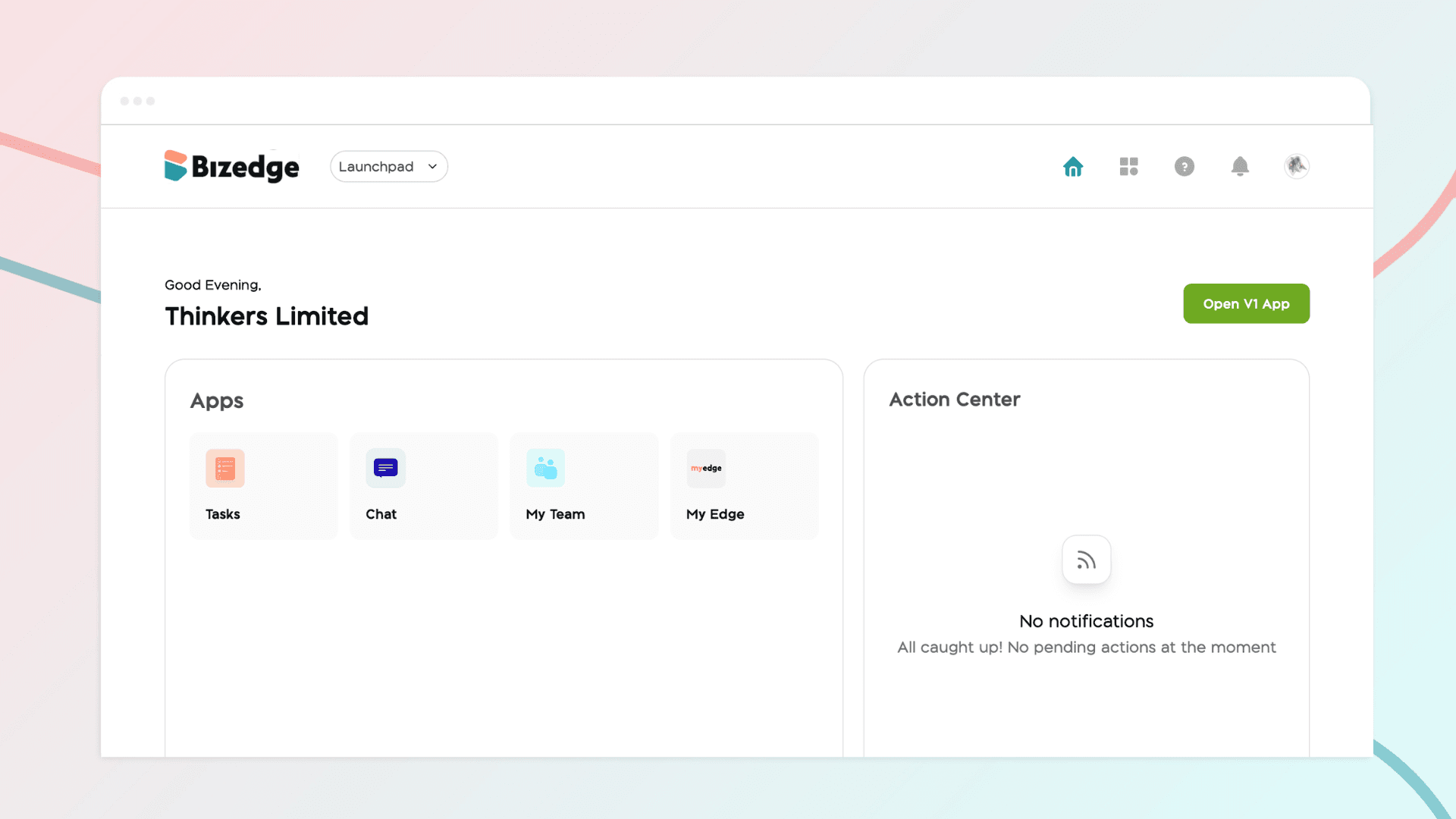
How to Grant Line Managers Access to the MyTeam App
The MyTeam App on BizEdge helps line managers effectively oversee their teams. It provides visibility into team attendance, leave requests, time off schedules, and appraisal, making team supervision and approvals easier and more organized.
Apr 14, 2026 · 1 min read
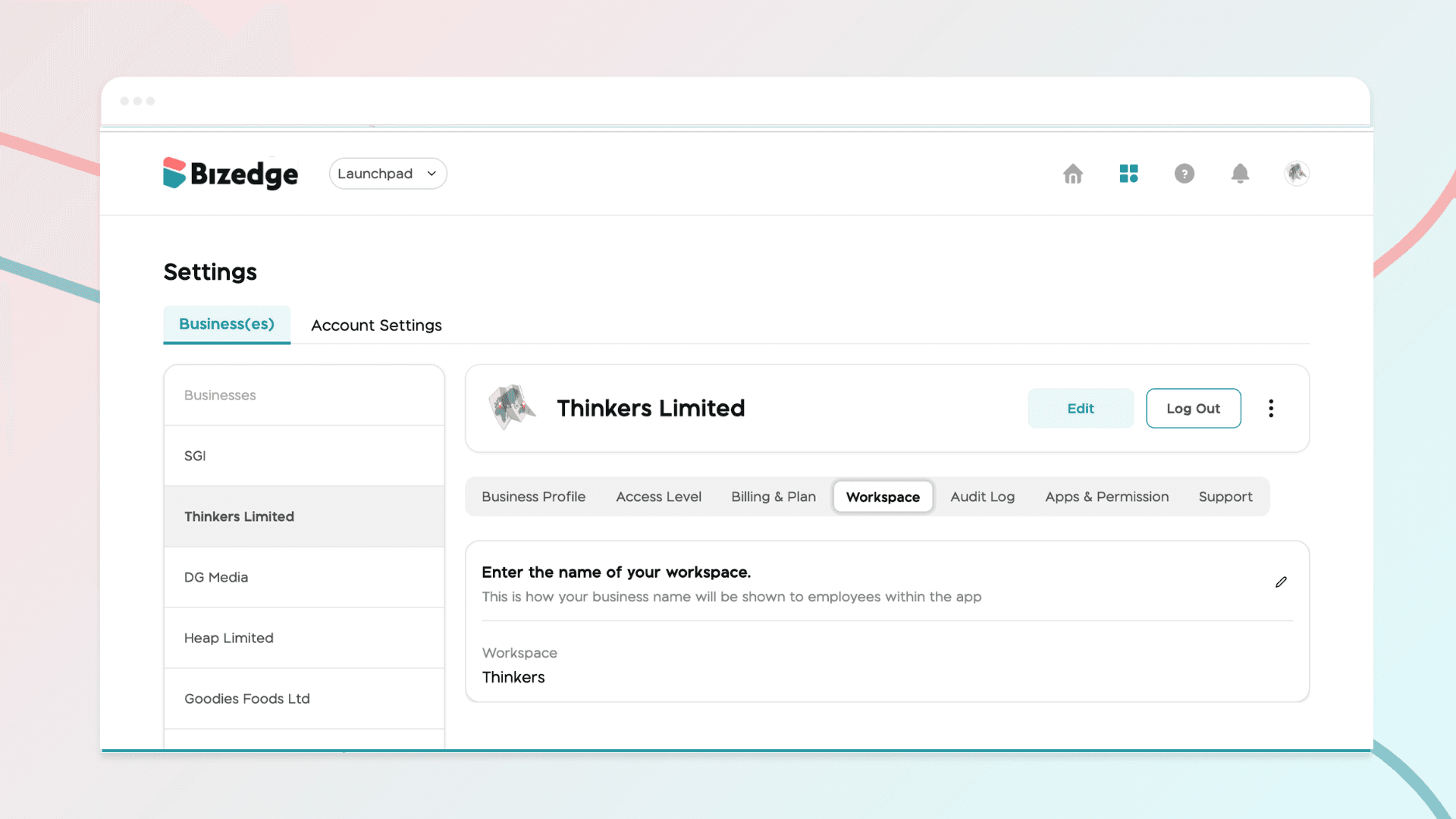
How to Set Up Your Workspace Name on BizEdge
Your Workspace Name is how your business appears to employees across the BizEdge platform. Setting it up correctly ensures that your organization is easily recognizable to your team from the moment they log in. Follow these simple steps to update it:
Apr 14, 2026 · 1 min read