
How to Create Shift
Chinaza Okafor · Apr 13, 2026 · 1 min read
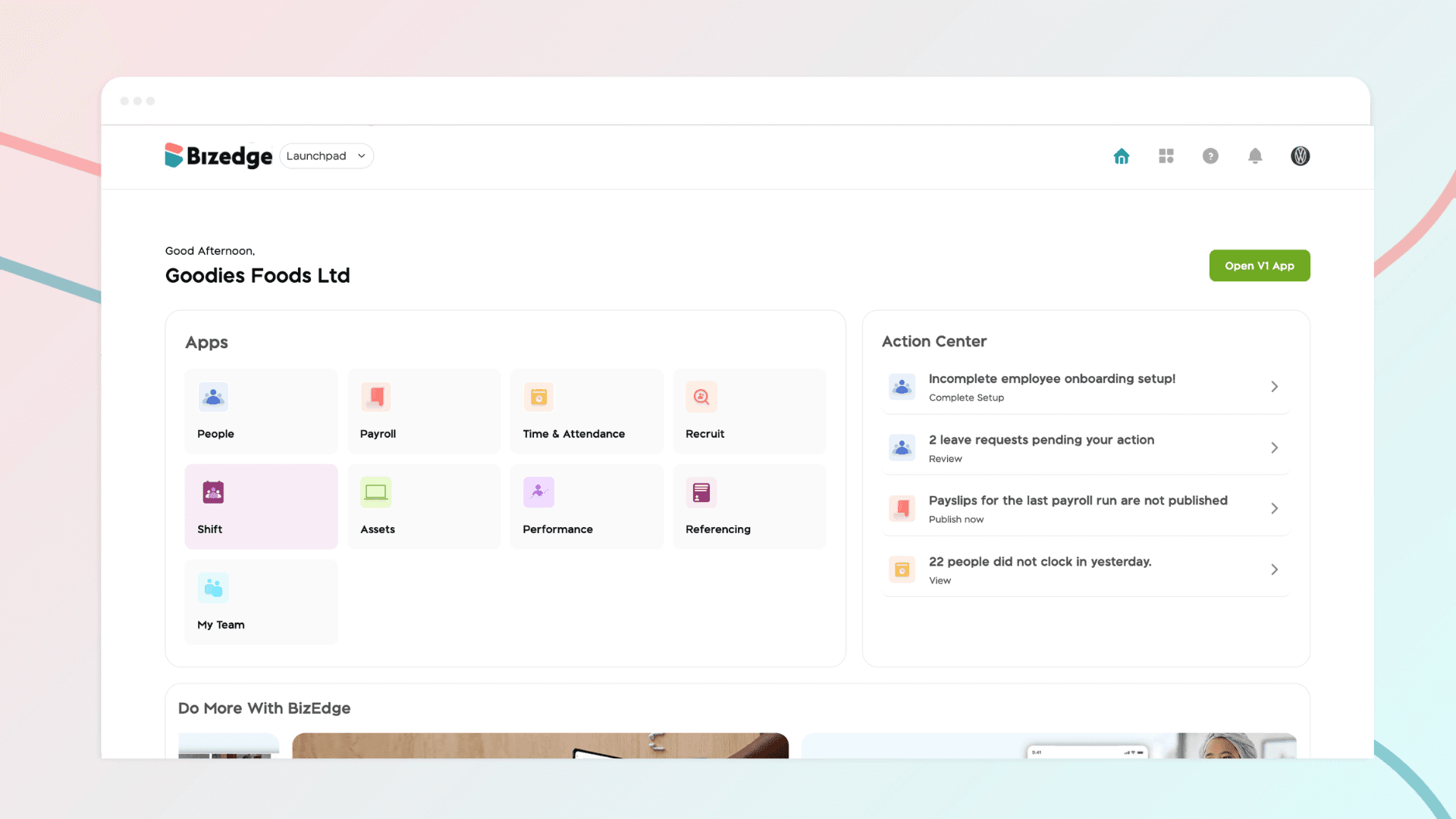
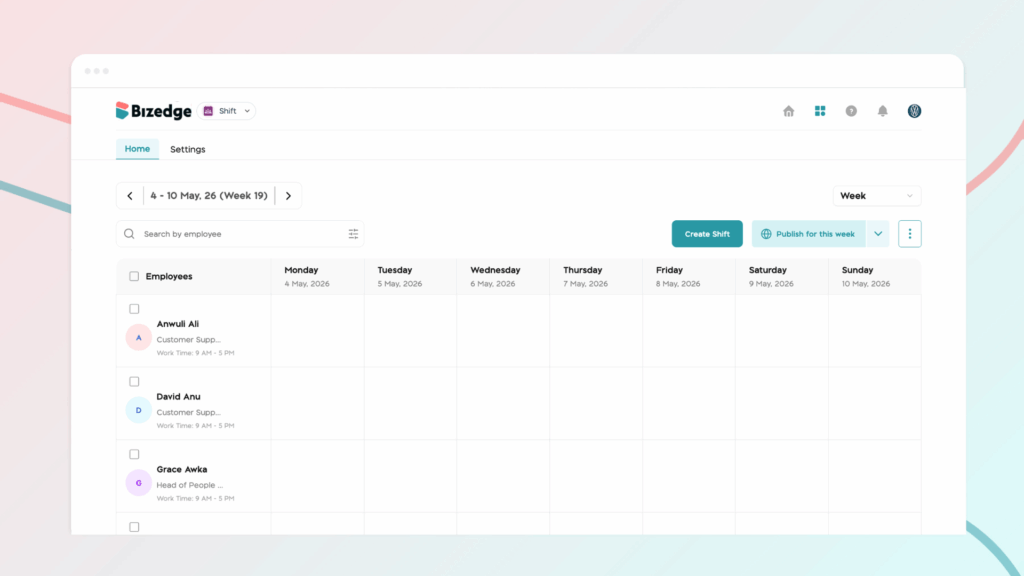
The Shift App allows administrators to create, manage, and publish employee shift schedules. Before getting started, ensure that each employee's work schedule has been updated in their profile within the People App.
Step 1: After updating the employee’s work schedule in the employee’s profile under the people app, locate the shift app from the Bizedge dashboard. This application is used to create, manage, and publish employee shift schedules.
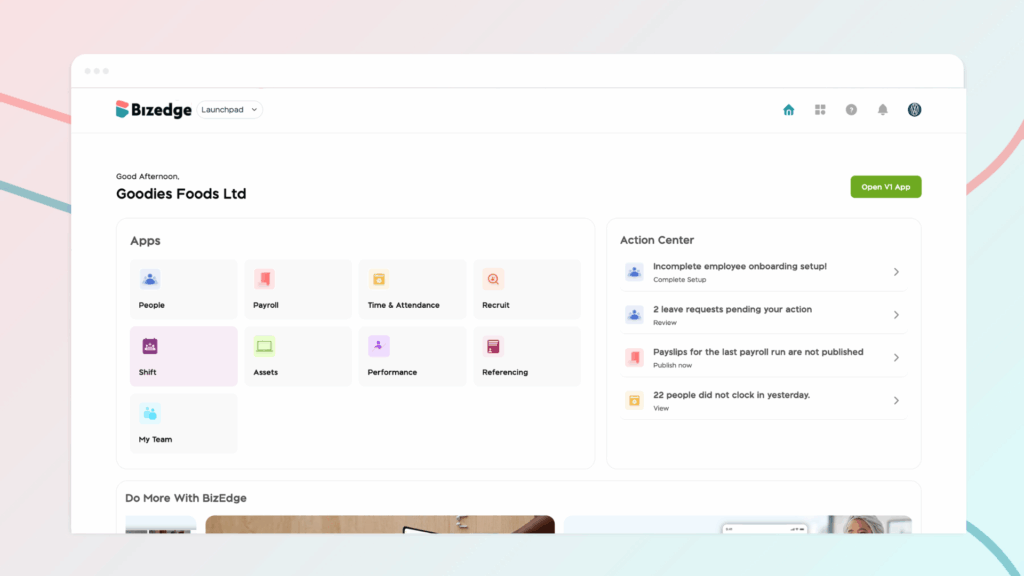
Step 2: Navigate to the Settings section within the Shift App. Here, you can configure your organization’s preferred week structure. Properly configuring these settings helps ensure that all shift schedules are organized according to your company’s operational structure.
Step 3: Once the settings have been configured, proceed to the Custom Shift section. In this area, you can create standard shift templates that will be used when scheduling employees. Examples of common shift patterns include Morning Shift, Afternoon Shift, and Night Shift. Creating these predefined shifts helps maintain consistency in scheduling and simplifies the process of assigning shifts to employees. After defining the shift patterns, click Proceed to continue.
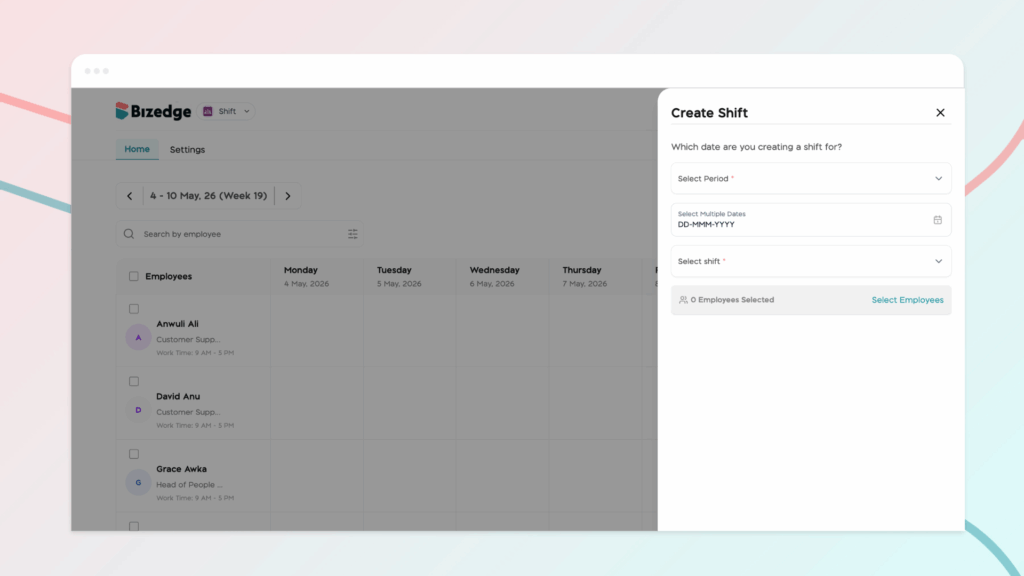
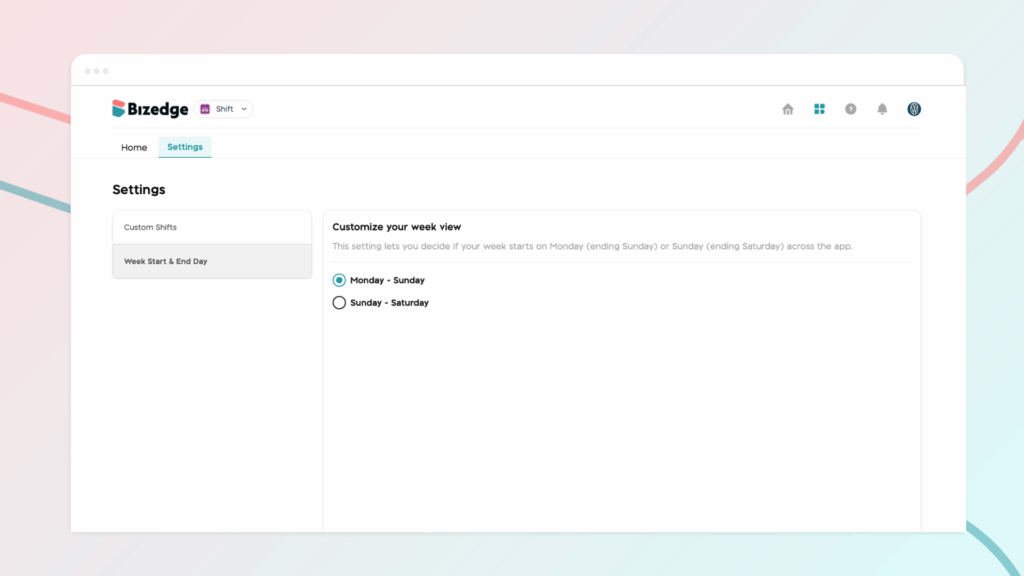
Step 4: Click on Create Shift to begin scheduling shifts for employees.You can create shifts according to single date, date range or multiple dates. In this section, you will enter the required details. Once all the necessary details have been entered, save the changes to record the shift schedule.
Step 5: Finally, click on 'Publish This Week' Only to make the scheduled shifts visible to employees. Publishing the shifts ensures that employees can view their assigned schedules on their MyEdge App, allowing them to stay informed about their working days and shift times.
Chinaza Okafor
Author
Comments
Leave a comment
Related posts
How to Use the MyTeam App
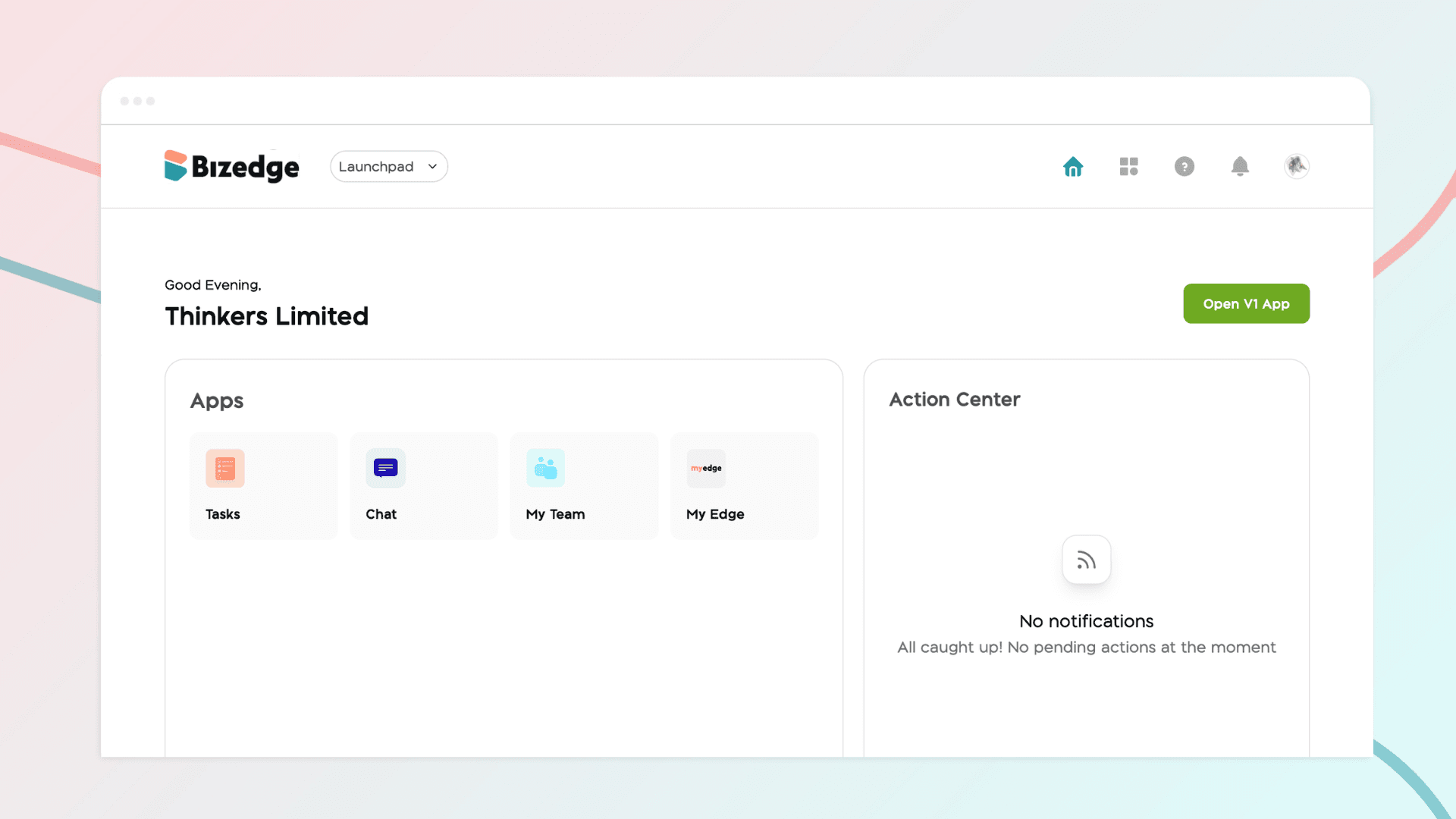
The MyTeam App on BizEdge helps line managers effectively oversee their teams. It provides visibility into team attendance, leave requests, time off schedules, and appraisal, making team supervision and approvals easier and more organized.
Apr 14, 2026 · 1 min read
How to Grant Line Managers Access to the MyTeam App
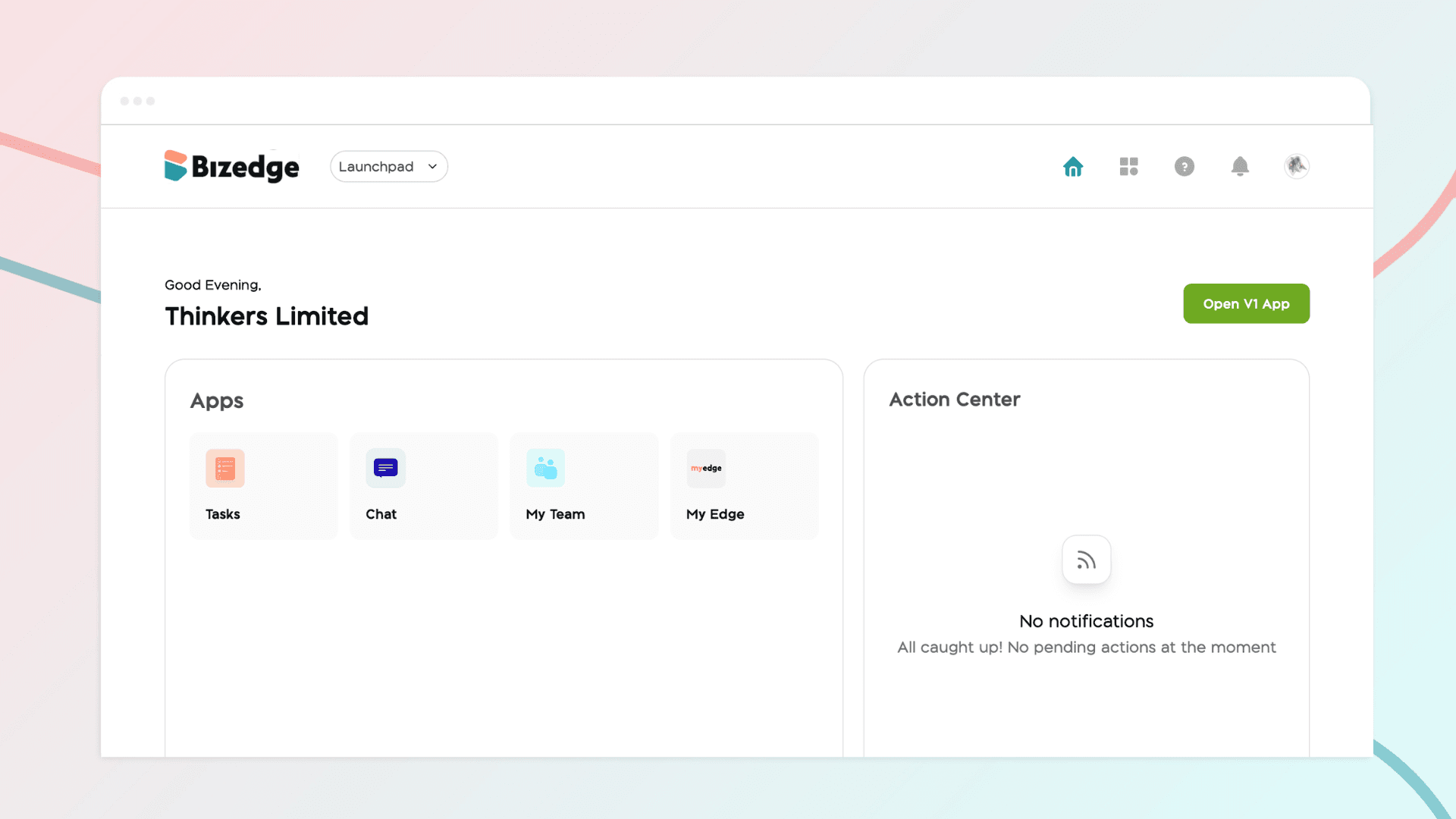
The MyTeam App on BizEdge helps line managers effectively oversee their teams. It provides visibility into team attendance, leave requests, time off schedules, and appraisal, making team supervision and approvals easier and more organized.
Apr 14, 2026 · 1 min read
How to Set Up Your Workspace Name on BizEdge
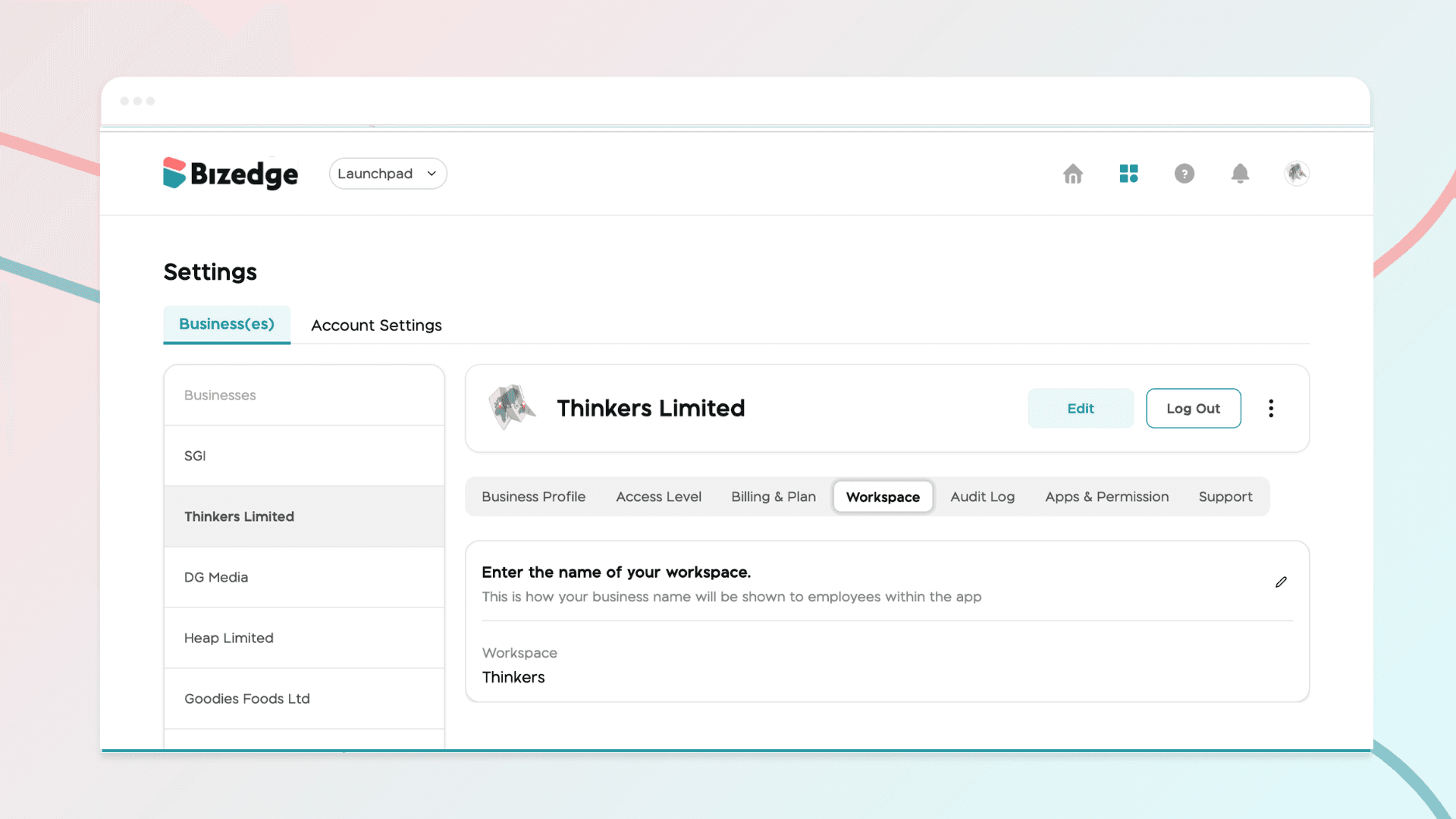
Your Workspace Name is how your business appears to employees across the BizEdge platform. Setting it up correctly ensures that your organization is easily recognizable to your team from the moment they log in. Follow these simple steps to update it:
Apr 14, 2026 · 1 min read