
How to Prepare and Run Payroll
Chinaza Okafor · Apr 10, 2026 · 2 min read
On this page
Running payroll on BizEdge follows a guided review process. Each stage ensures accuracy before moving to the next.
Step 1: Confirm and Review Employees
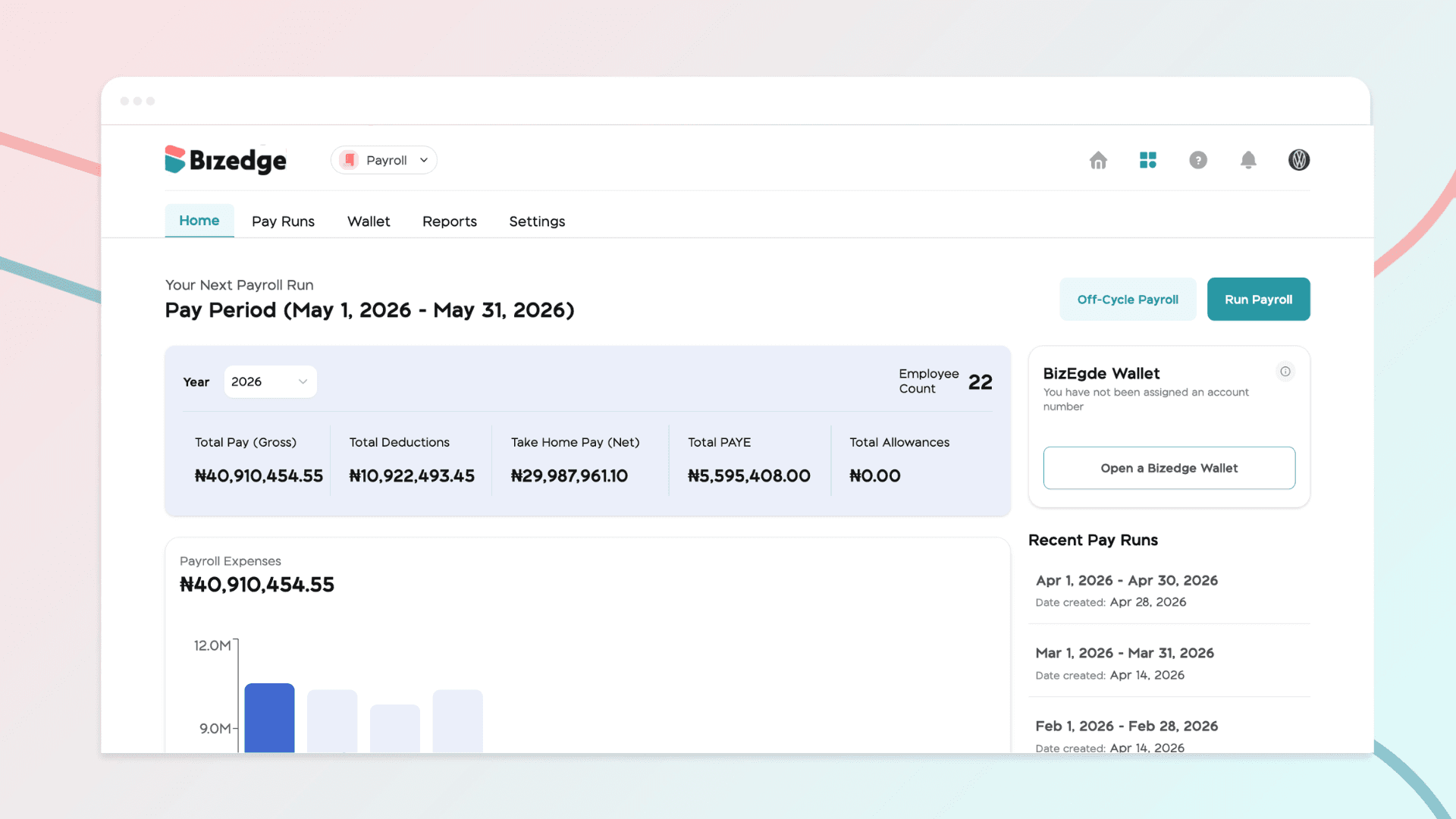
From the payroll dashboard, click on the ‘Run Payroll’ button to run payroll. After clicking Run Payroll, the first stage is employee confirmation.
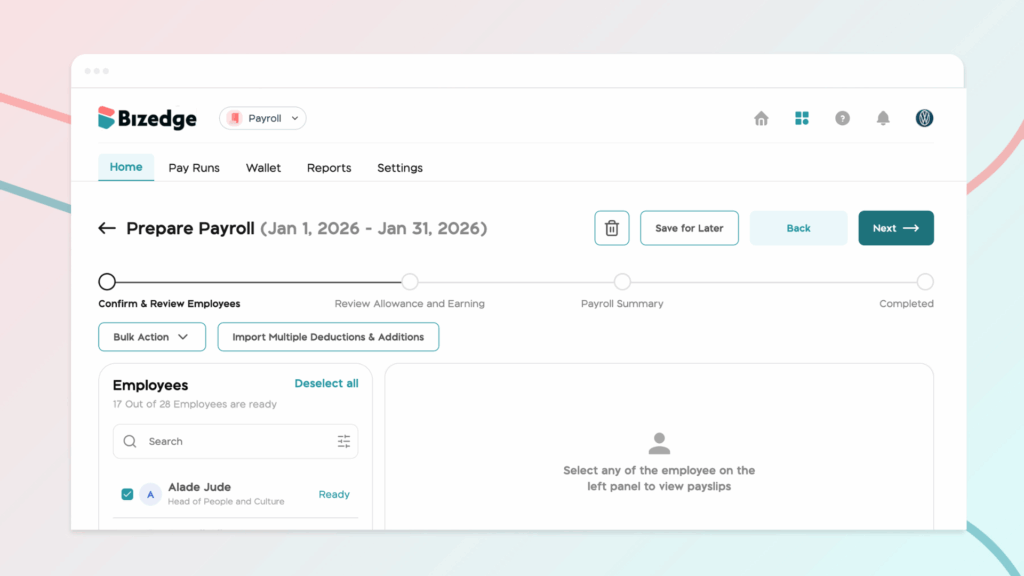
This step allows you to:
- Confirm which employees are included
- Add bonuses where applicable
- Apply deductions where necessary
- Use bulk actions to apply changes across multiple employees
This stage ensures that the correct employees and salary adjustments are captured before calculations are finalized.
Step 2: Review Allowances and Earnings
Next, you review detailed salary components, including:
- Additions
- Deductions
- Other earnings
- Total earnings
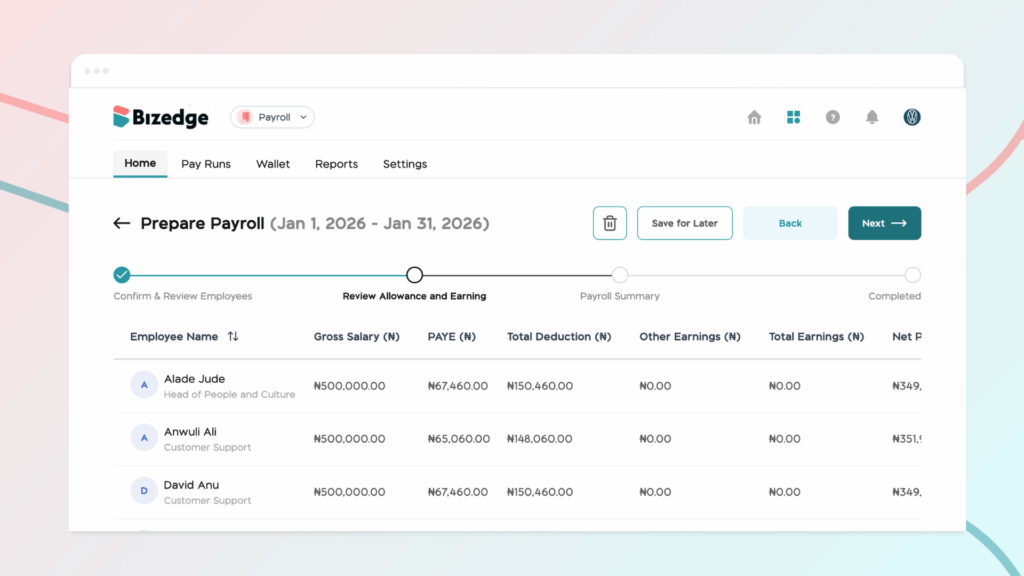
This is where you carefully examine the full breakdown of each employee’s salary.
If any detail appears incorrect, you can return to the previous step and make corrections before proceeding.
Step 3: Payroll Summary
The Payroll Summary provides a consolidated overview of:
- All additions
- All deductions
- Final salary totals
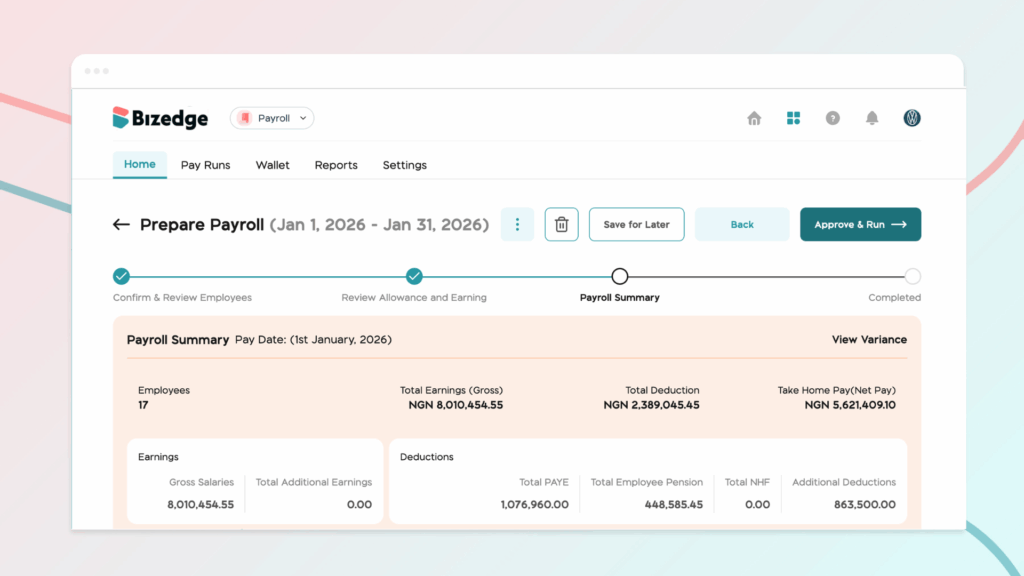
Think of this as the final checkpoint before payroll is approved. It ensures there are no unexpected changes or missing entries.
Approve and Run Payroll
Once everything has been reviewed and confirmed:
- Click Approve and Run
- You will be redirected to the payroll history page
- From there, you can view detailed employee salary breakdowns
- Payroll can also be exported as a CSV file for reporting purposes
At this stage, payroll has been calculated and finalized.
Employees automatically receive their payslips (once the payroll has been published) for the month on the MyEdge employee self-service app.
After approval, you can publish and disburse employees’ salaries by:
- Click Publish Payslip to send payslips to employees
- Click Pay with Wallet to transfer funds
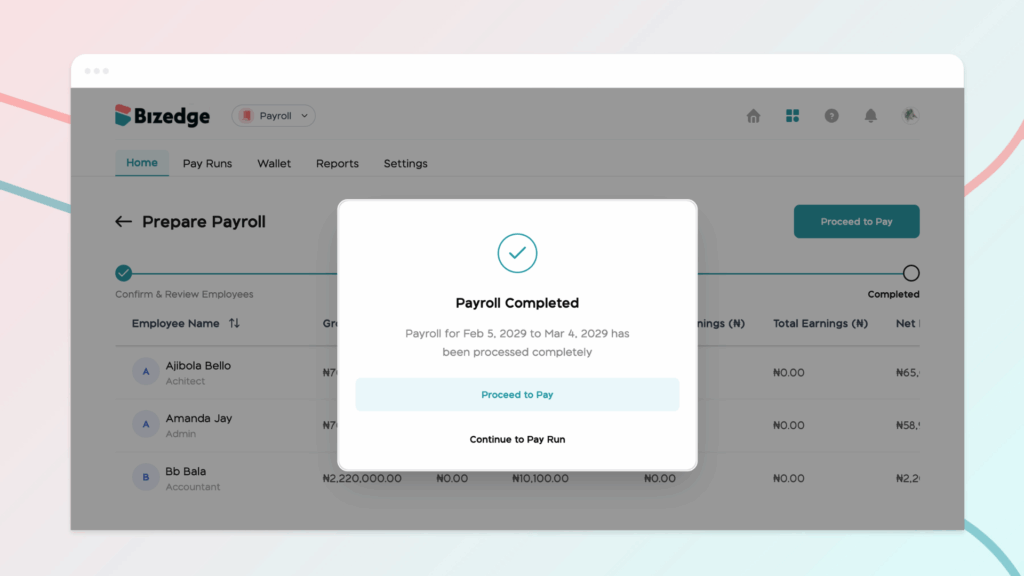
To complete payment:
- Ensure your BizEdge Wallet is funded
- Click Pay with Wallet
- An OTP will be sent to your business email
- Enter the OTP to confirm payment
Once confirmed, salaries are successfully disbursed.
Comments
Leave a comment
Related posts
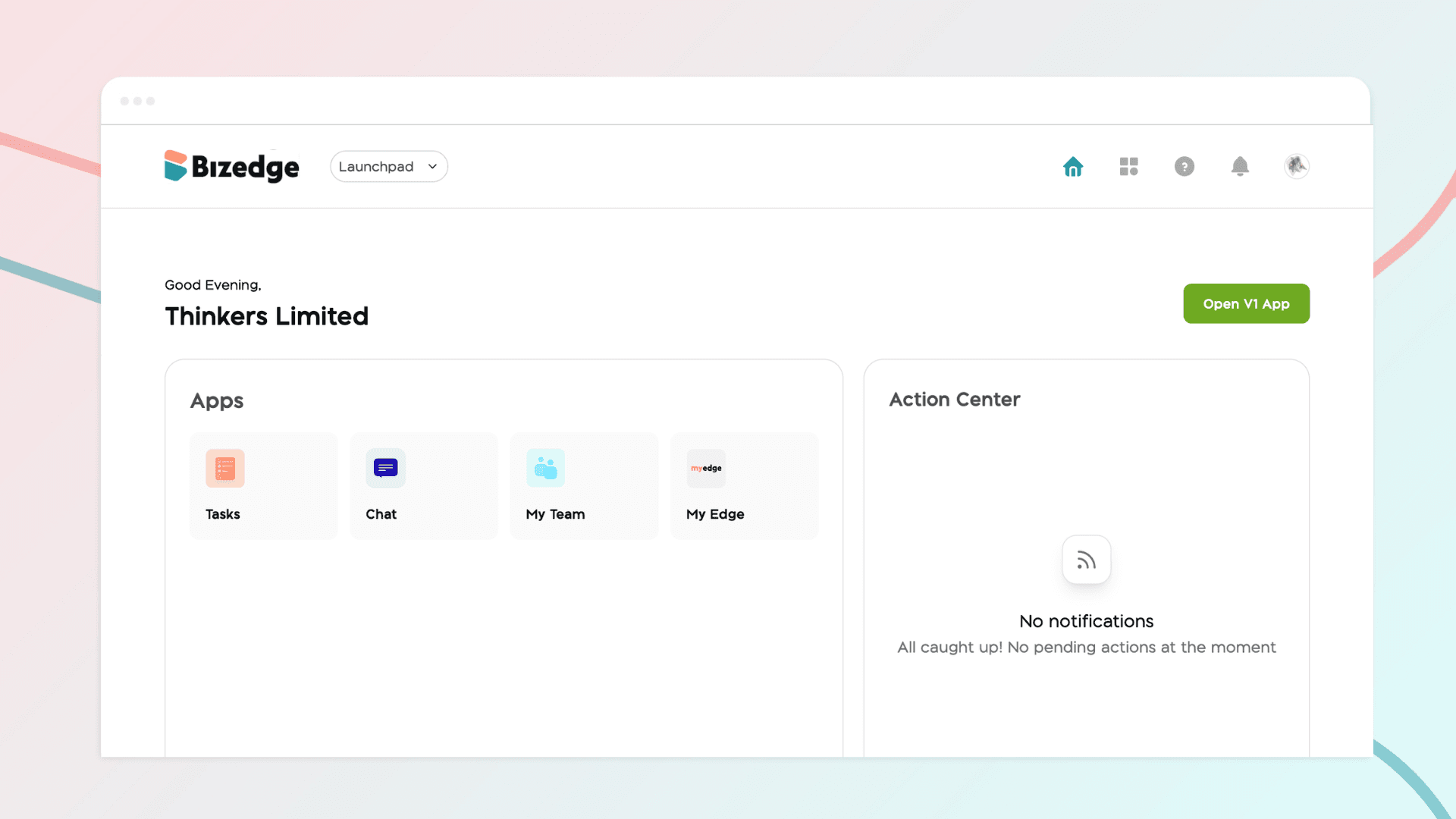
How to Use the MyTeam App
The MyTeam App on BizEdge helps line managers effectively oversee their teams. It provides visibility into team attendance, leave requests, time off schedules, and appraisal, making team supervision and approvals easier and more organized.
Apr 14, 2026 · 1 min read
How to Grant Line Managers Access to the MyTeam App
The MyTeam App on BizEdge helps line managers effectively oversee their teams. It provides visibility into team attendance, leave requests, time off schedules, and appraisal, making team supervision and approvals easier and more organized.
Apr 14, 2026 · 1 min read
How to Set Up Your Workspace Name on BizEdge
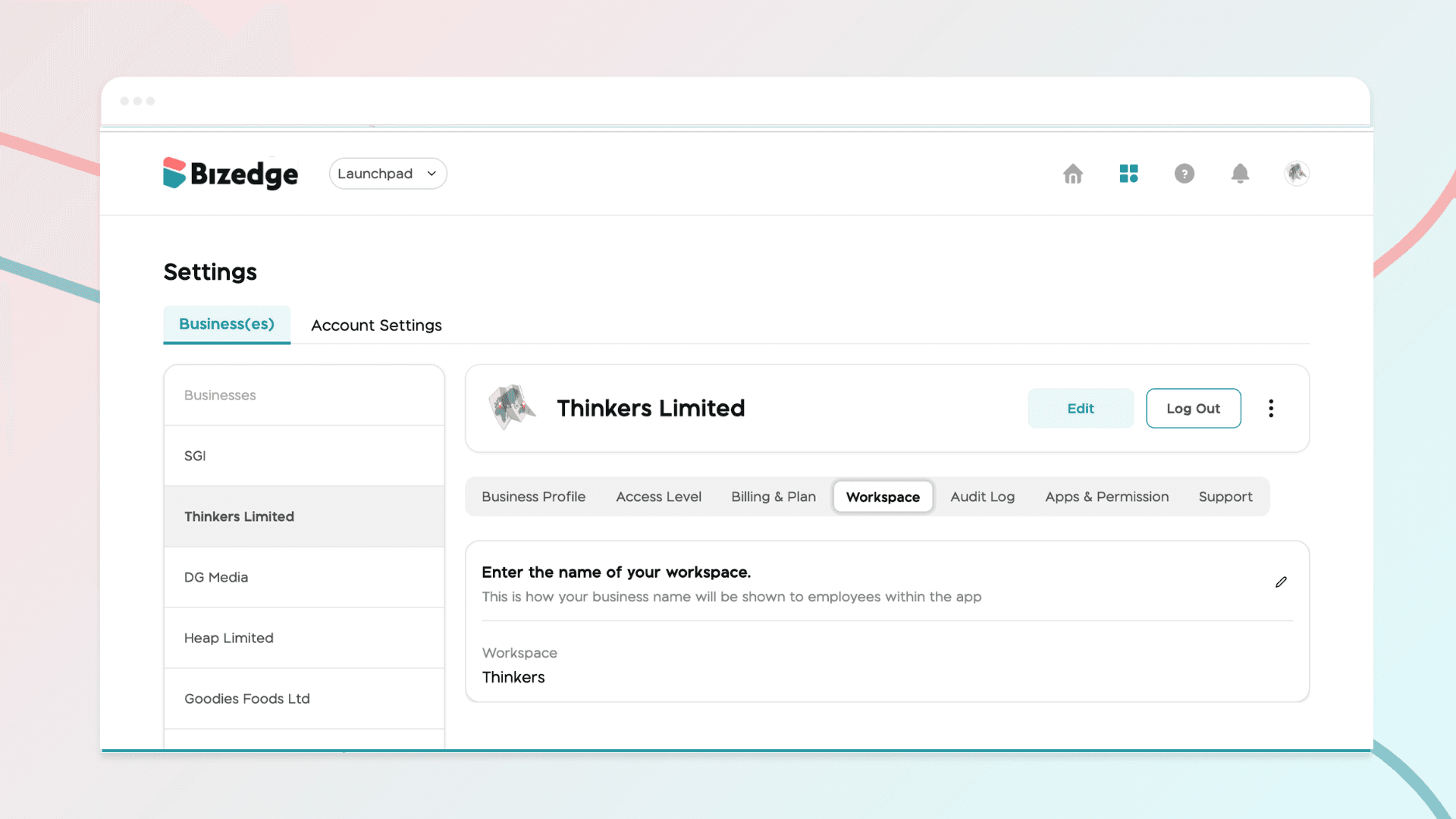
Your Workspace Name is how your business appears to employees across the BizEdge platform. Setting it up correctly ensures that your organization is easily recognizable to your team from the moment they log in. Follow these simple steps to update it:
Apr 14, 2026 · 1 min read