
How to Set Up and Use the BizEdge Kiosk App
Chinaza Okafor · Apr 13, 2026 · 1 min read
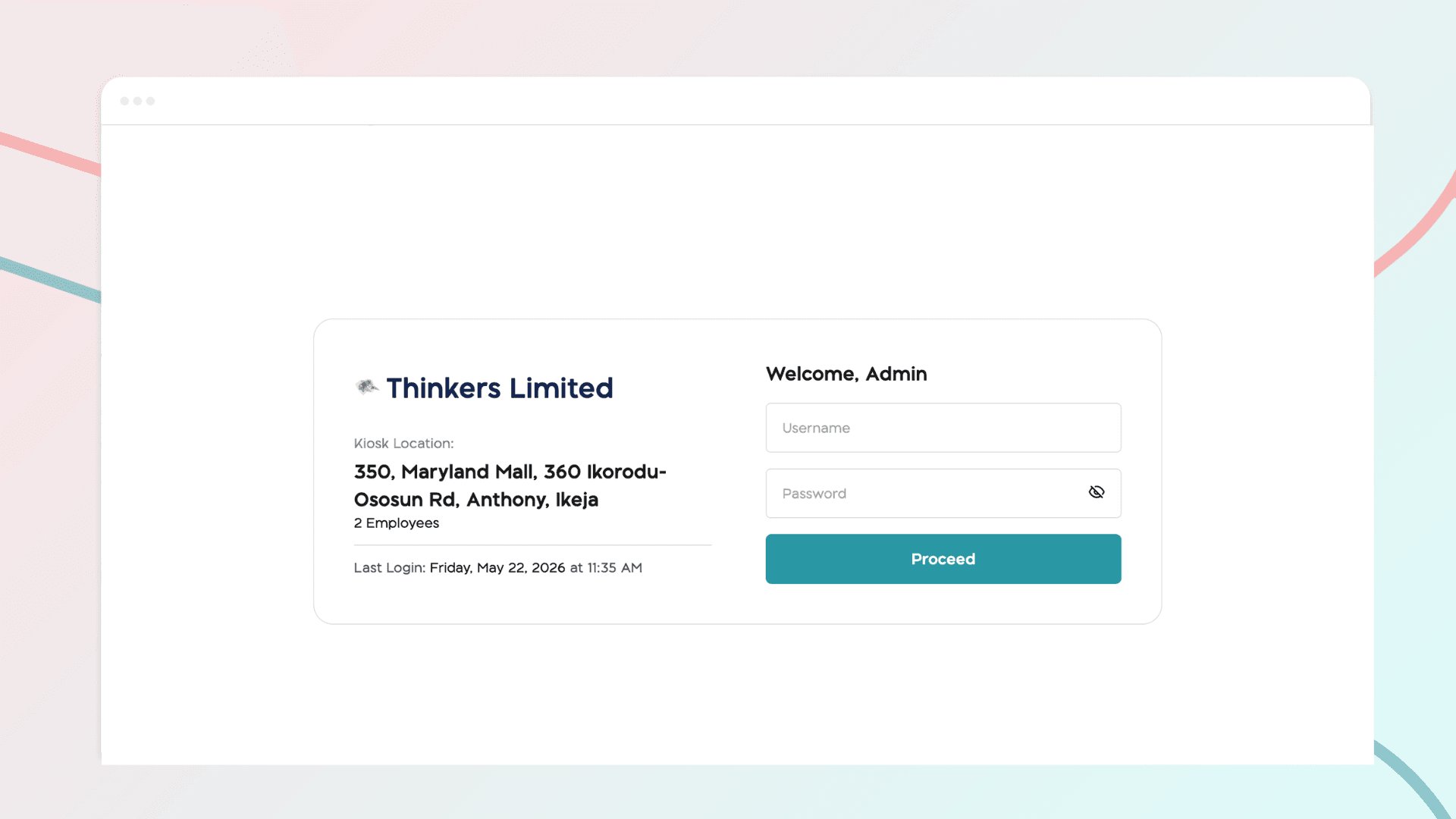
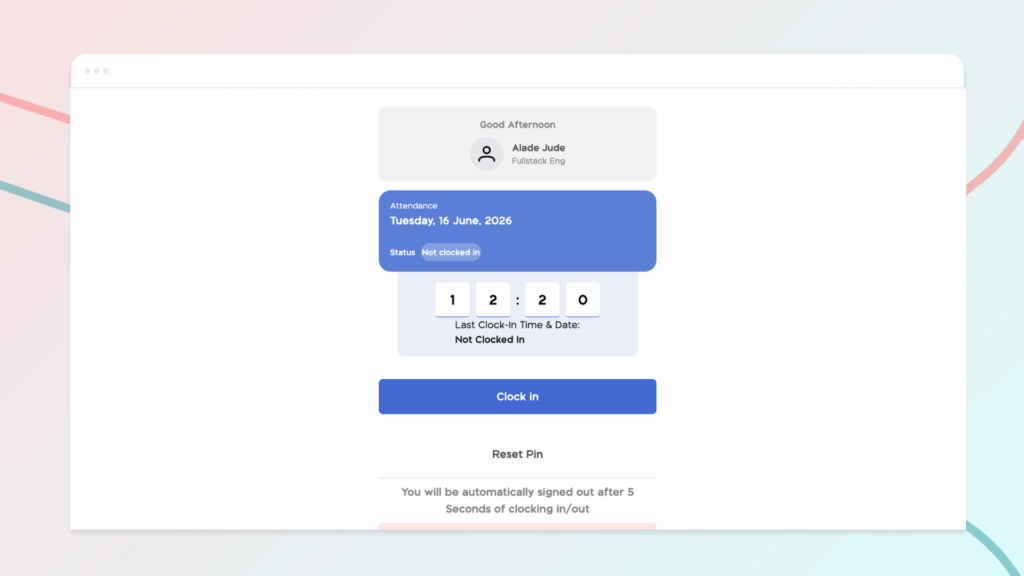
The Kiosk App allows employees to clock in and out using a shared device such as a tablet or laptop placed at the workplace. Each company location has its own unique kiosk URL and login credentials, keeping attendance tracking organized across multiple sites.
Setting Up the Kiosk
Step 1: Open the Attendance App
From the BizEdge dashboard, open the Attendance App, navigate to Settings.
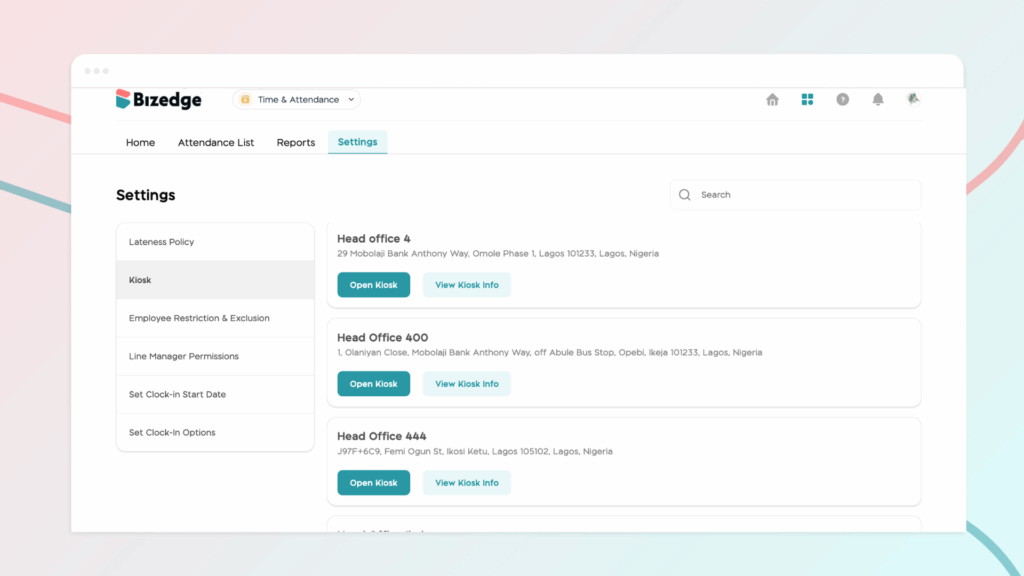
Step 2: Access Kiosk Options
Click on Kiosk. From here, you can either open the kiosk directly or view the kiosk credentials for that location. Click on ‘Open Kiosk’ then enter the Kiosk details.
Employee Clock-In Process
Step 1: Select Name
The employee selects their name from the list displayed on the kiosk device.
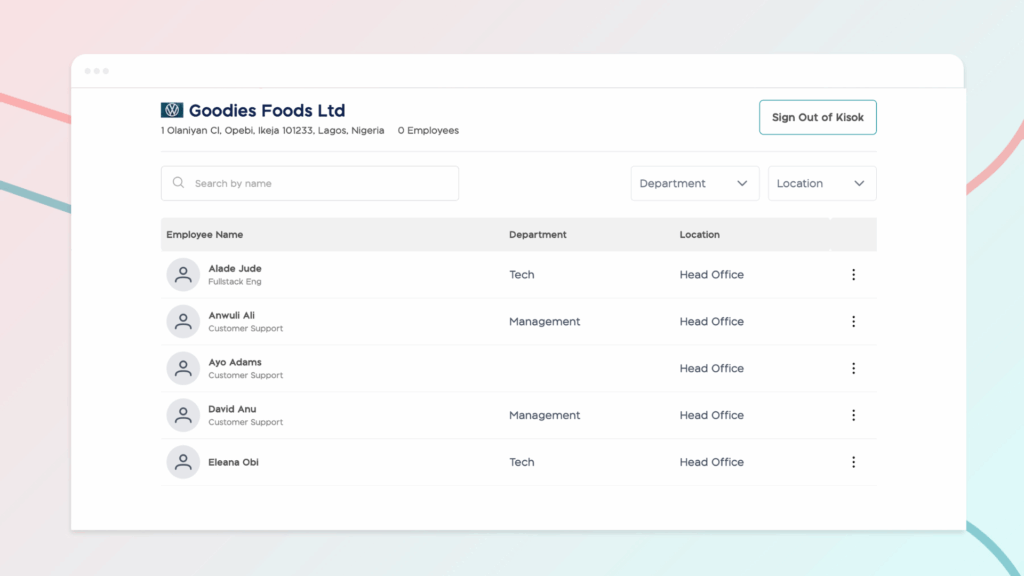
Step 2: Enter Default PIN
On their first use, the employee enters the default PIN 1234 to access their profile.
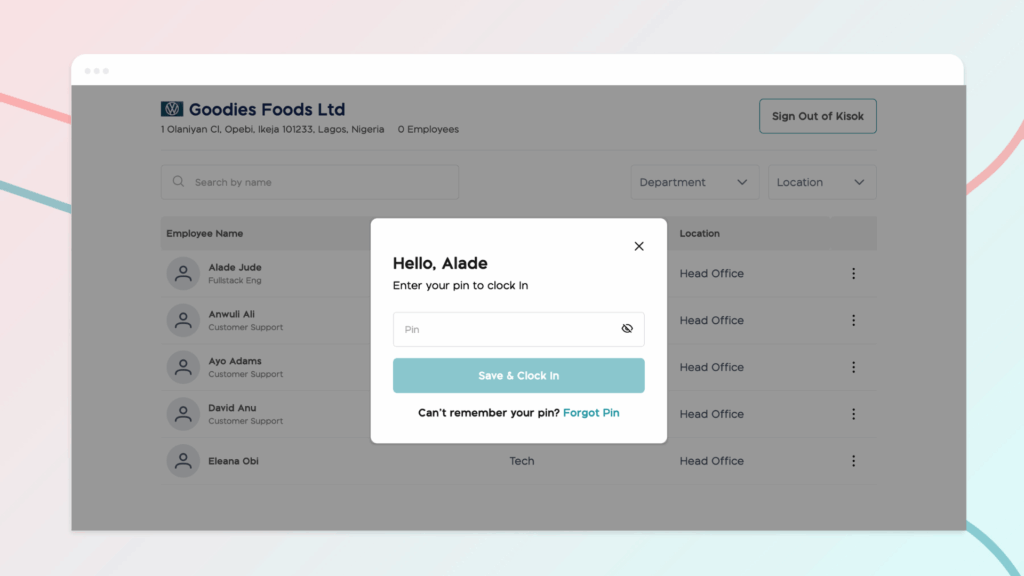
Step 3: Create a Personal PIN
The employee is prompted to create a new personal PIN, which they will use for all future clock-ins.
Step 4: Clock In
Once the PIN has been set, the employee clicks 'Clock In' to record their attendance. At the end of their shift, employees can return to the kiosk and follow the same process to clock out.
Chinaza Okafor
Author
Comments
Leave a comment
Related posts
How to Use the MyTeam App
The MyTeam App on BizEdge helps line managers effectively oversee their teams. It provides visibility into team attendance, leave requests, time off schedules, and appraisal, making team supervision and approvals easier and more organized.
Apr 14, 2026 · 1 min read
How to Grant Line Managers Access to the MyTeam App
The MyTeam App on BizEdge helps line managers effectively oversee their teams. It provides visibility into team attendance, leave requests, time off schedules, and appraisal, making team supervision and approvals easier and more organized.
Apr 14, 2026 · 1 min read
How to Set Up Your Workspace Name on BizEdge
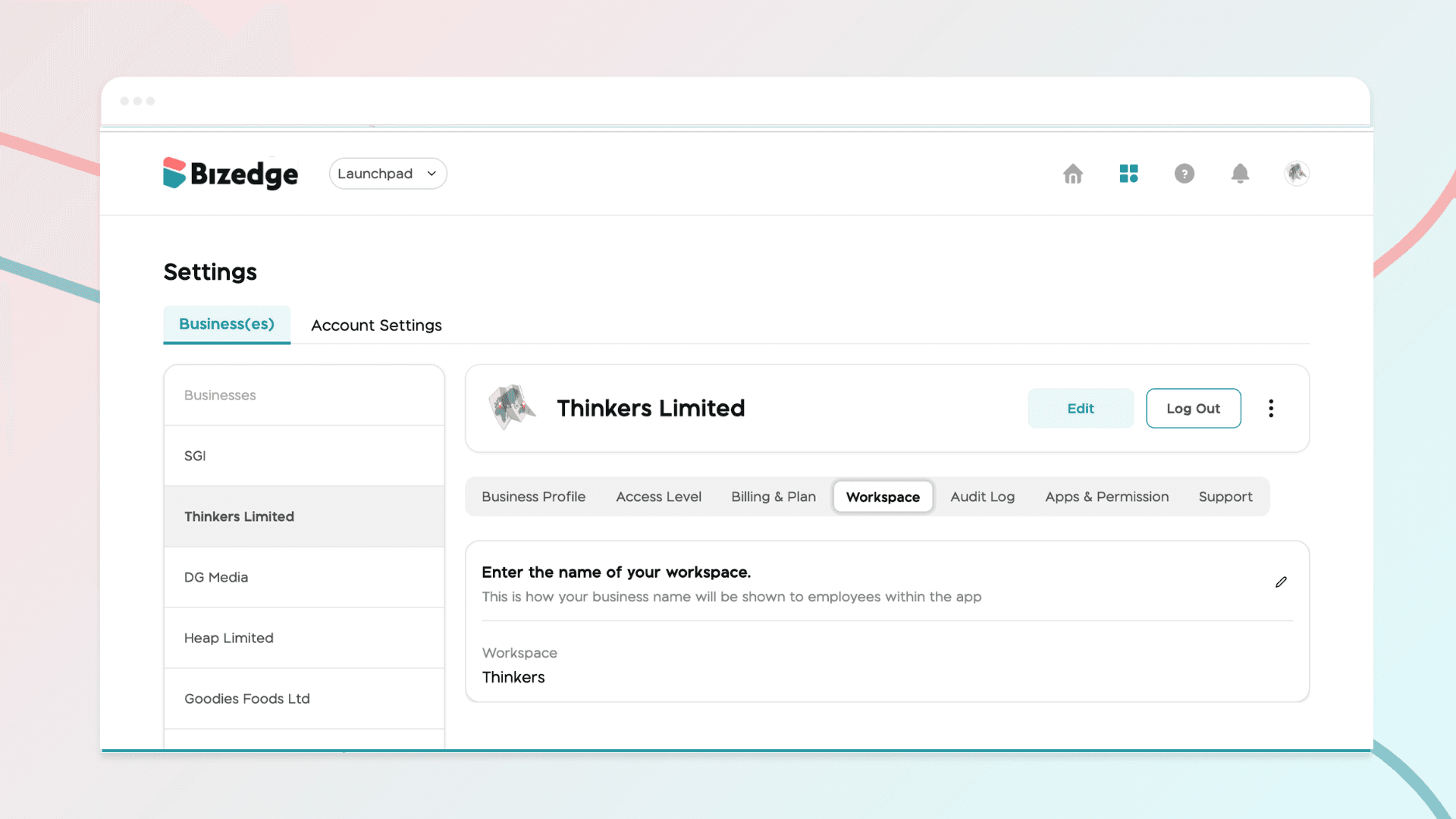
Your Workspace Name is how your business appears to employees across the BizEdge platform. Setting it up correctly ensures that your organization is easily recognizable to your team from the moment they log in. Follow these simple steps to update it:
Apr 14, 2026 · 1 min read