
Location Configuration or Employee showing "Not Added to Attendance"
Chinaza Okafor · Apr 13, 2026 · 1 min read
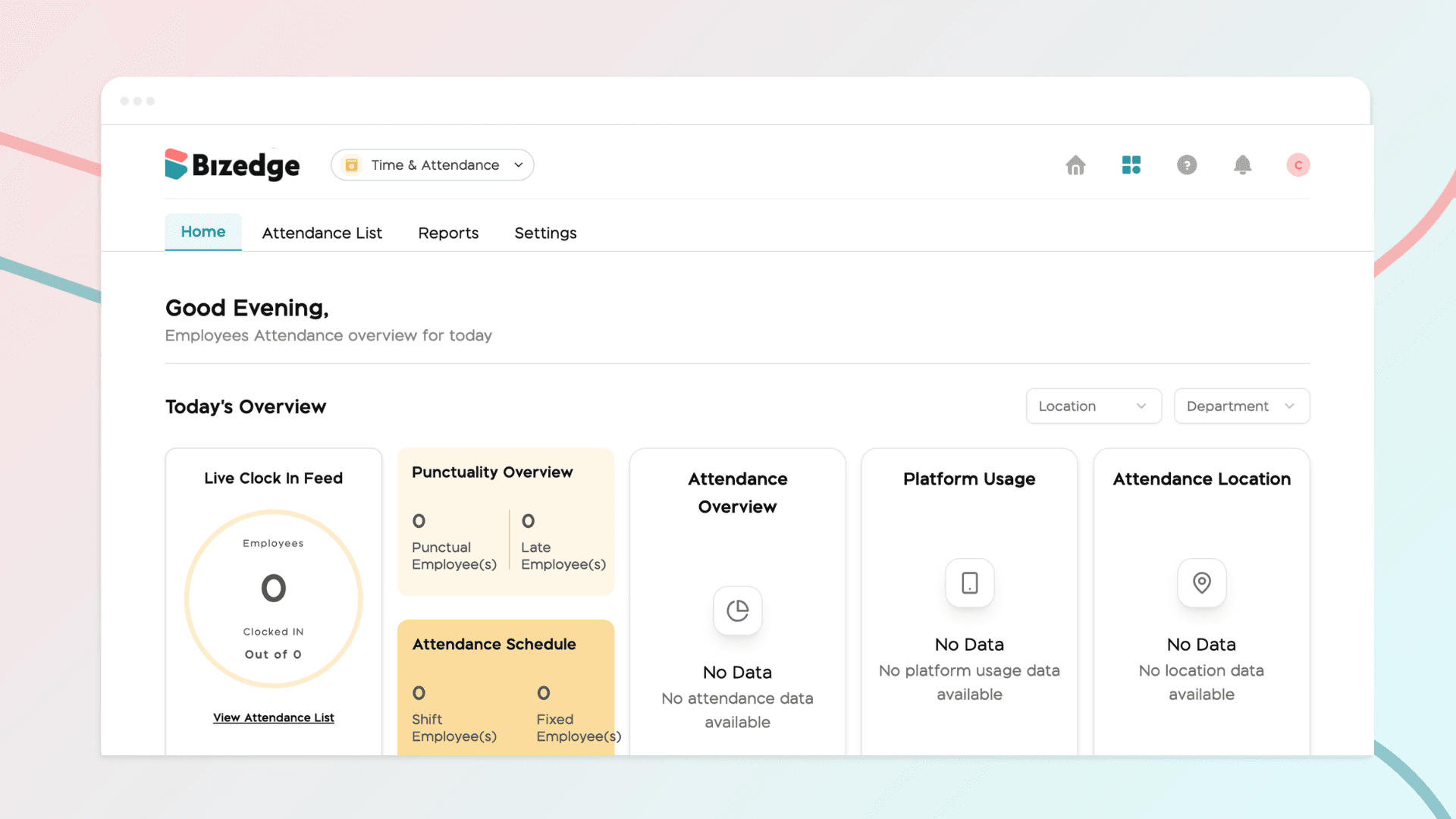
This issue occurs when an employee has not been assigned to a company location or has been excluded from attendance tracking. Follow the steps below to resolve it.
Assigning a Location to an Employee
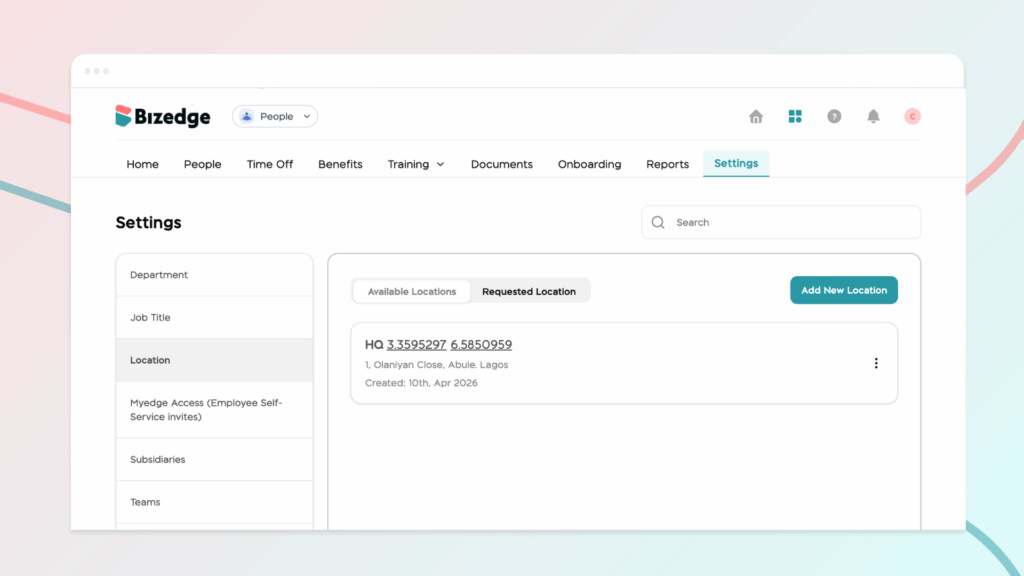
Step 1: Navigate to Location Settings
In the People app, go to Settings and select Location to view all configured company locations.
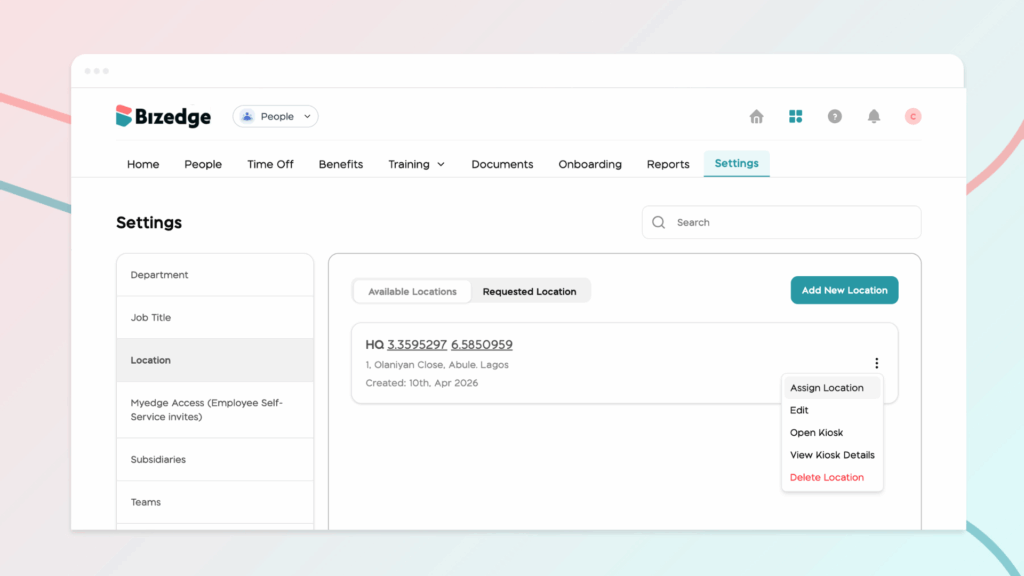
Step 2: Assign the Employee to a Location
Click the three-dot menu next to the relevant location and select Assign Location. Choose the employee you would like to assign and confirm the selection.
Including an Employee in Attendance Tracking
Step 1: Go to Attendance Settings
If the employee has been excluded from attendance tracking, open the Attendance app and navigate to Settings.
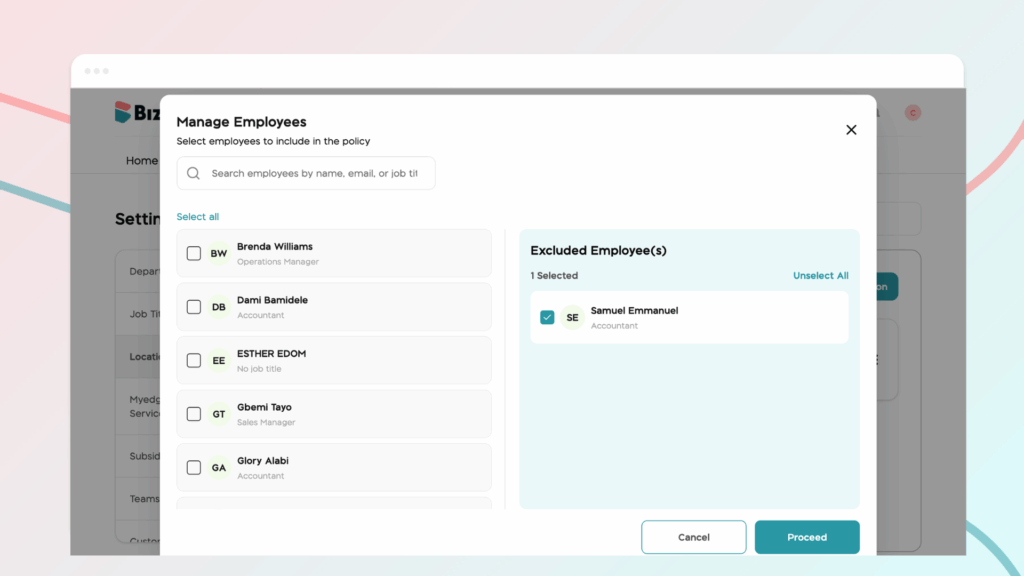
Step 2: Access Employee Restriction and Exclusion
Click on Employee Restriction and Exclusion to view the list of employees currently excluded from attendance tracking.
Step 3: Add the Employee to Attendance
Locate the employee and add them to attendance tracking. Once saved, the employee will appear in the Attendance App and their clock-in activity will begin to be recorded.
Chinaza Okafor
Author
Comments
Leave a comment
Related posts
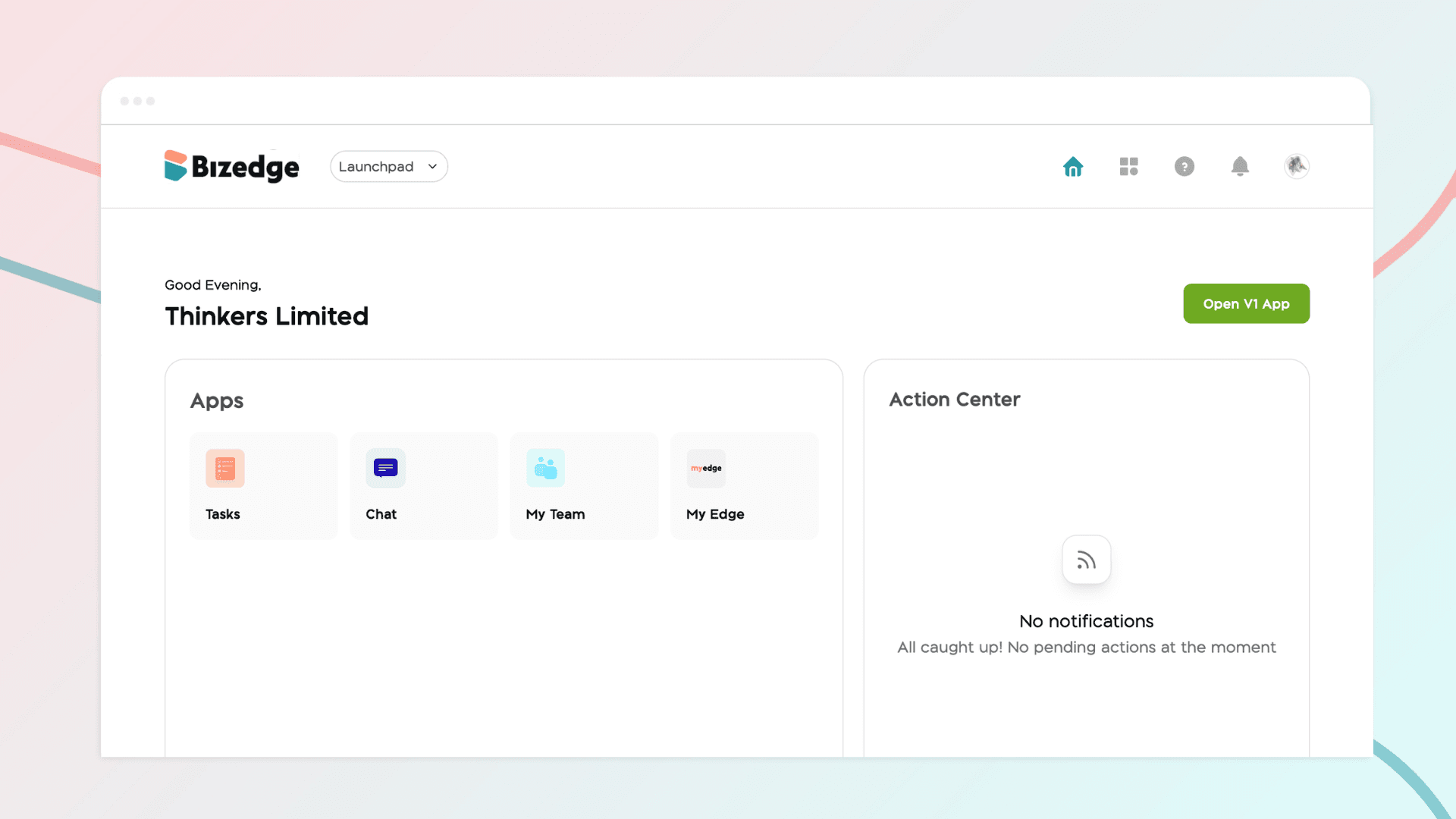
How to Use the MyTeam App
The MyTeam App on BizEdge helps line managers effectively oversee their teams. It provides visibility into team attendance, leave requests, time off schedules, and appraisal, making team supervision and approvals easier and more organized.
Apr 14, 2026 · 1 min read
How to Grant Line Managers Access to the MyTeam App
The MyTeam App on BizEdge helps line managers effectively oversee their teams. It provides visibility into team attendance, leave requests, time off schedules, and appraisal, making team supervision and approvals easier and more organized.
Apr 14, 2026 · 1 min read
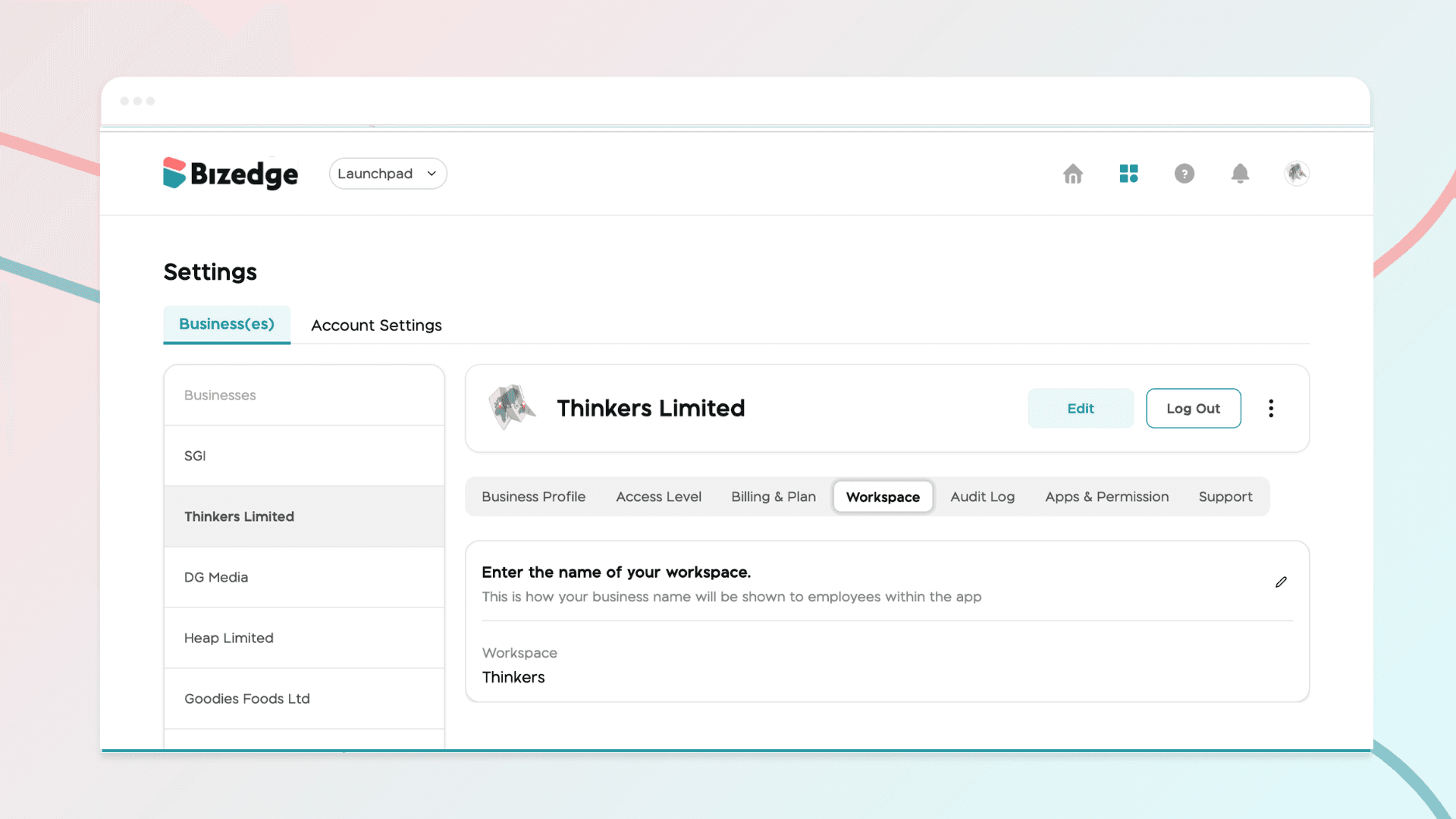
How to Set Up Your Workspace Name on BizEdge
Your Workspace Name is how your business appears to employees across the BizEdge platform. Setting it up correctly ensures that your organization is easily recognizable to your team from the moment they log in. Follow these simple steps to update it:
Apr 14, 2026 · 1 min read