
How to Review and Manage Candidate Applications
Chinaza Okafor · Apr 13, 2026 · 1 min read
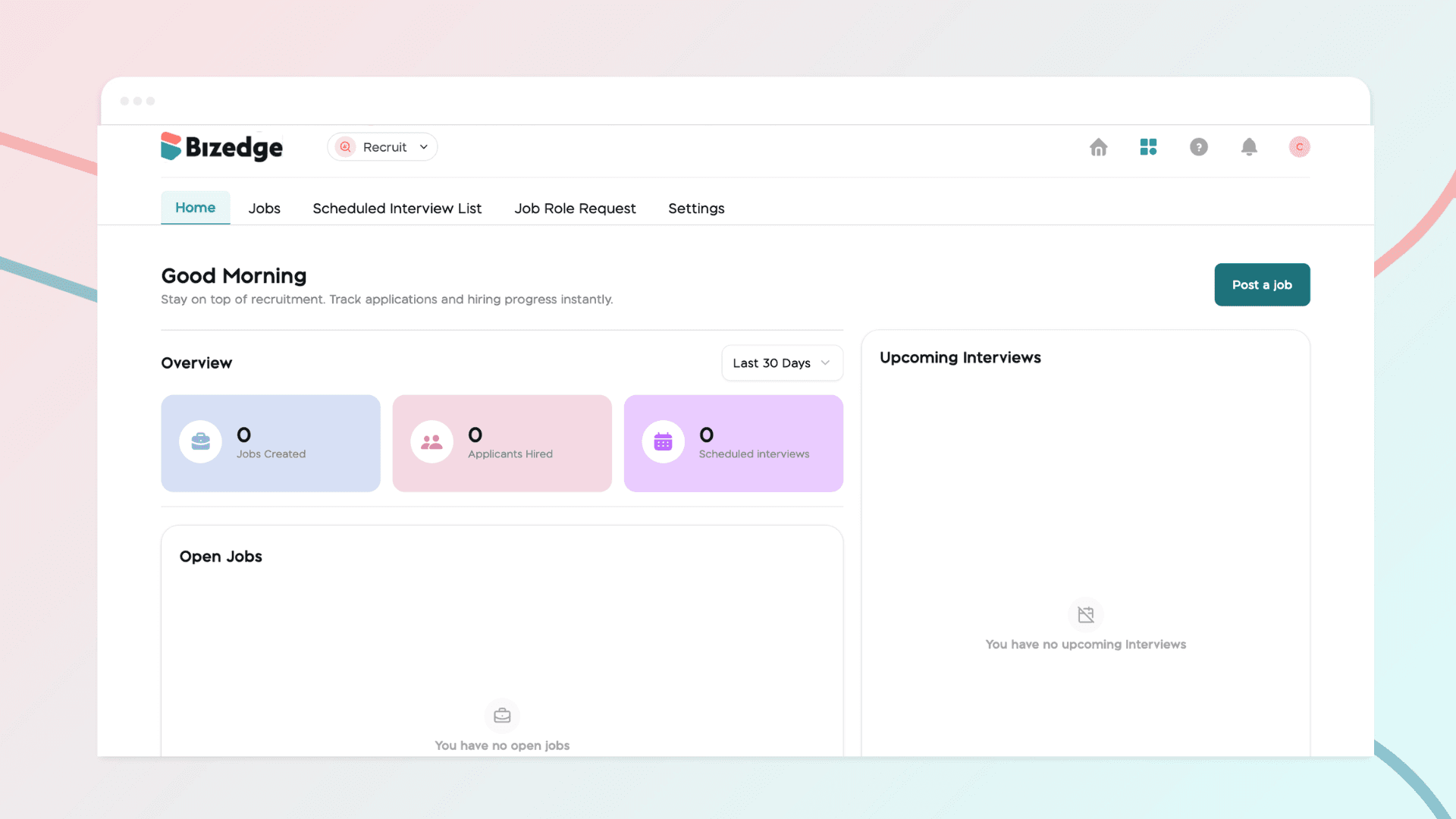
Once applications start coming in, the Recruit App gives you the tools to efficiently review and manage candidates. From viewing applicant lists to automatically shortlisting based on job fit, you can stay organized and make informed decisions throughout the process.
Step 1: View Applicants
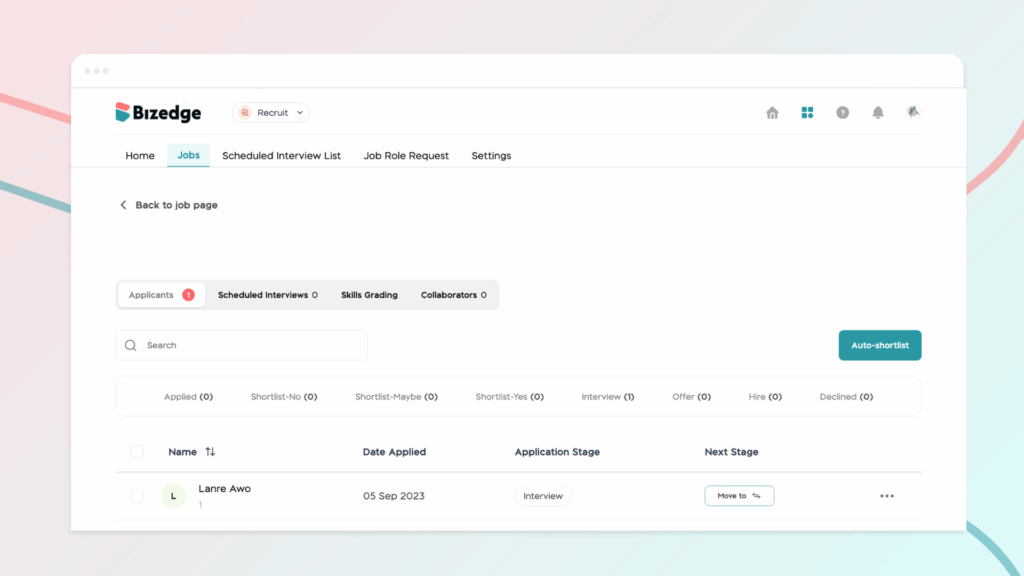
Navigate to the Applicants tab to see the full list of candidates who have applied for the role. From here, you can begin reviewing and managing each application.
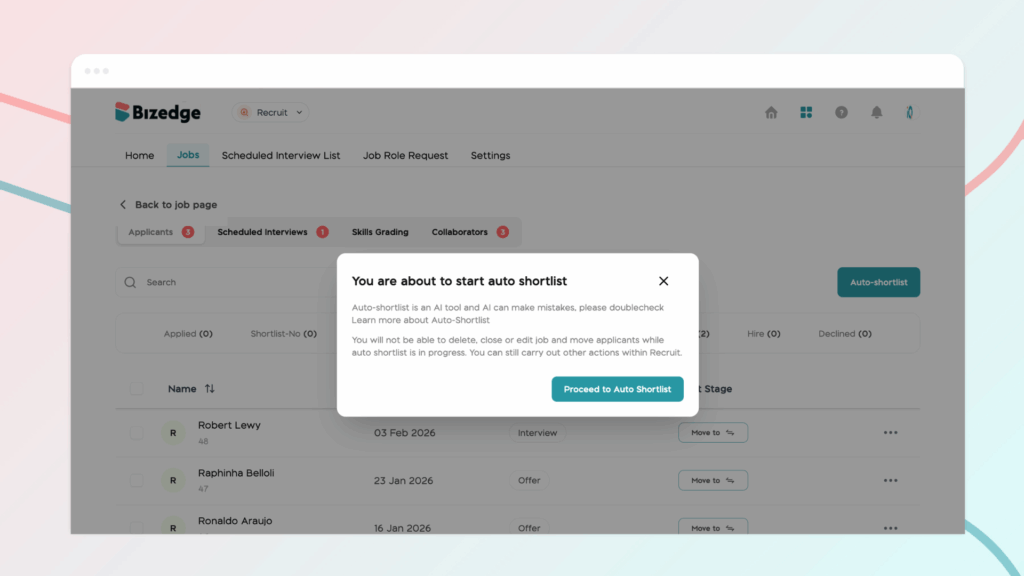
Step 2: Use Auto Shortlist
To quickly filter candidates, select an applicant with a pending job match and click Auto Shortlist. The system will automatically categorize each applicant as a Poor Match, Average Match, or Good Match, helping you prioritize the most suitable candidates efficiently.
Step 3: Review Candidate Details
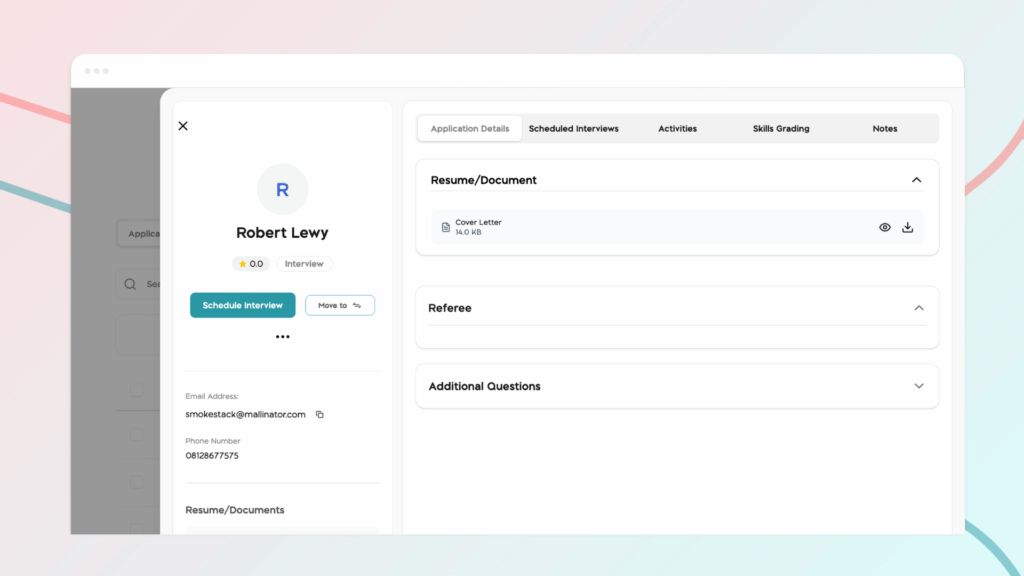
Click on any candidate to open their full profile. Here you can review their personal information, work experience, educational background, responses to additional application questions, as well as their resume and any submitted document links. This gives you a comprehensive view of each candidate before making any decisions.
Comments
Leave a comment
Related posts
How to Use the MyTeam App
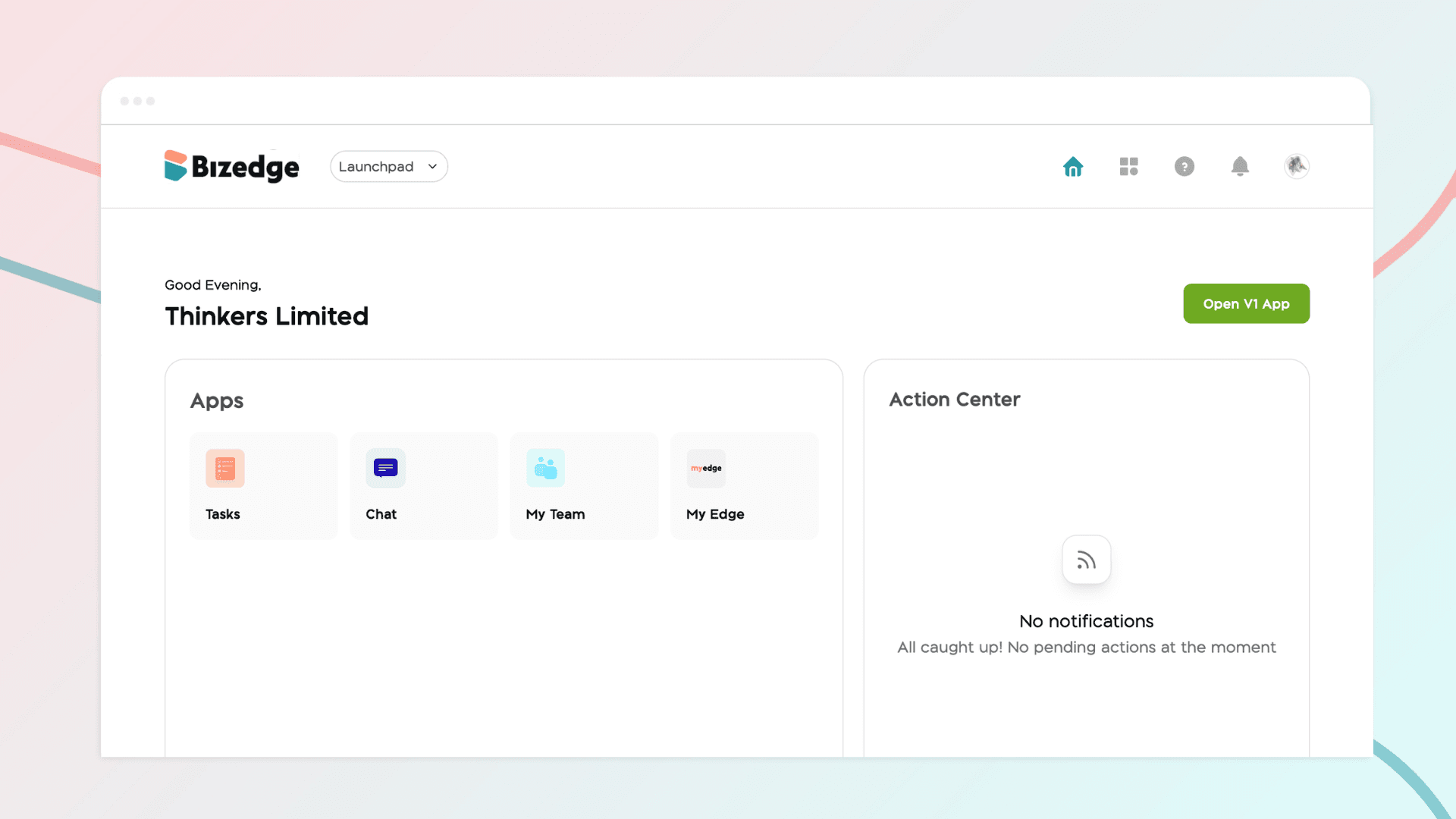
The MyTeam App on BizEdge helps line managers effectively oversee their teams. It provides visibility into team attendance, leave requests, time off schedules, and appraisal, making team supervision and approvals easier and more organized.
Apr 14, 2026 · 1 min read
How to Grant Line Managers Access to the MyTeam App
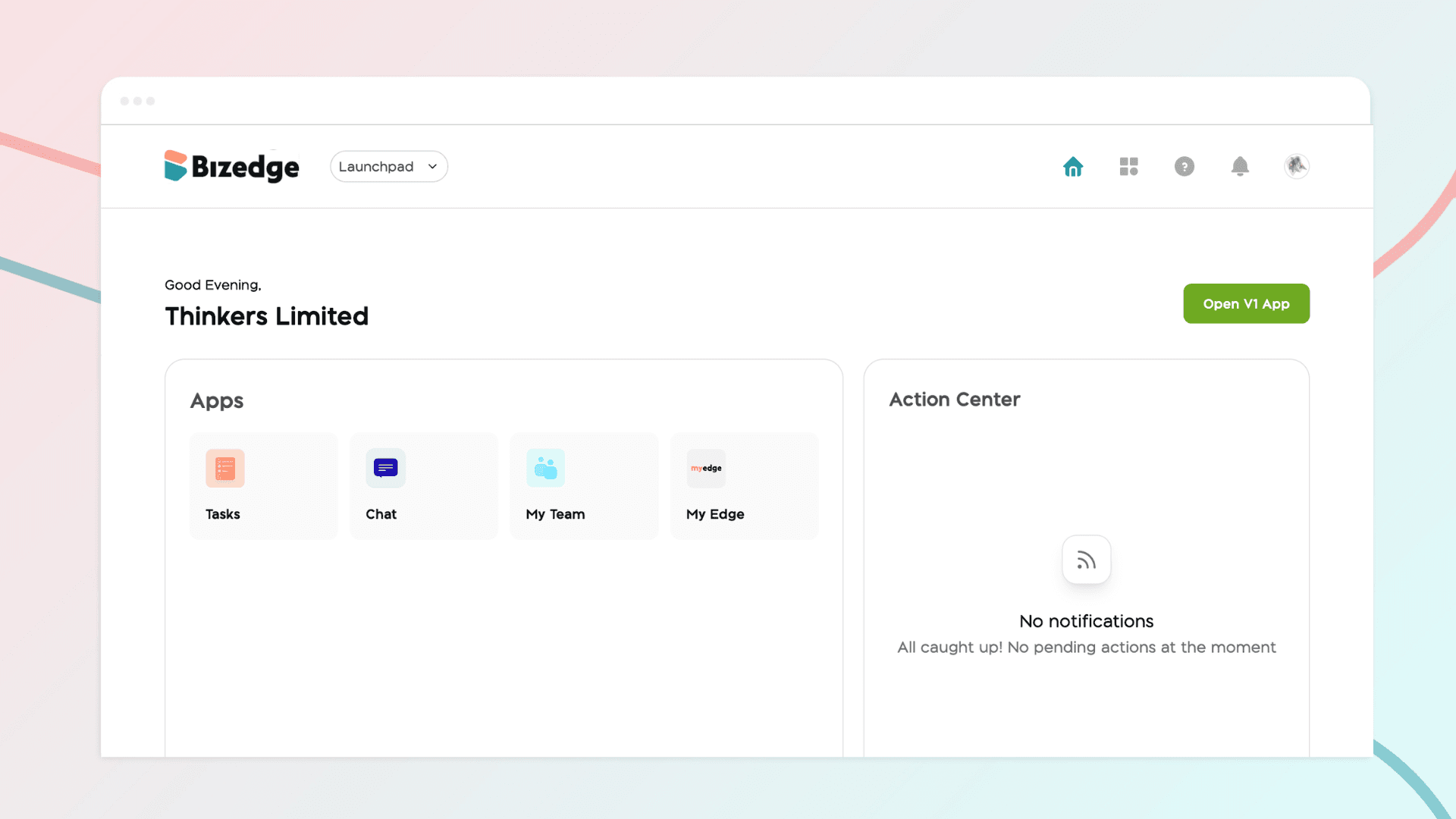
The MyTeam App on BizEdge helps line managers effectively oversee their teams. It provides visibility into team attendance, leave requests, time off schedules, and appraisal, making team supervision and approvals easier and more organized.
Apr 14, 2026 · 1 min read
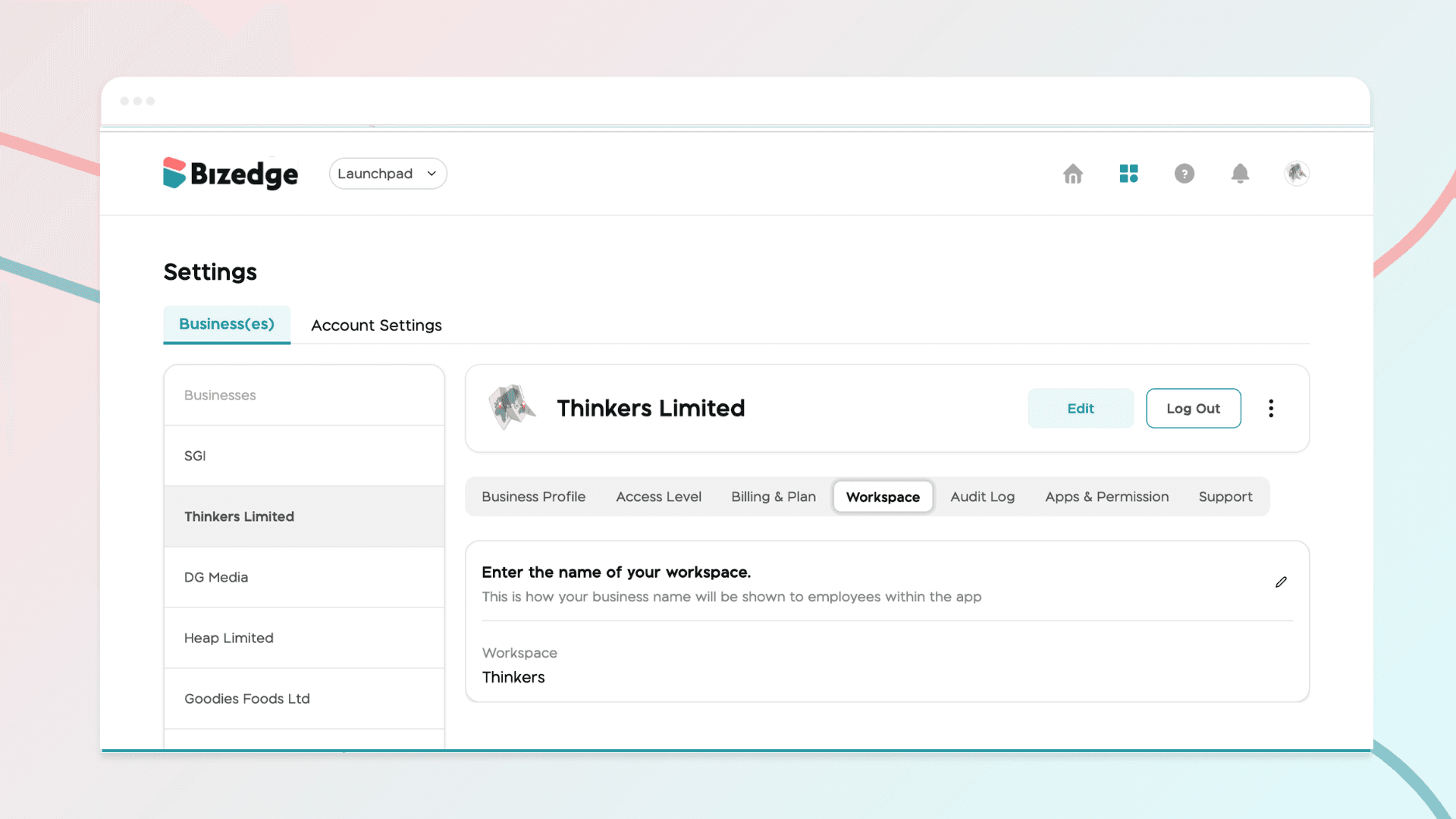
How to Set Up Your Workspace Name on BizEdge
Your Workspace Name is how your business appears to employees across the BizEdge platform. Setting it up correctly ensures that your organization is easily recognizable to your team from the moment they log in. Follow these simple steps to update it:
Apr 14, 2026 · 1 min read