
How to Send a Reference Request to a Candidate or Employee
Chinaza Okafor · Apr 13, 2026 · 1 min read
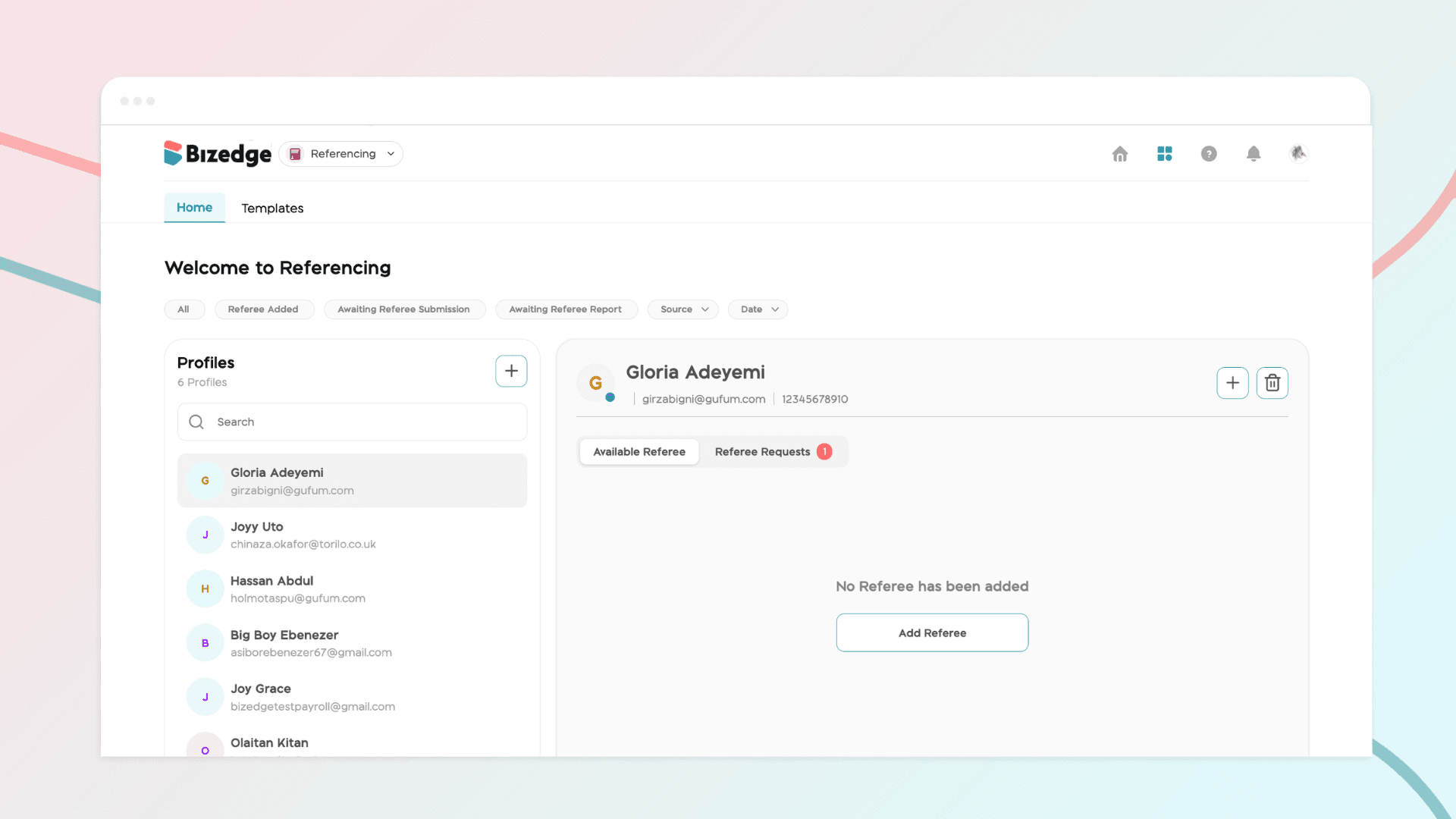
The Referencing App allows you to request and collect candidate references quickly and efficiently. Once a candidate has been added, you can send reference requests directly through the platform and track responses from your dashboard.
Step 1: Initiate the Reference Request
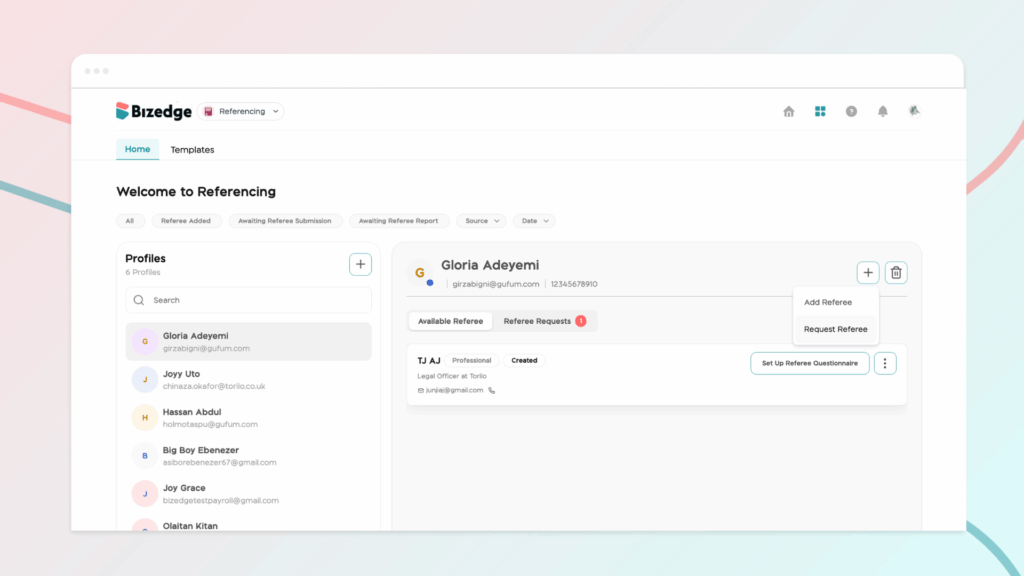
Once your candidate has been added, go to the reference dashboard and click either 'Request Referee' or 'Add Referee' to begin the reference request process.
Step 2: Select Referee Details
Choose the appropriate referee type and specify the number of referees required for the candidate.
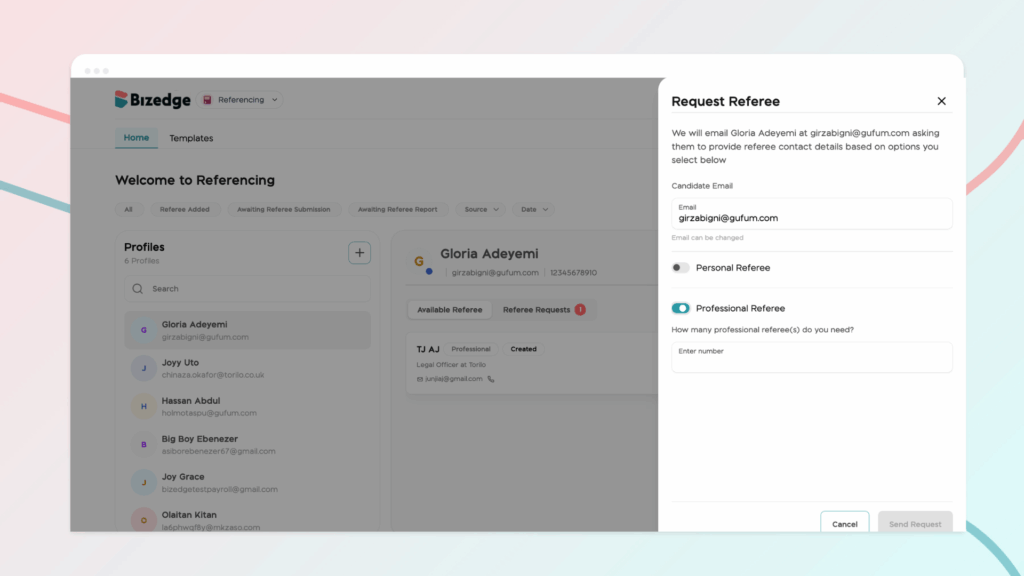
Step 3: Send the Invite
Send the invitation to the candidate. They will receive an email prompting them to provide their reference details through a secure online form.
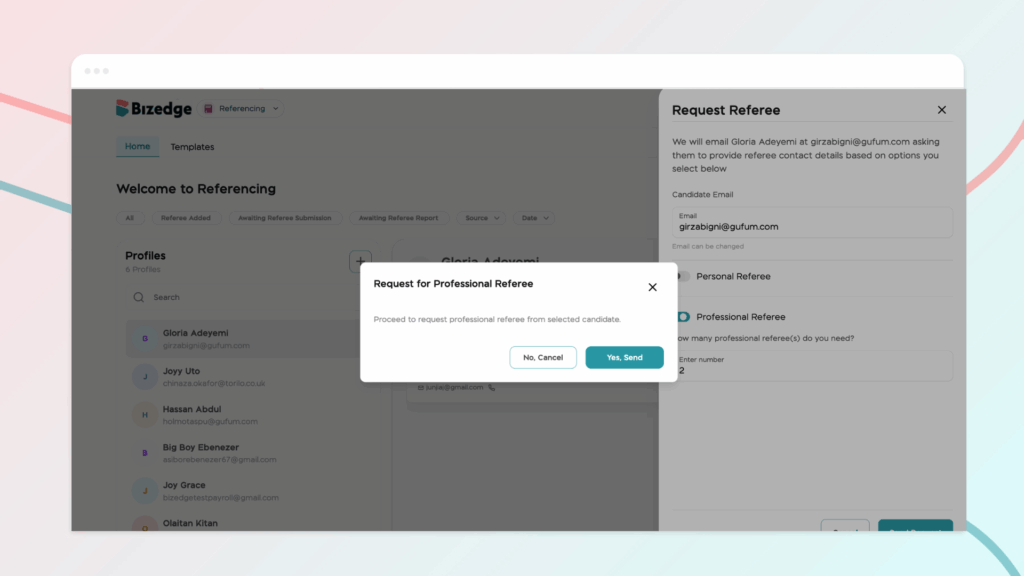
Step 4: Review Submitted References
Once the candidate submits their reference information, the details will automatically appear in your dashboard as an Available Reference, ready for you to review.
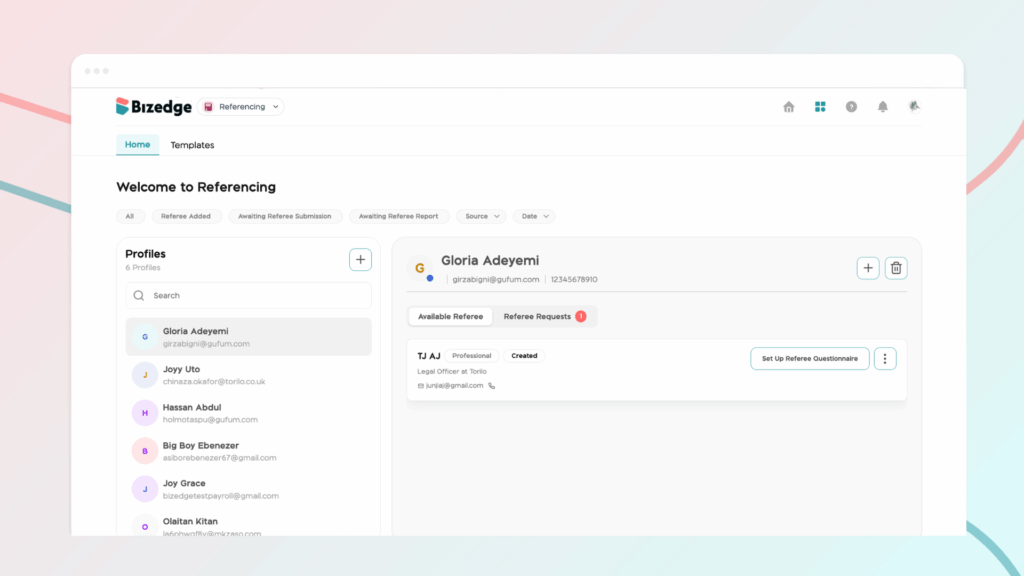
Step 5: Send a Reminder if Needed
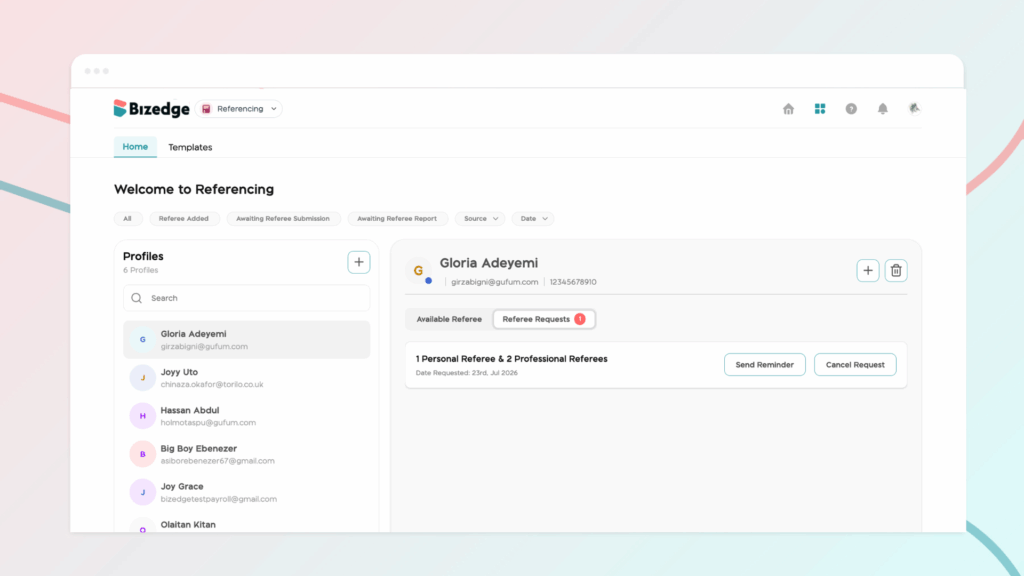
If a candidate has not yet submitted their reference details, click Send Reminder to follow up and prompt them to complete the process.
Comments
Leave a comment
Related posts
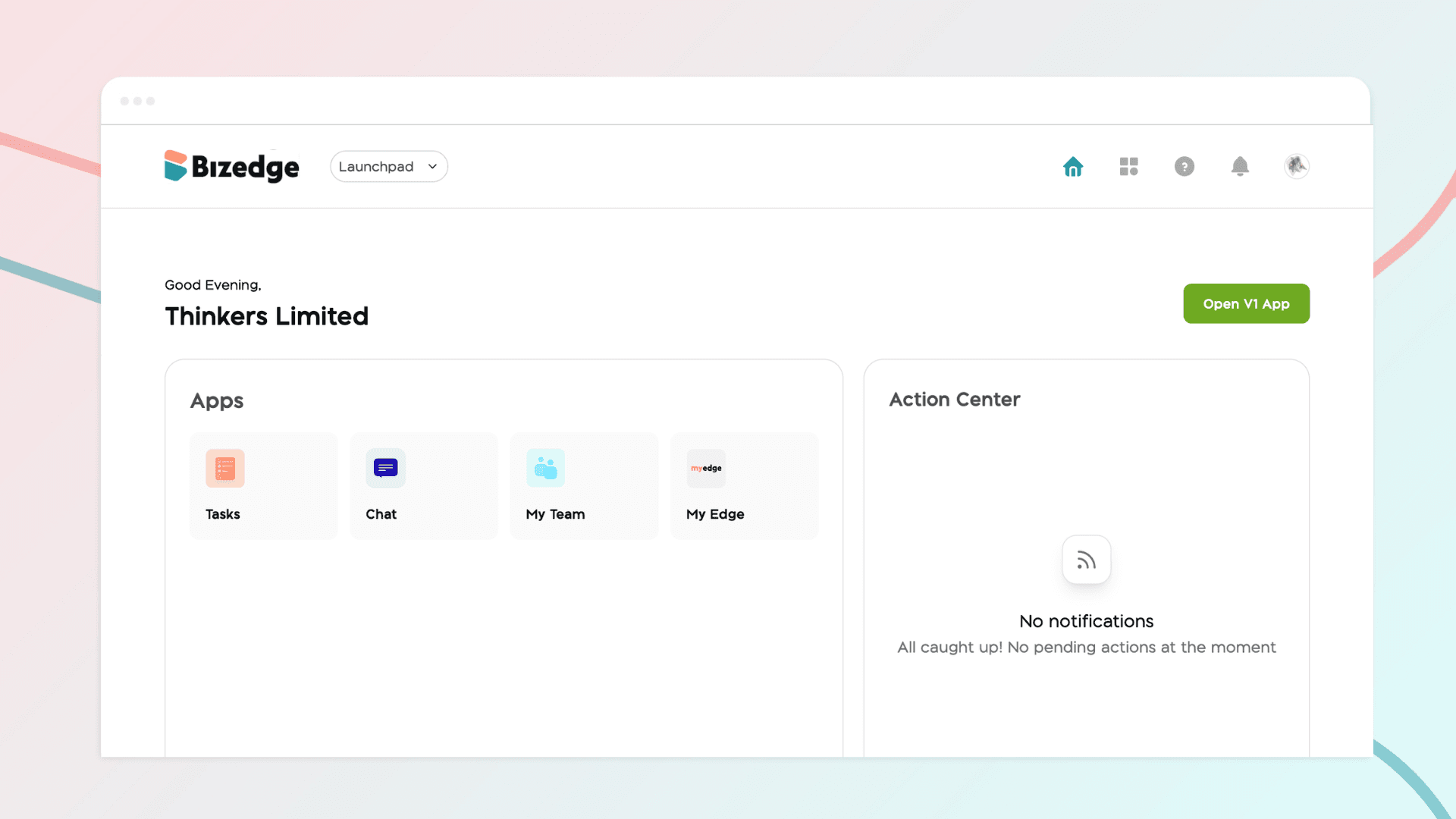
How to Use the MyTeam App
The MyTeam App on BizEdge helps line managers effectively oversee their teams. It provides visibility into team attendance, leave requests, time off schedules, and appraisal, making team supervision and approvals easier and more organized.
Apr 14, 2026 · 1 min read
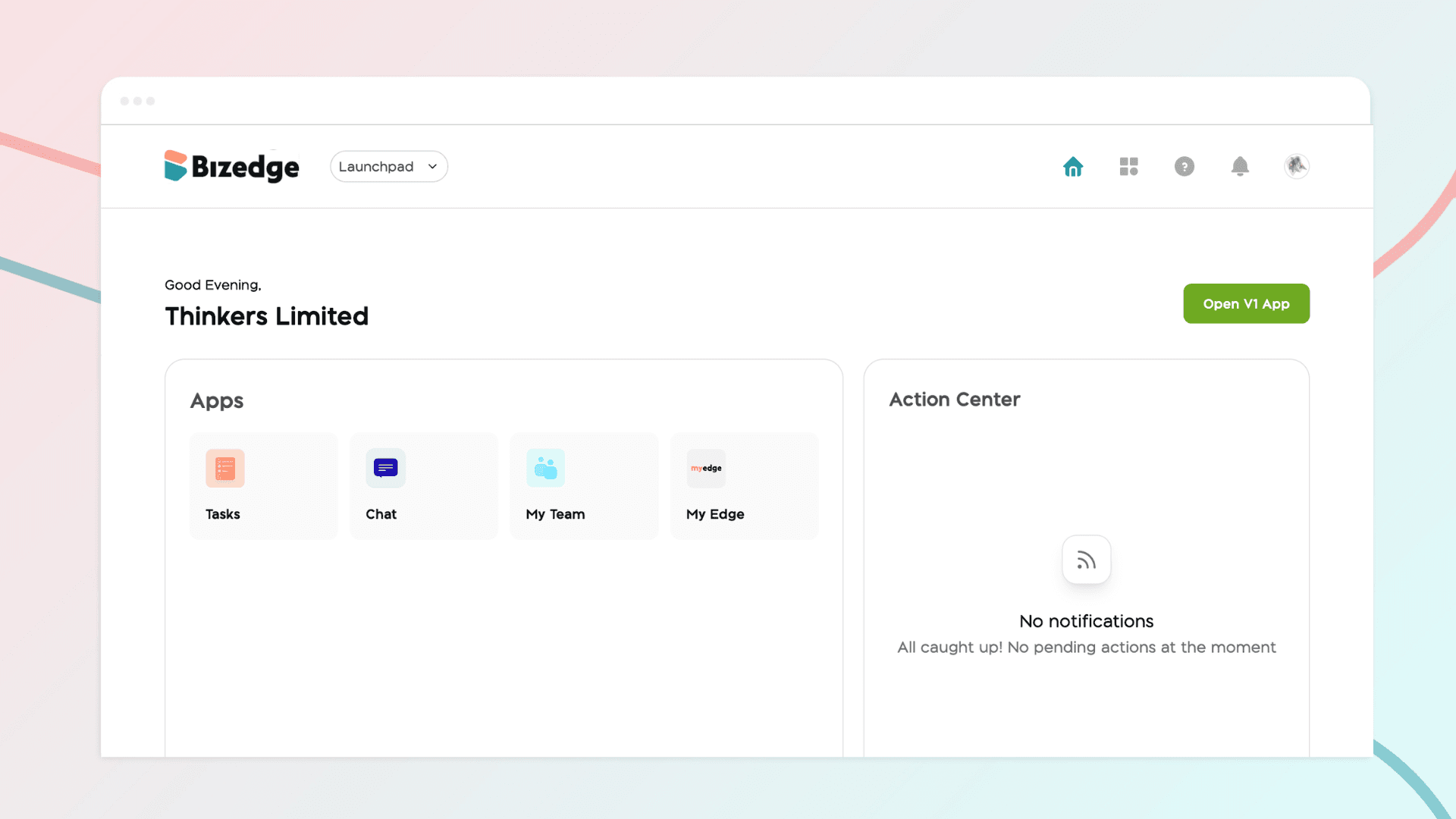
How to Grant Line Managers Access to the MyTeam App
The MyTeam App on BizEdge helps line managers effectively oversee their teams. It provides visibility into team attendance, leave requests, time off schedules, and appraisal, making team supervision and approvals easier and more organized.
Apr 14, 2026 · 1 min read
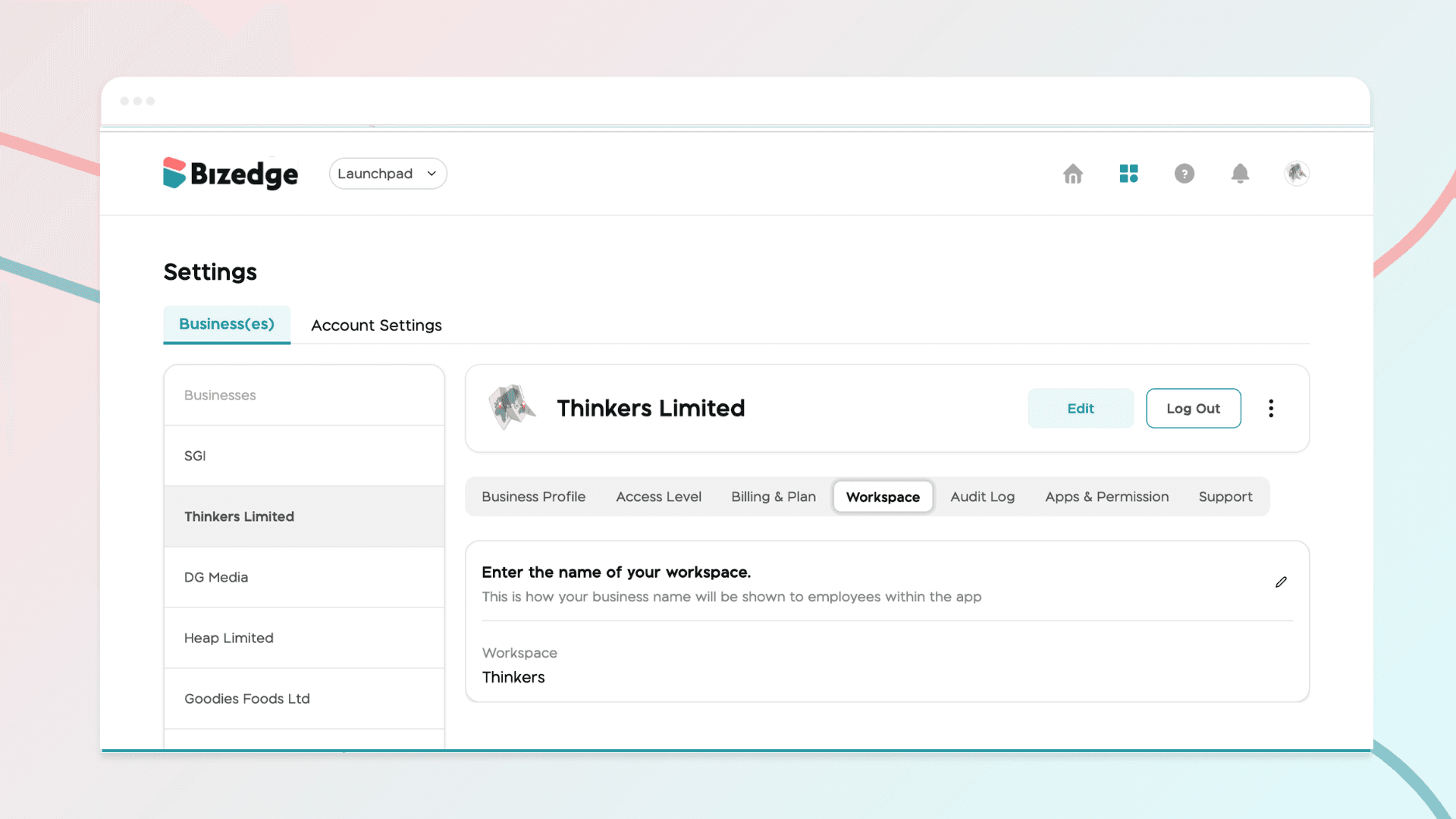
How to Set Up Your Workspace Name on BizEdge
Your Workspace Name is how your business appears to employees across the BizEdge platform. Setting it up correctly ensures that your organization is easily recognizable to your team from the moment they log in. Follow these simple steps to update it:
Apr 14, 2026 · 1 min read