Location Configuration or Employee showing “Not Added to Attendance”
How to Configure Attendance Settings and Work Schedules for Shift Employees
The Shift Rota App provides a centralized platform for creating, managing, and publishing employee work schedules. Designed for administrators and managers, it streamlines shift planning and ensures efficient workforce coverage at a glance.
Dashboard Views
The dashboard offers two viewing modes to support different planning needs:
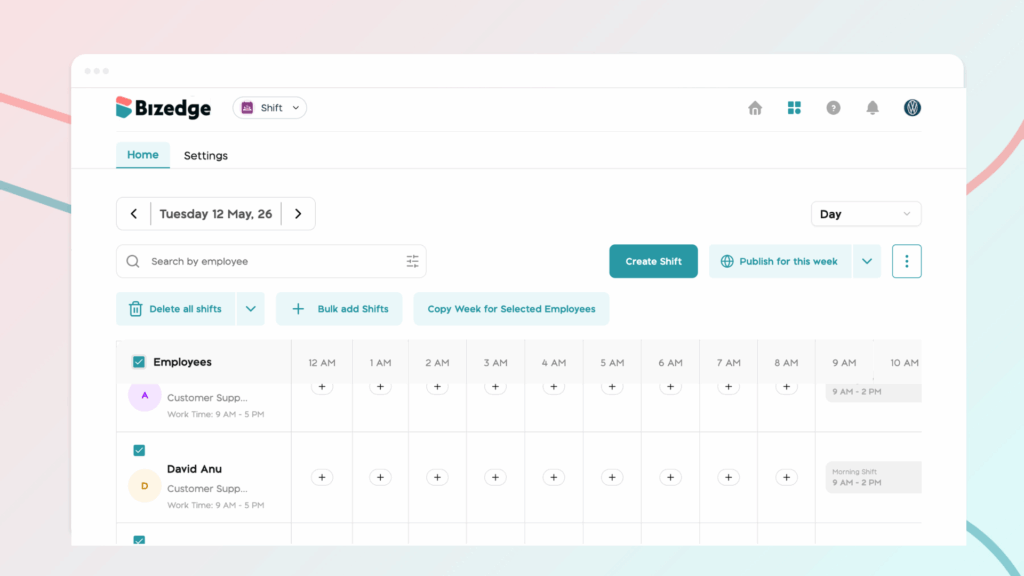
Day View: Displays detailed hourly shifts for each employee within a single day. This view is ideal for making quick adjustments and closely monitoring daily coverage.
Weekly View: Provides a broader overview of employee schedules across the entire week, making it easier to plan ahead, identify scheduling gaps, and resolve conflicts before they arise.
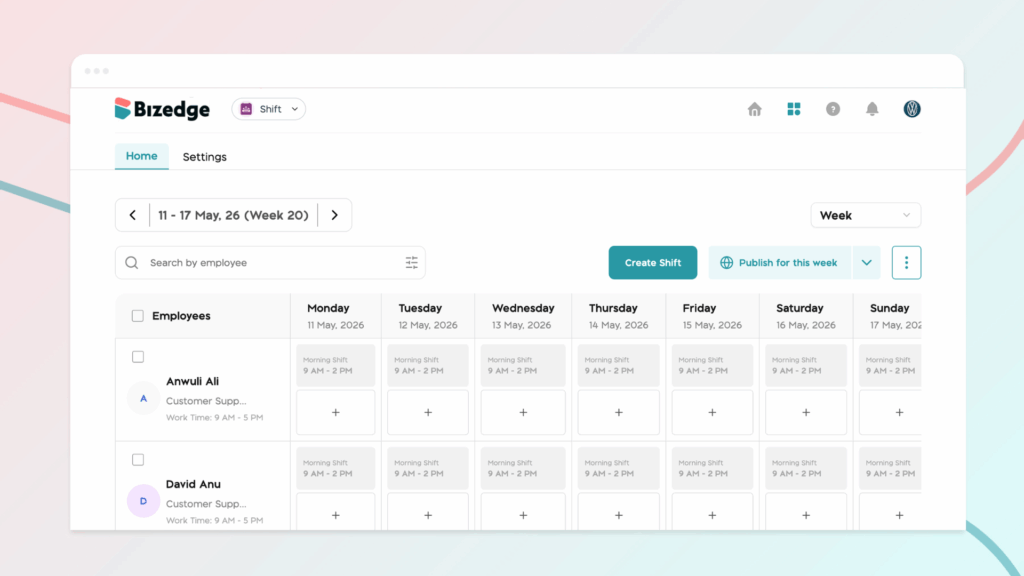
You can easily switch between these views depending on your planning needs.
Publishing Options
Once shifts have been created or modified, use the Publish option to make the schedule visible to employees. Publishing also triggers a notification to employees about their assigned shifts, so they’re always kept in the loop.
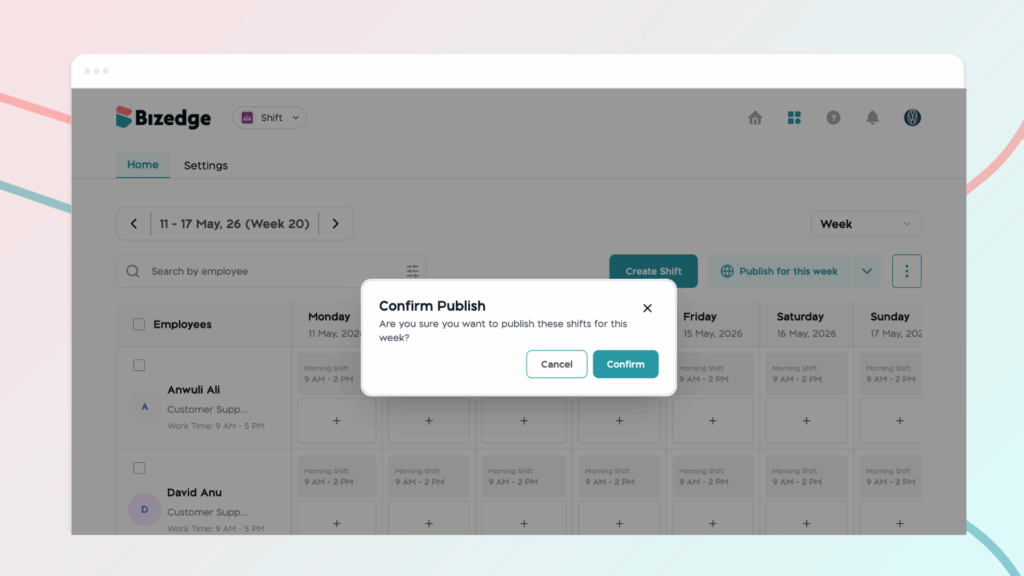
This structured review-before-publish workflow ensures schedules are accurate and approved before being shared with your team.
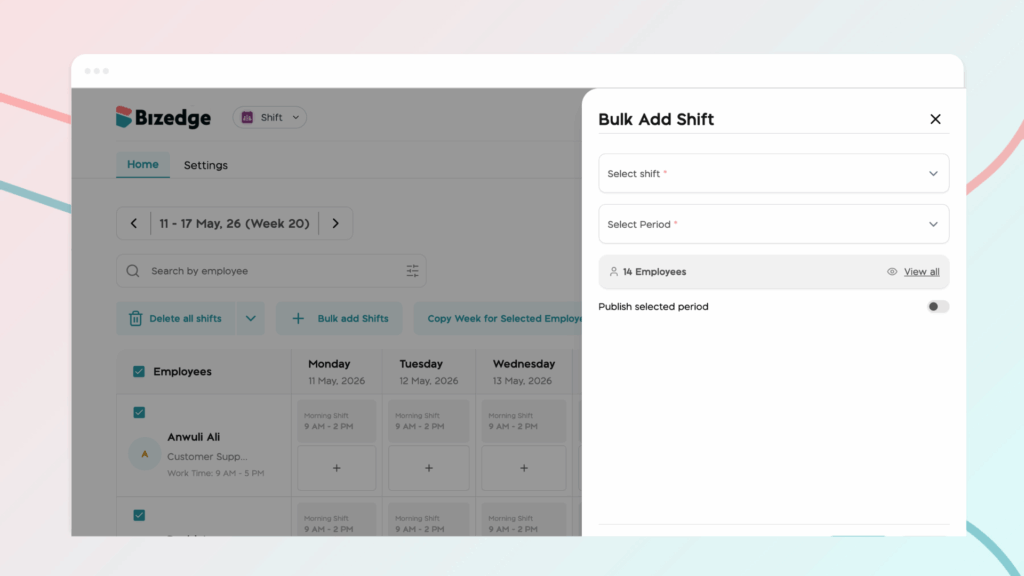
Bulk Add Shift
Need to schedule multiple employees at once? The Bulk Add Shift feature lets you assign shifts to several employees simultaneously, saving time and reducing repetitive manual entry.