
How to Create Shift
How to Bulk Add Shifts
Once your shift templates have been created, you can begin assigning shifts to employees and publishing their schedules. Published shifts are immediately visible to employees on the MyEdge App, keeping everyone informed of their working days and shift times.
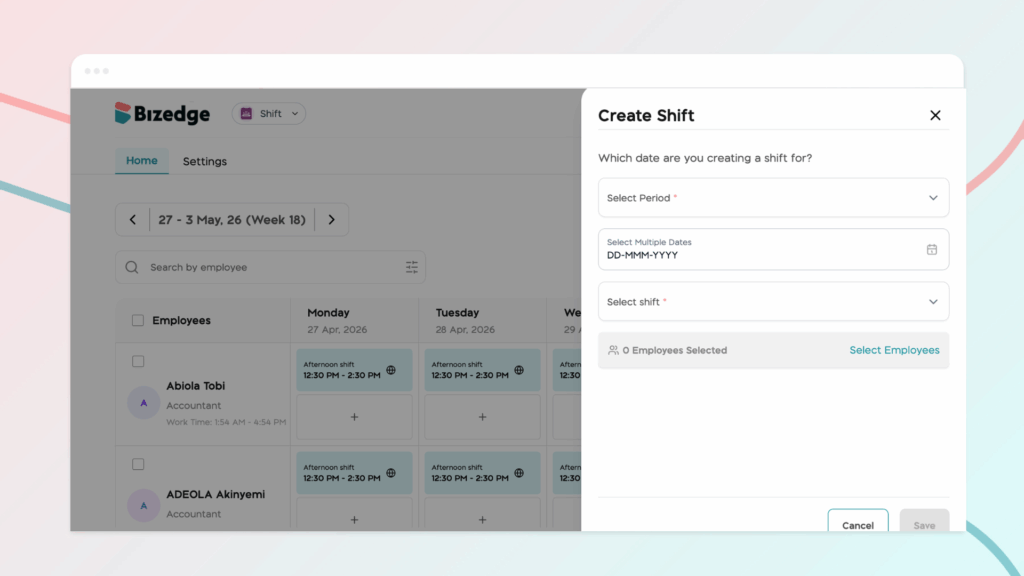
Step 1: Click on Create Shift to begin scheduling shifts for employees. In this section, you will enter the required details. Once all the necessary details have been entered, save the changes to record the shift schedule.
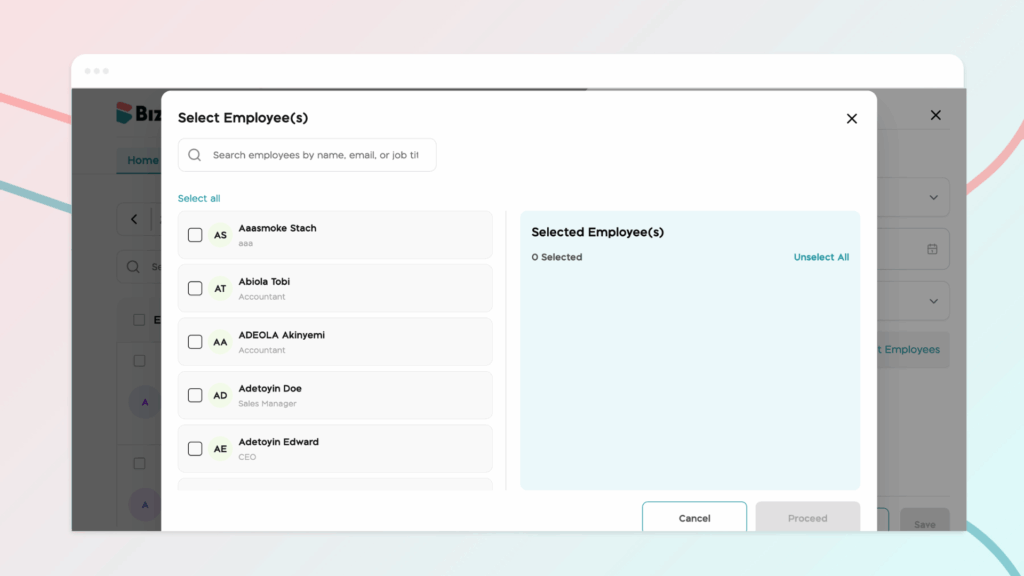
Step 2: Click on ‘Select Employees’ to select the employees you would like to assign the shift to. After this, click on Proceed, then save.
Step 3: Publish the scheduled shifts visible to employees. Publishing the shifts ensures that employees can view their assigned schedules on their MyEdge App, allowing them to stay informed about their working days and shift times.
You can also assign shifts to employees by clicking on a work day from the employee’s list. Select the shift you want from the shift drop-down, then toggle the button if you want to apply the shift for the week. After this, toggle the publish shift button to make the shift visible for the employee on MyEdge.



