BizEdge Referencing App

How to Create Reference Templates
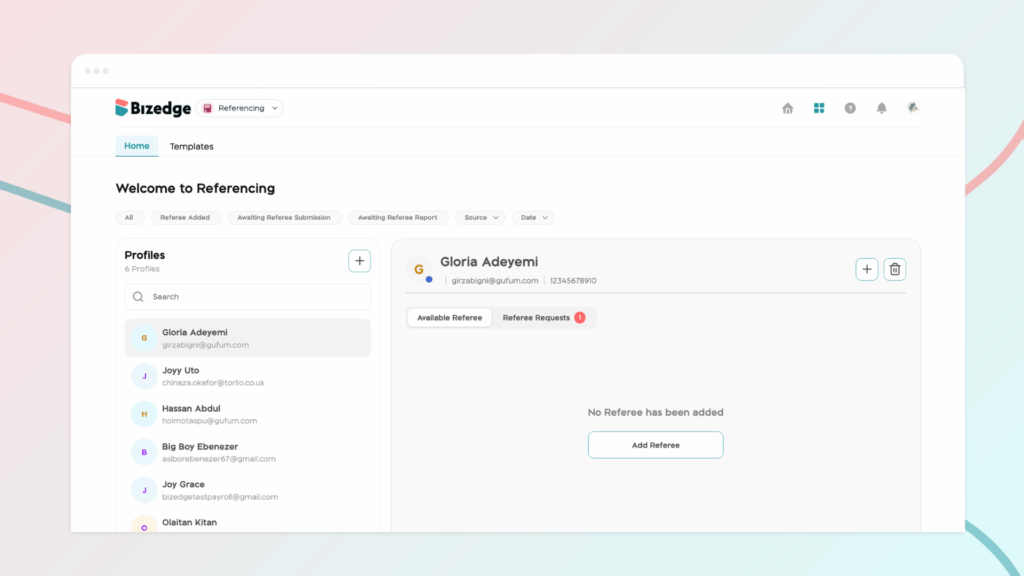
The Referencing App allows you to request and collect candidate references quickly and efficiently. Once a candidate has been added, you can send reference requests directly through the platform and track responses from your dashboard.
Step 1: Initiate the Reference Request
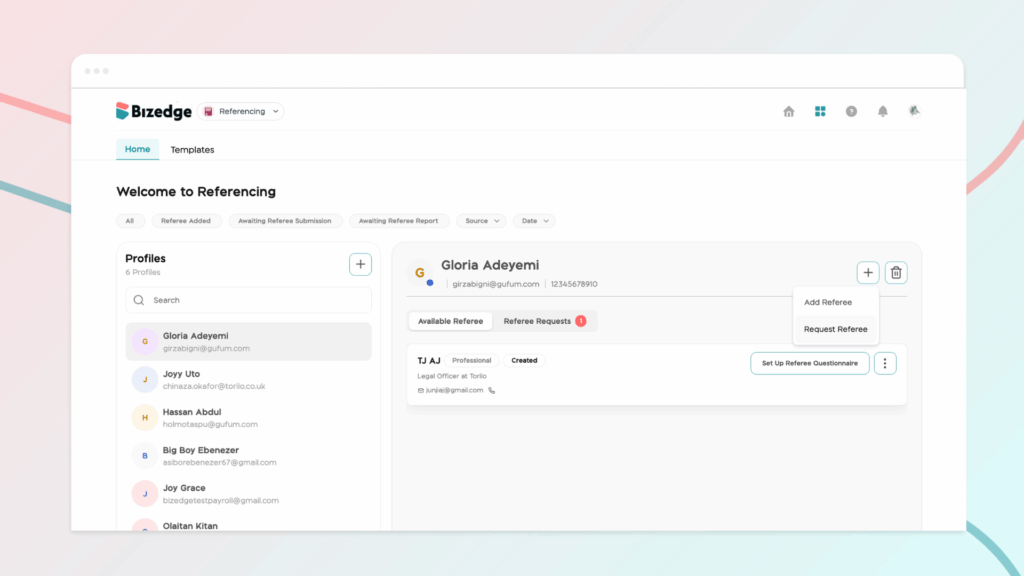
Once your candidate has been added, go to the reference dashboard and click either ‘Request Referee’ or ‘Add Referee’ to begin the reference request process.
Step 2: Select Referee Details
Choose the appropriate referee type and specify the number of referees required for the candidate.
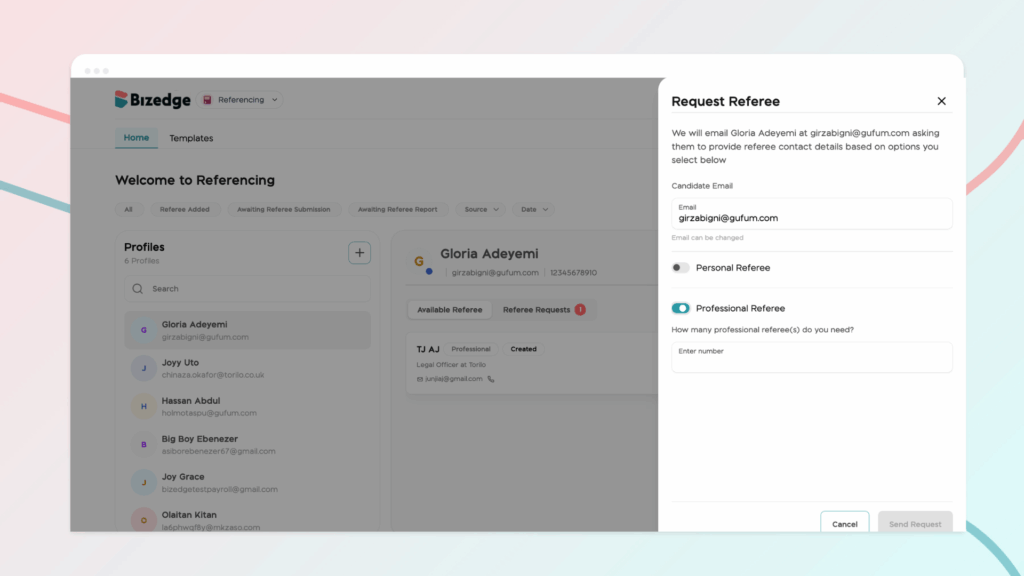
Step 3: Send the Invite
Send the invitation to the candidate. They will receive an email prompting them to provide their reference details through a secure online form.
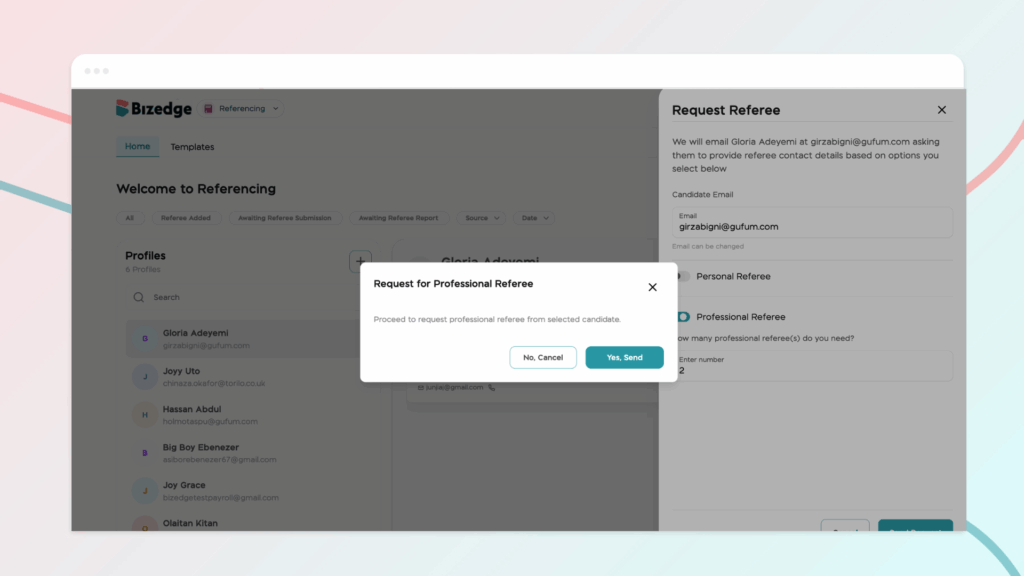
Step 4: Review Submitted References
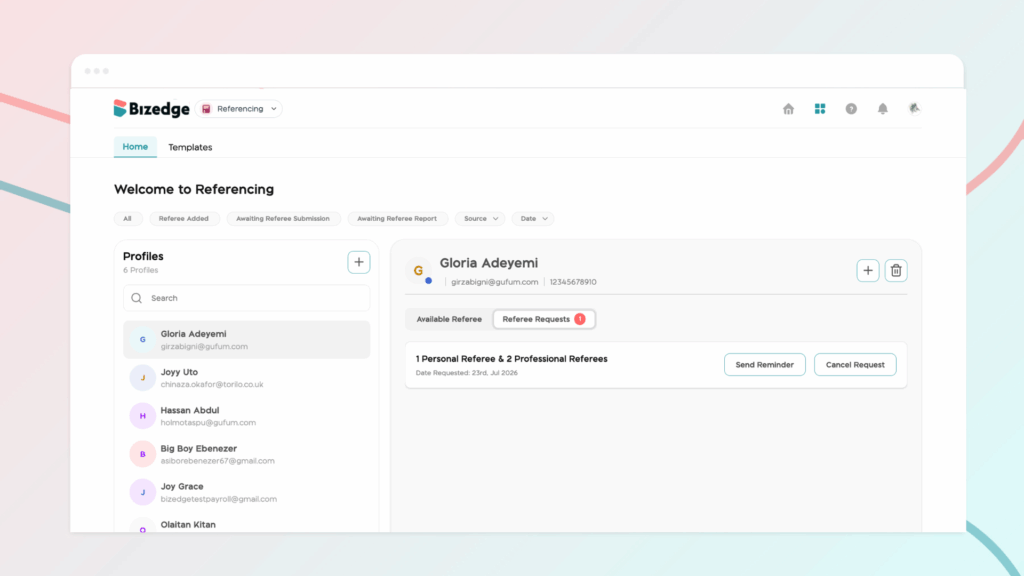
Once the candidate submits their reference information, the details will automatically appear in your dashboard as an Available Reference, ready for you to review.
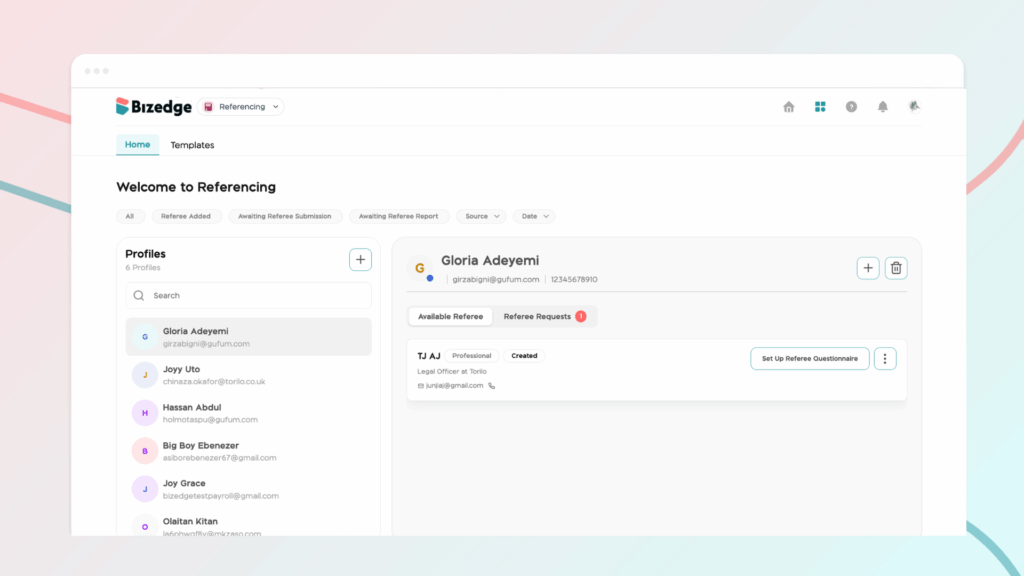
Step 5: Send a Reminder if Needed
If a candidate has not yet submitted their reference details, click Send Reminder to follow up and prompt them to complete the process.