
How to Send a Reference Request to a Candidate or Employee
BizEdge Recruit App — Overview
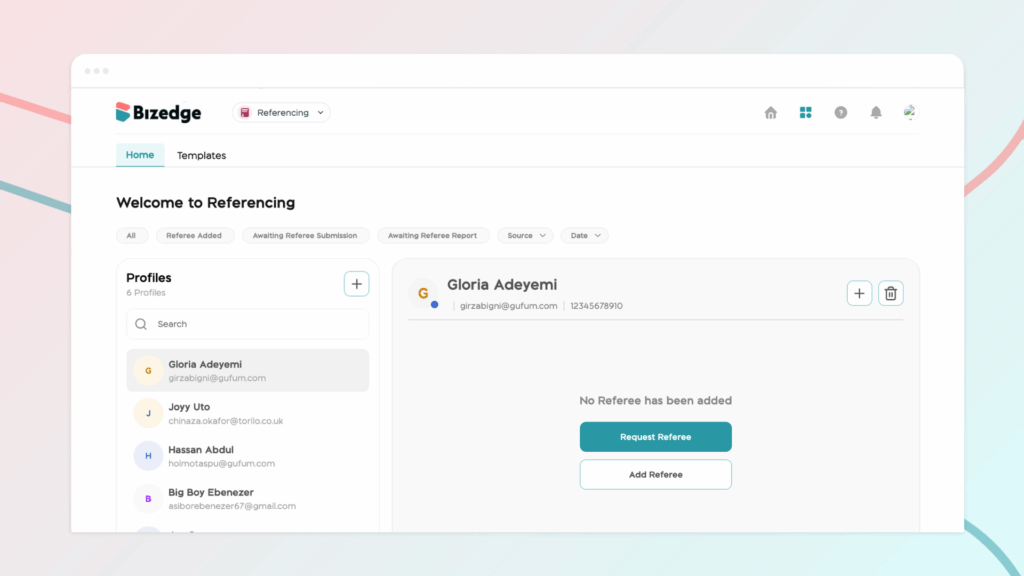
Reference templates make it quick and easy to send consistent and professional reference requests. To get started, click on Templates within the Referencing app. You can either select an existing template for a Professional or Personal reference, or create a entirely new template tailored to your recruitment needs.
Creating a New Template
Step 1: Go to the Template Section
Navigate to the Template section within the Referencing app.
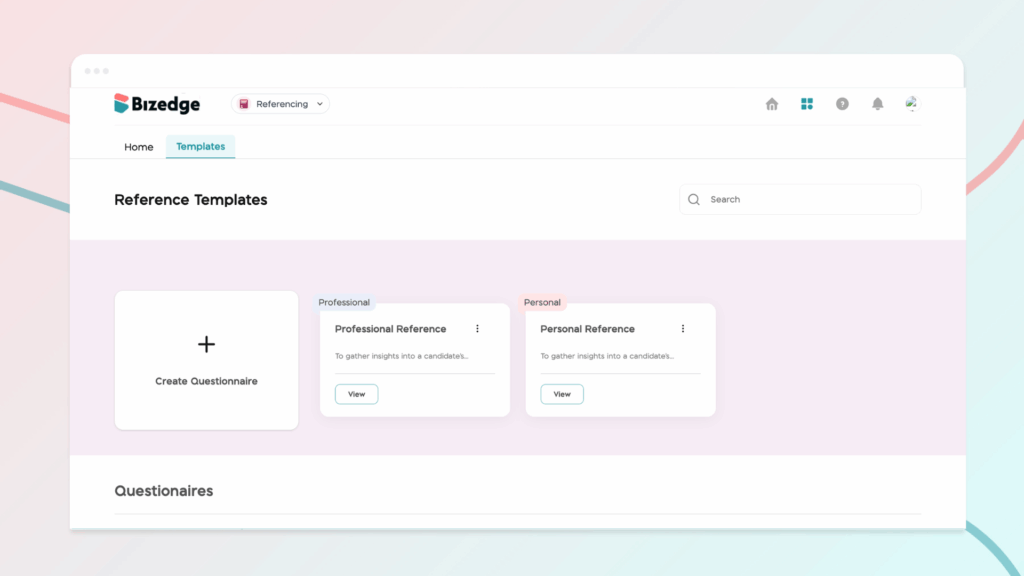
Step 2: Click ‘Create Questionnaire’.
Click the Create Questionnaire button to begin building your custom template.
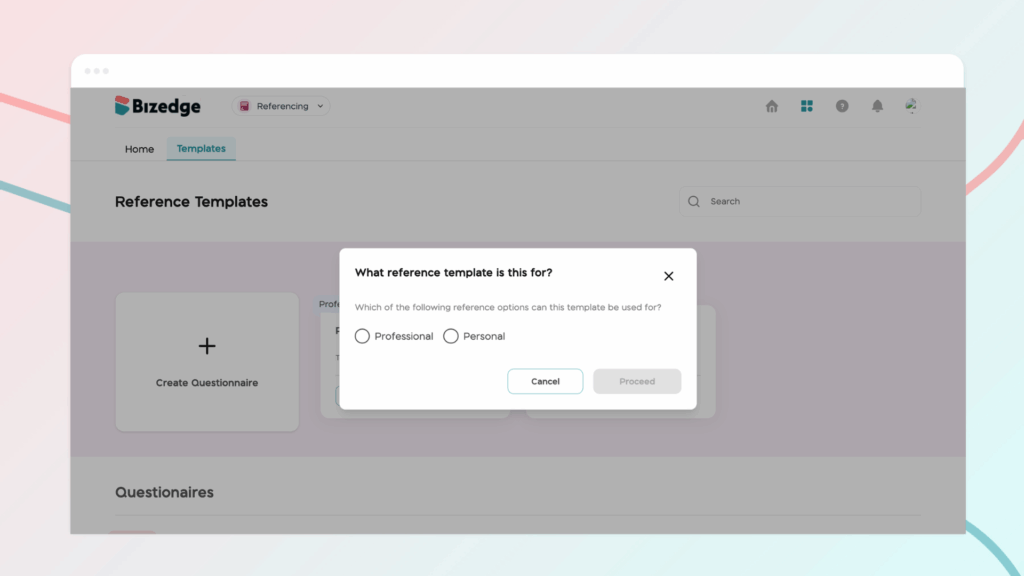
Step 3: Add a Title and Description
Enter a clear title and a brief description that accurately reflects the purpose of the template.
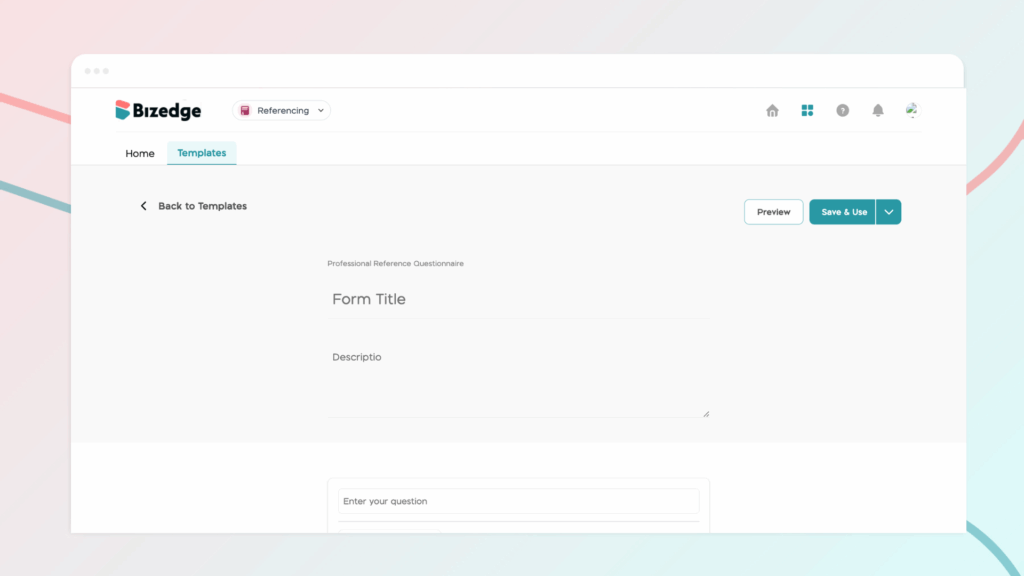
Step 4: Add Questions and Answer Formats
Add as many questions as needed, selecting the appropriate answer format for each one to suit your reference requirements.
Step 5: Save the Template
Once you are satisfied with the questionnaire, click Save to store the template for future use.
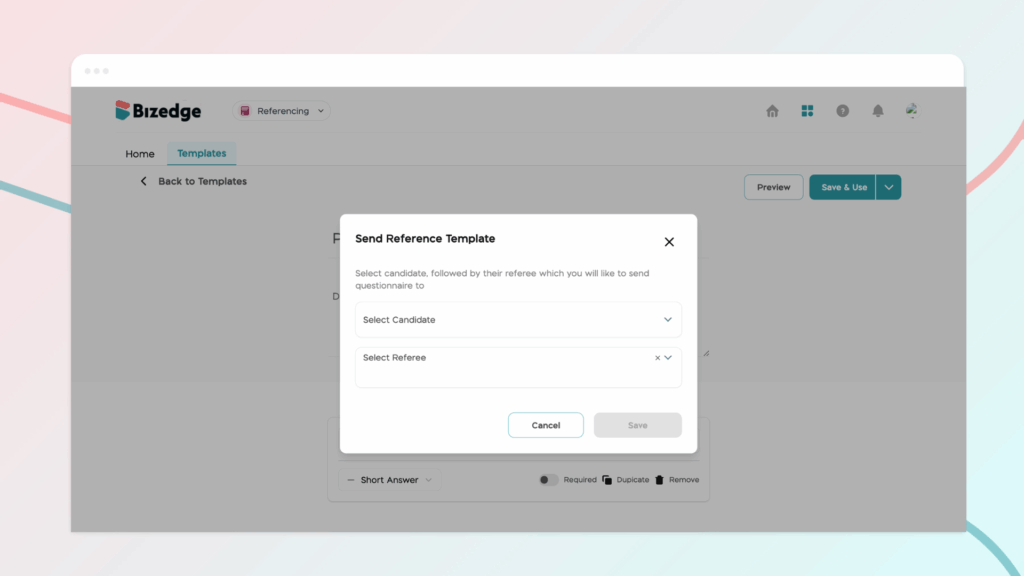
After saving, your custom template will be ready to send directly to the candidate’s referee whenever needed.



