
Time & Attendance App- Overview
How Employees Clock In and Clock Out
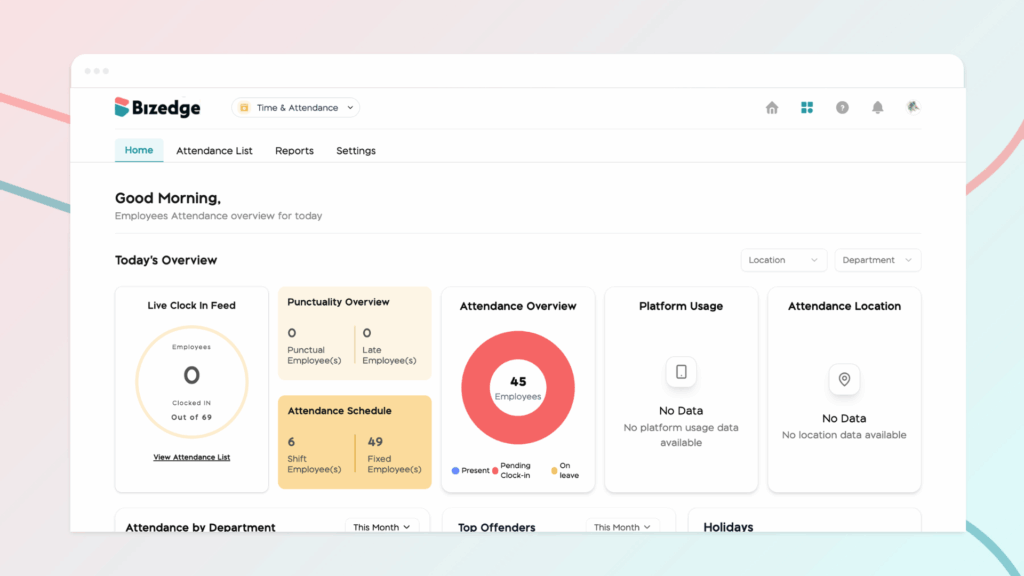
Properly configuring attendance settings and work schedules is essential for accurate time tracking and punctuality monitoring across your organization. BizEdge allows administrators to define lateness policies and assign work schedules to employees, ensuring that the system correctly reflects each employee’s working pattern and calculates attendance data accordingly.
Step 1: Open the Attendance App
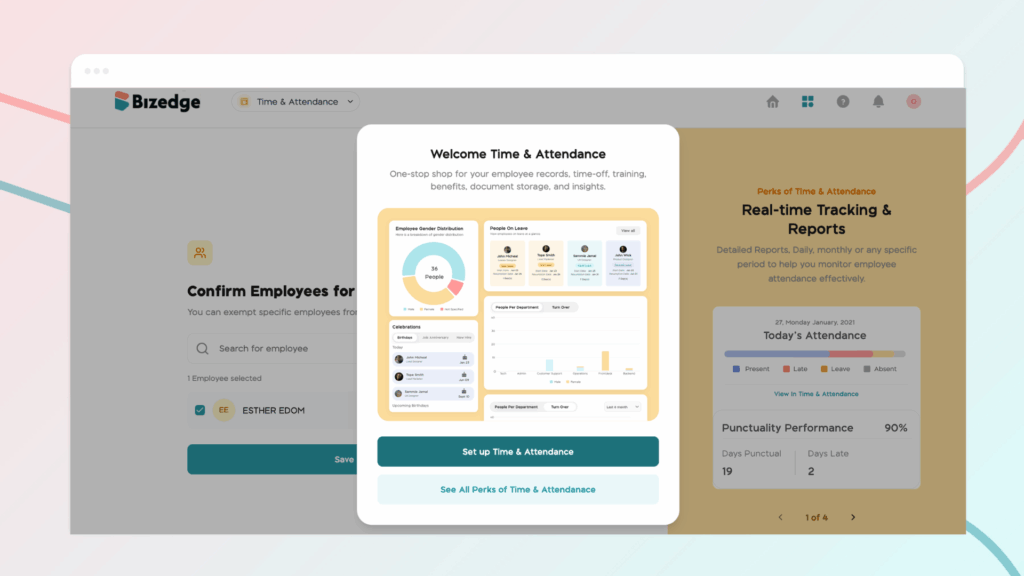
From the BizEdge dashboard, open the Attendance App and click ‘Set Up Time and Attendance’ to begin the setup process.
Step 2: Set Up a Company Location
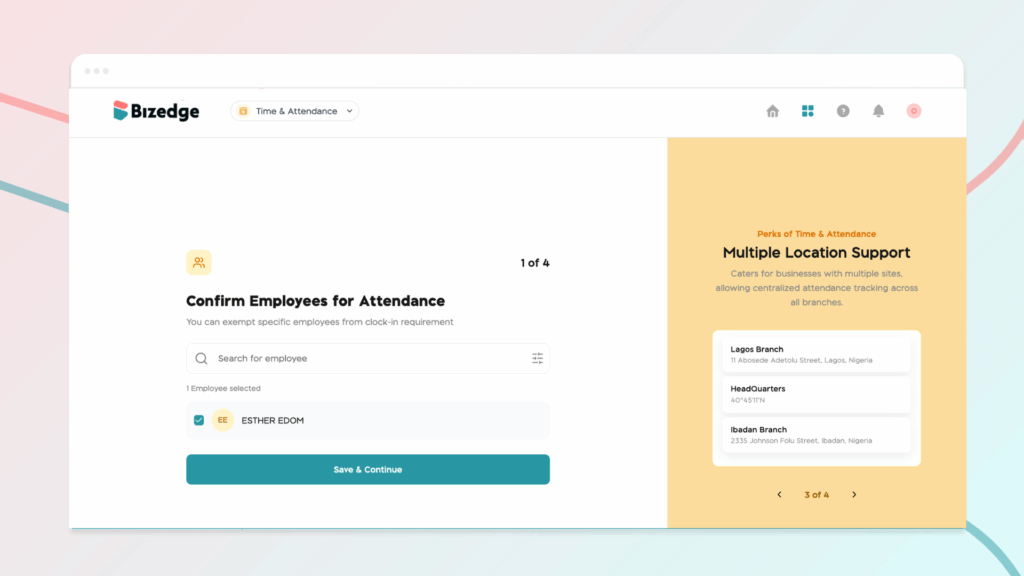
Select employees you’d like to add to the attendance.This means the employees selected are expected to clock in.
Step 3: Configure the Lateness Policy
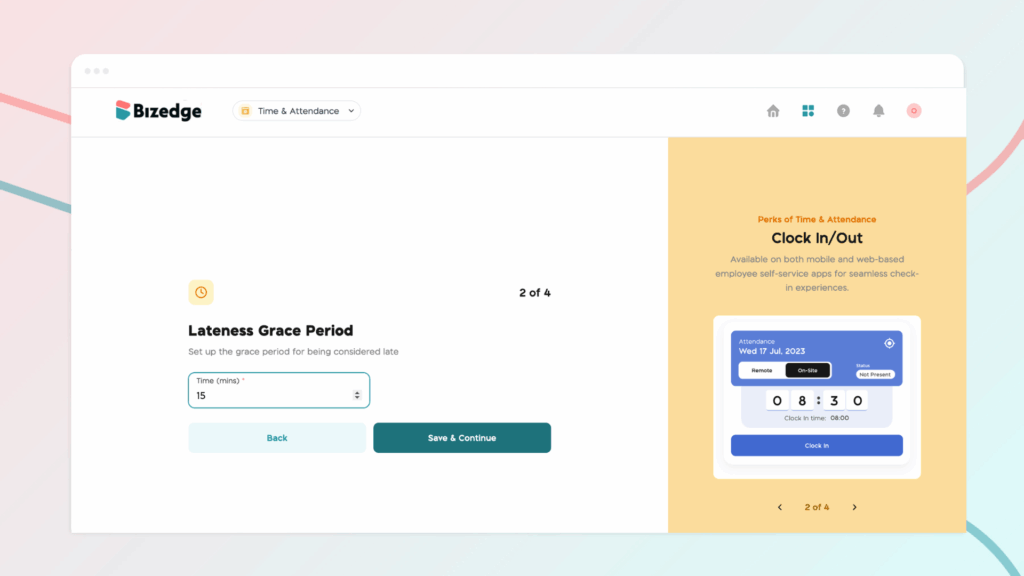
In Attendance Settings, set the lateness grace period. This determines the window of time after the scheduled start time during which an employee can still clock in without being marked late. Any employee who clocks in after this grace period will automatically be marked as late.
Step 4: Set Clock-In Start Date For Employees
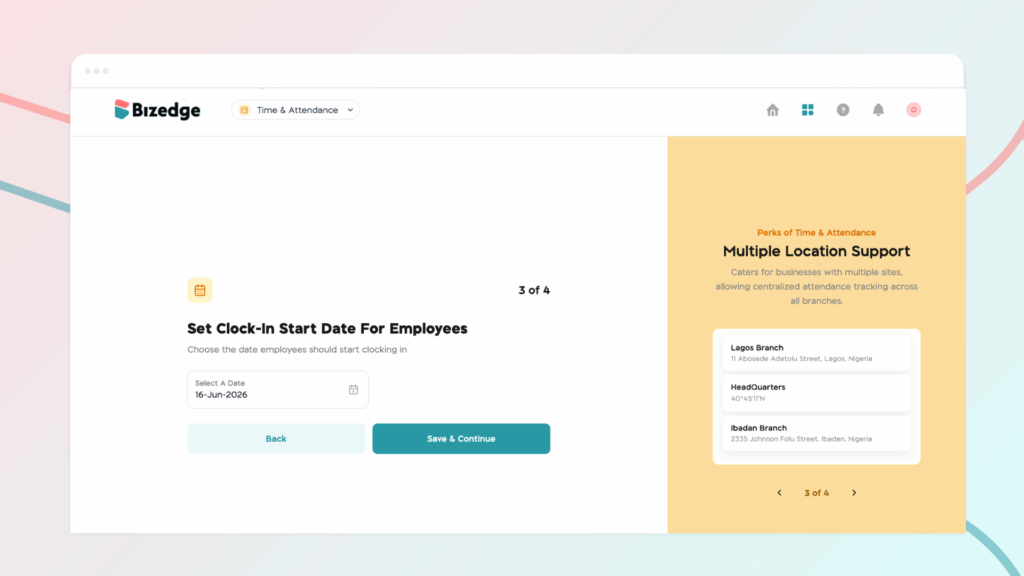
Choose the date employees should start clocking in.
Step 5: Communicate MyEdge Clock-In to Employees
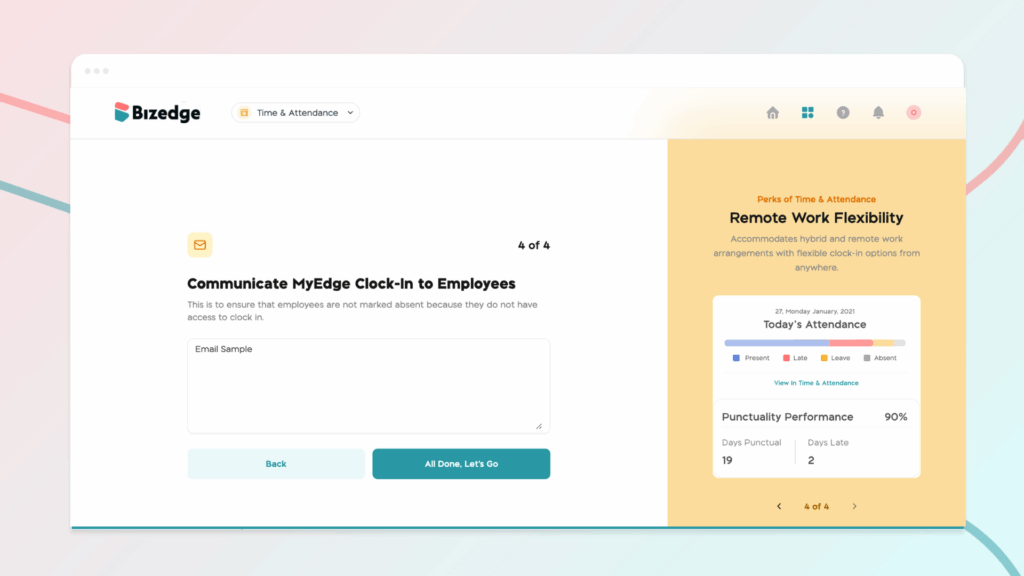
This is to ensure that employees are not marked absent because they do not have access to clock – in
Note: Employees must be assigned to a defined company location in order to clock in. To set this up, open the People App and navigate to Settings, then Location. Click Add New Location and either detect your current location automatically or manually enter the company address.



