
Employee Showing “Not Ready” on Attendance
Shift Rota App: Overview
This issue occurs when an employee has not been assigned to a company location or has been excluded from attendance tracking. Follow the steps below to resolve it.
Assigning a Location to an Employee
Step 1: Navigate to Location Settings
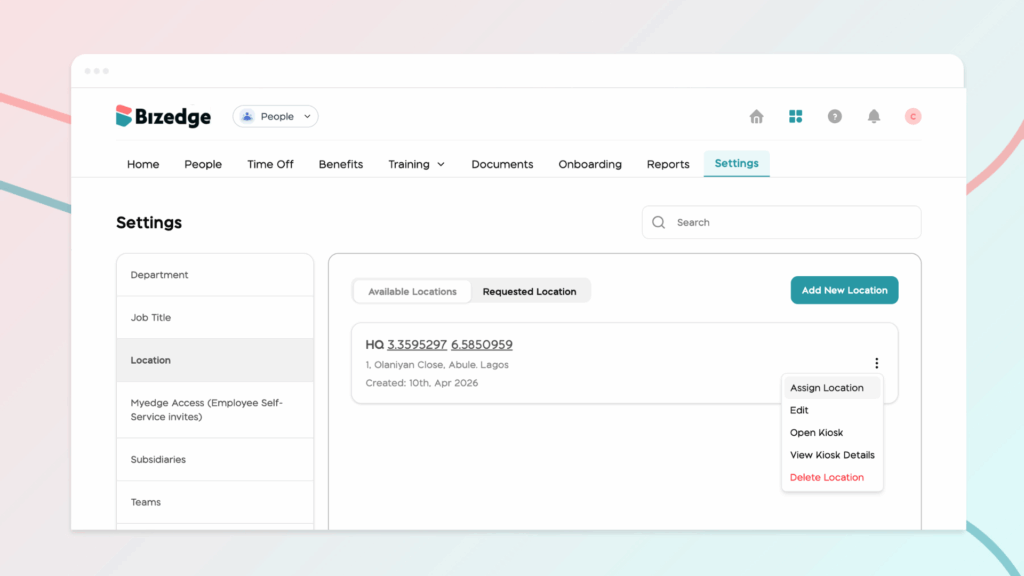
In the People app, go to Settings and select Location to view all configured company locations.

Step 2: Assign the Employee to a Location
Click the three-dot menu next to the relevant location and select Assign Location. Choose the employee you would like to assign and confirm the selection.
Including an Employee in Attendance Tracking
Step 1: Go to Attendance Settings
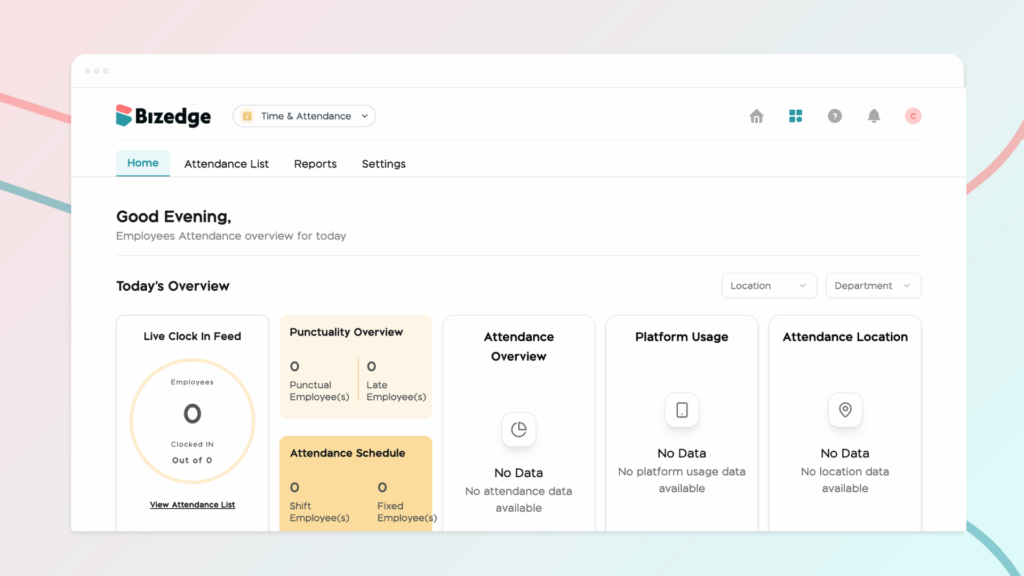
If the employee has been excluded from attendance tracking, open the Attendance app and navigate to Settings.
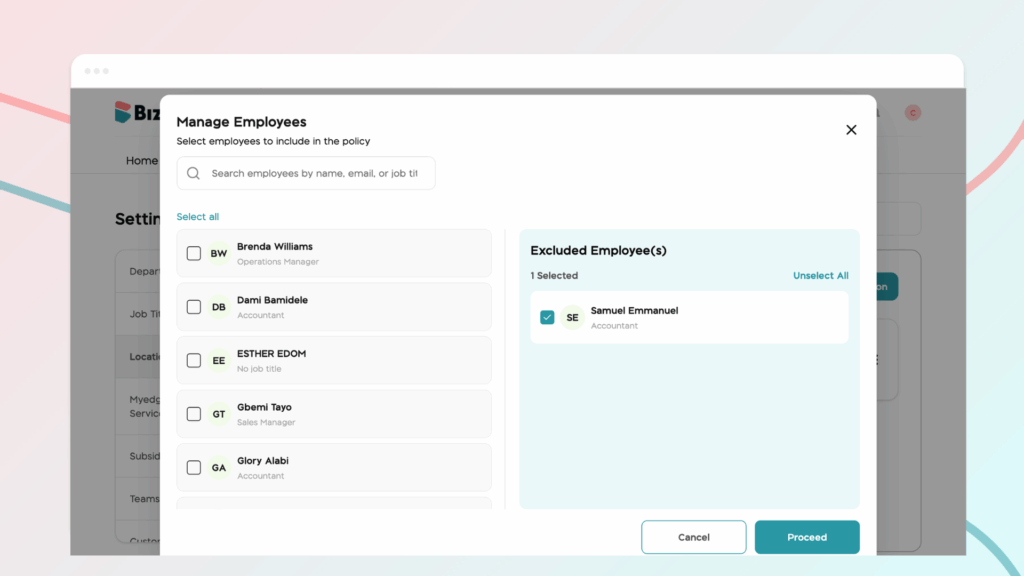
Step 2: Access Employee Restriction and Exclusion
Click on Employee Restriction and Exclusion to view the list of employees currently excluded from attendance tracking.
Step 3: Add the Employee to Attendance
Locate the employee and add them to attendance tracking. Once saved, the employee will appear in the Attendance App and their clock-in activity will begin to be recorded.



