How to Reset Kiosk PIN and Admin PIN
Location Configuration or Employee showing “Not Added to Attendance”
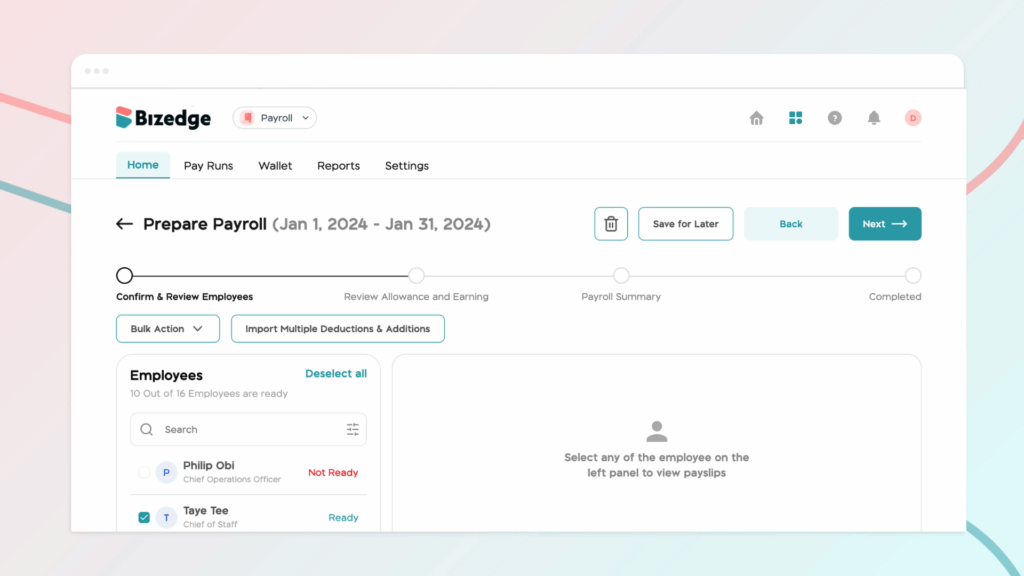
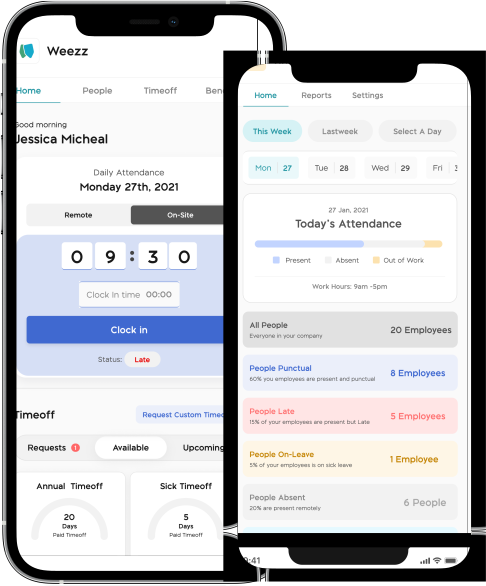
If an employee is showing a “Not Ready” status in the Attendance app, it typically means that one or more required settings have not yet been configured in the People app. This includes details such as their work time, work hours, and work schedule. Without these, the employee will be unable to clock in.
The steps below will guide you through how to resolve this, whether it’s for a single employee or multiple employees at once.
Step 1: Go to the People App
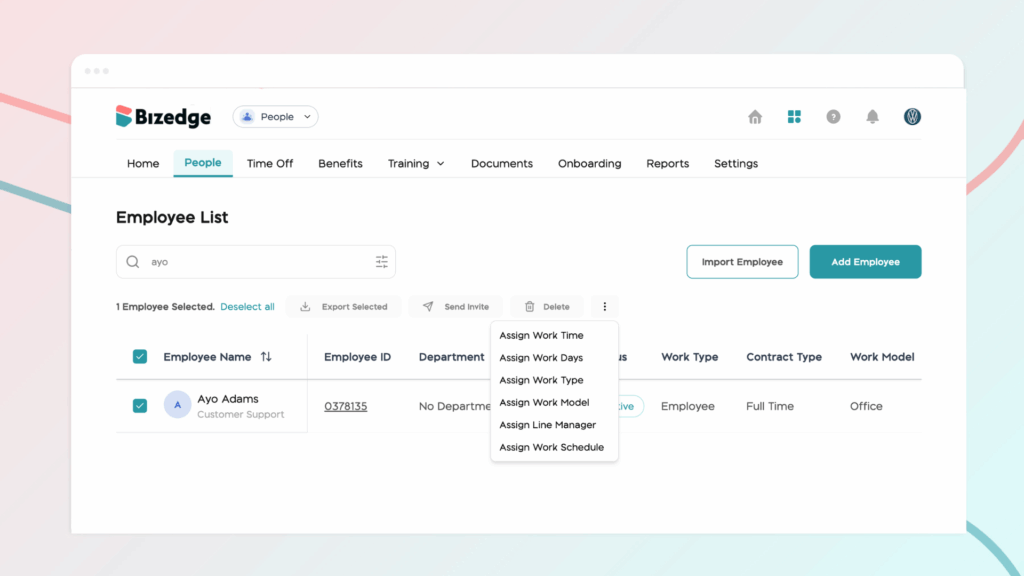
Navigate to the People App from the BizEdge dashboard and locate the employee showing the “Not Ready” status.
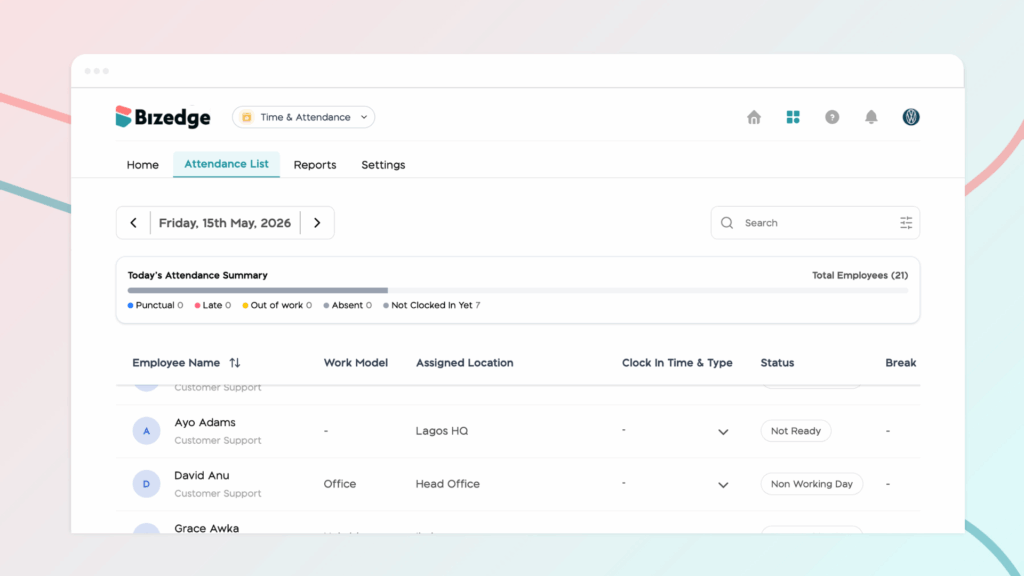
Step 2: Select the Employee
Click on the employee’s profile to open their details and review what information may be missing or incomplete.
Step 3: Assign the Required Settings
Click the three-dot menu on the employee’s profile and assign the necessary work time, work hours, and work schedule. Once all required information has been filled in, the employee’s status will automatically update to Ready.
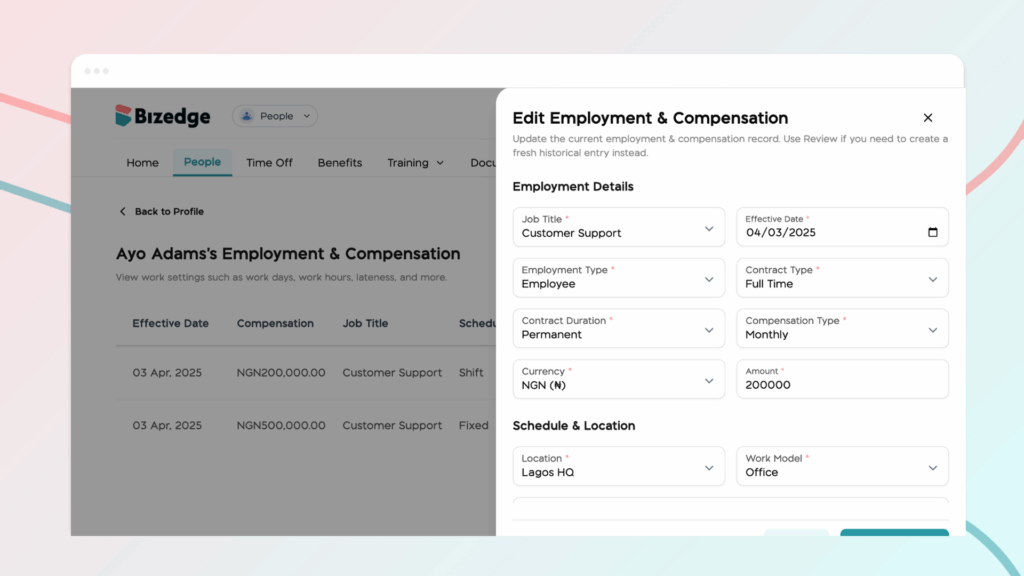
Step 4: Use Bulk Assign for Multiple Employees
If several employees are showing the “Not Ready” status, use the Bulk Assign feature to apply work time, work hours, and schedule settings to multiple employees at once, saving time and ensuring everyone is correctly configured.