How to View Attendance Reports and Export Data
Employee Showing “Not Ready” on Attendance
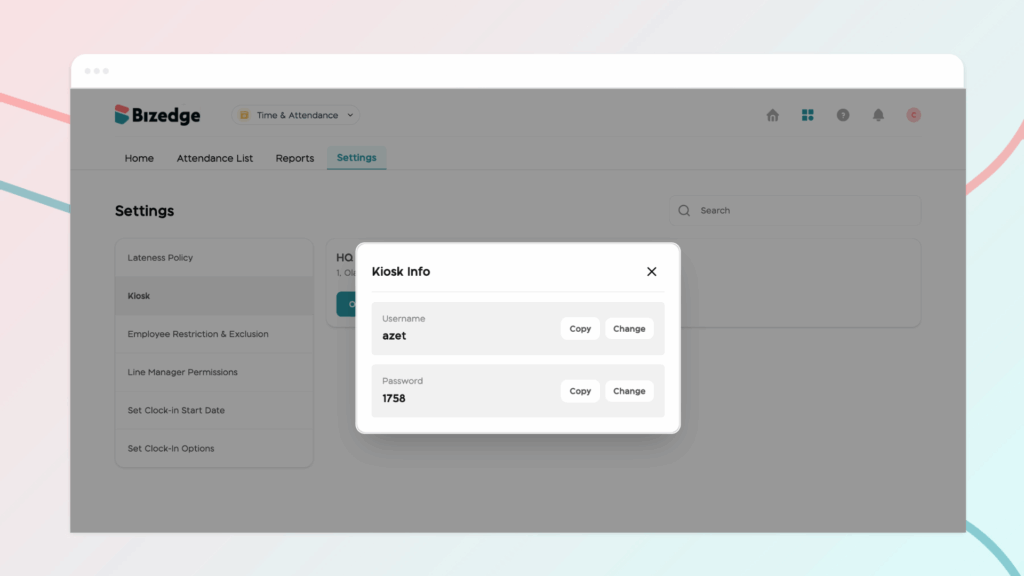
If a Kiosk PIN or admin PIN needs to be changed or has been forgotten, BizEdge makes it straightforward to reset both directly from the Attendance App. Follow the steps below depending on which PIN you need to reset.
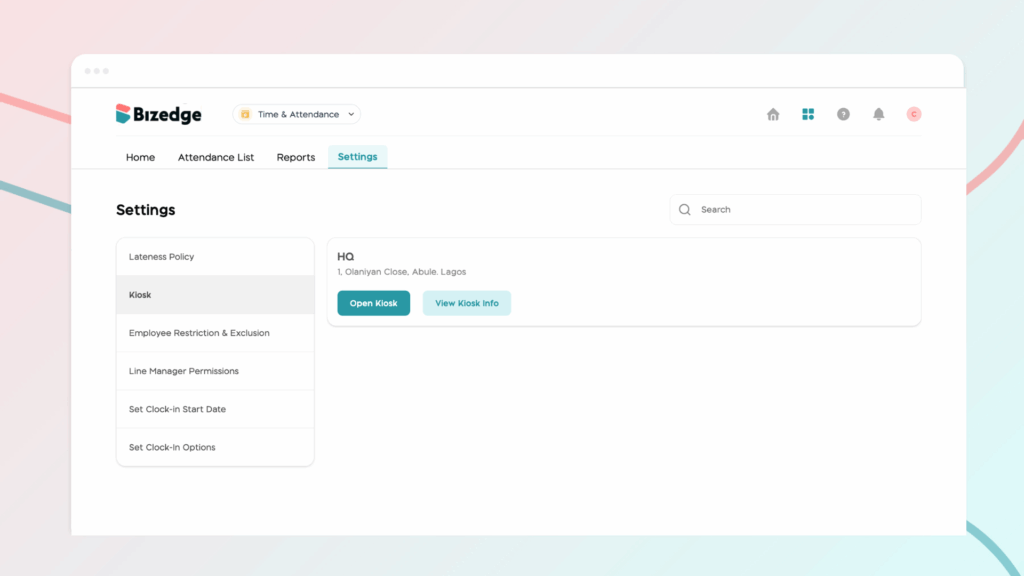
Step 1: Access Kiosk Info
From the Attendance App, navigate to the relevant company location and click ‘View Kiosk Info’ to open the kiosk details.
Step 2: Update and Save the PIN
Enter the new kiosk PIN and click Save to apply the changes. The updated PIN will take effect immediately.
Resetting the Admin PIN
Step 1: Open the Kiosk
From the company location settings, click Open Kiosk to launch the kiosk interface.
Step 2: Access the Reset Option
Click the three dots (…) within the kiosk interface and select Admin Reset PIN from the menu.
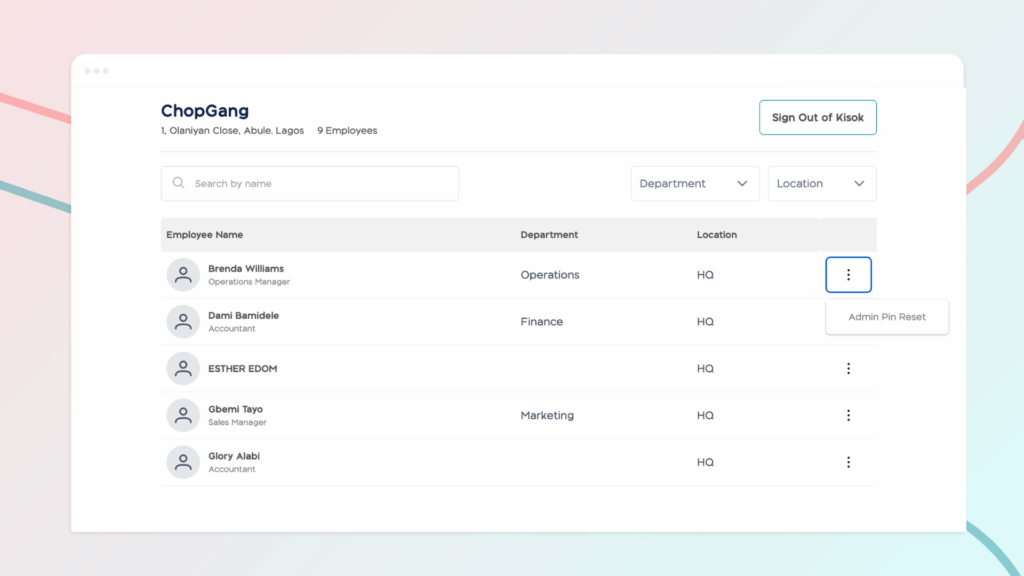
Step 3: Follow the Prompts
Follow the on-screen prompts to complete the admin PIN reset process.