
How to Assign Shifts to Employees and Publish Shifts
How to Copy Shift
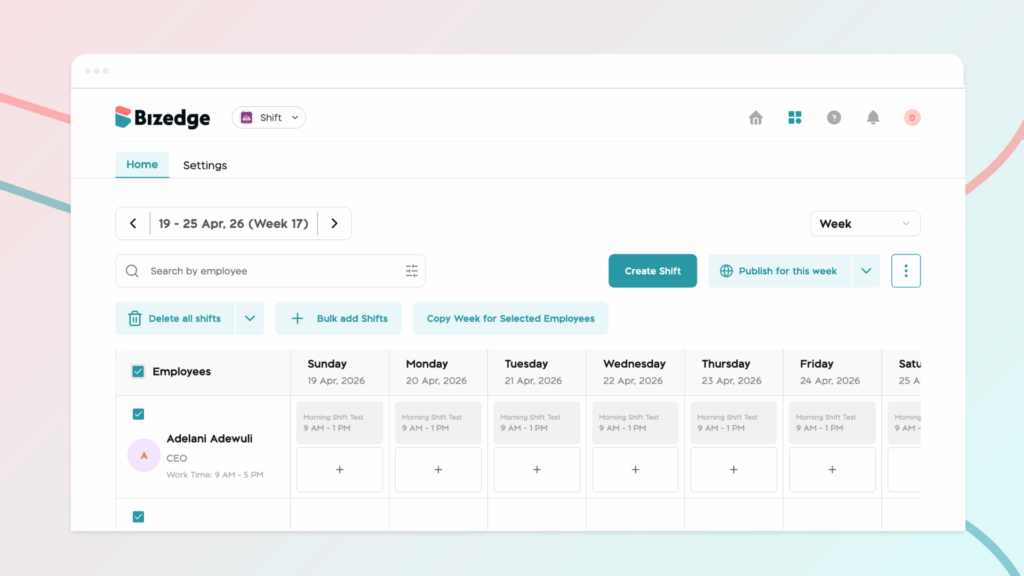
The Bulk Assign feature allows administrators to assign shifts to multiple employees at once, saving time and ensuring consistency across your team’s schedules. This is particularly useful for large teams or when applying the same shift pattern to several employees simultaneously.
Step 1: Begin by accessing the Shift application from the BizEdge dashboard and identify the employees you would like to assign the shift to. Tick the checkbox beside each employee’s name to include them in the selection.
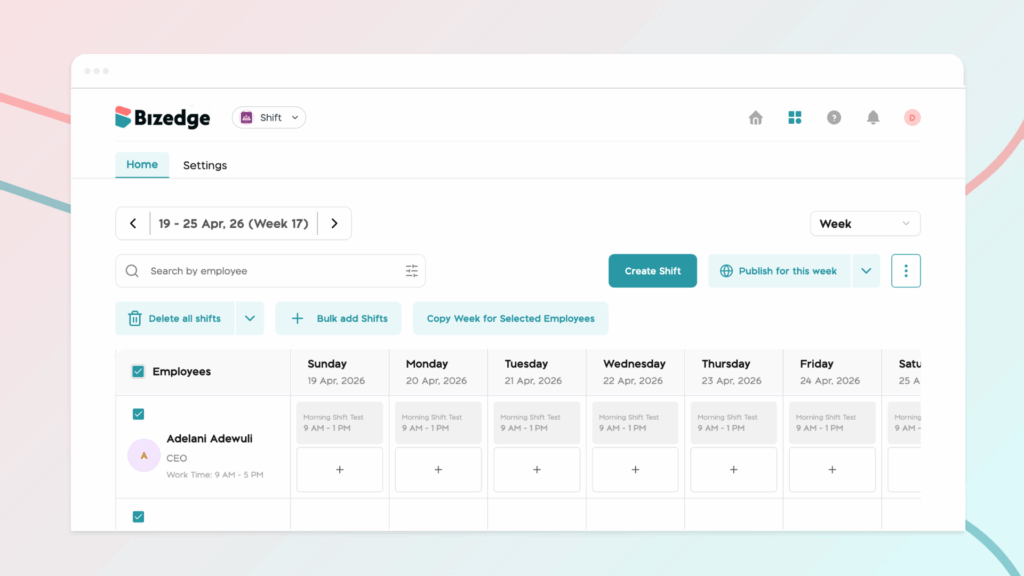
Step 2: After selecting the employees, click on the Bulk option. The Bulk feature enables administrators to apply the same action to multiple employees at once, reducing the need to perform the task individually for each employee.
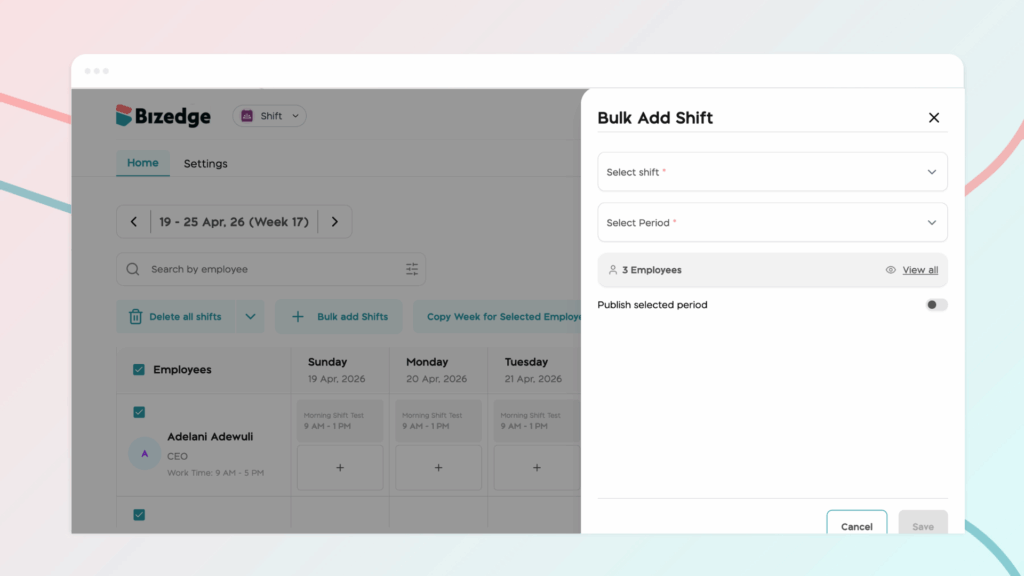
Step 3: From the Bulk Add Shift button to enter all necessary shift information.
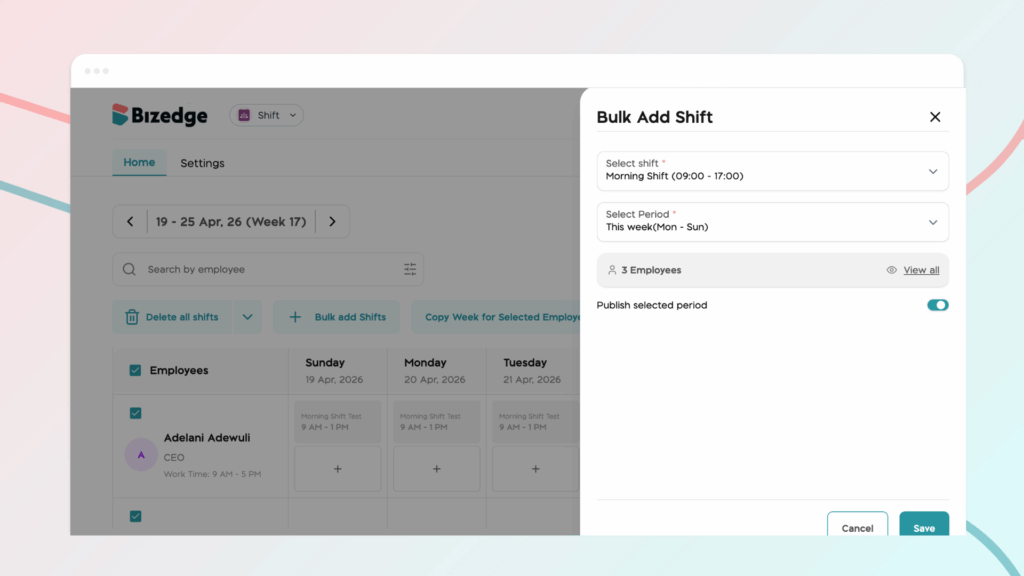
Step 4: Finally, activate the Publish Shift toggle button for the selected date(s) and save to make the assigned shifts visible to the employees.
Publishing the shift ensures that employees can immediately view their schedules within the system, helping them stay informed about their assigned work hours.



