
Employees not appearing or showing “Not ready” status on Payroll
BizEdge Referencing App
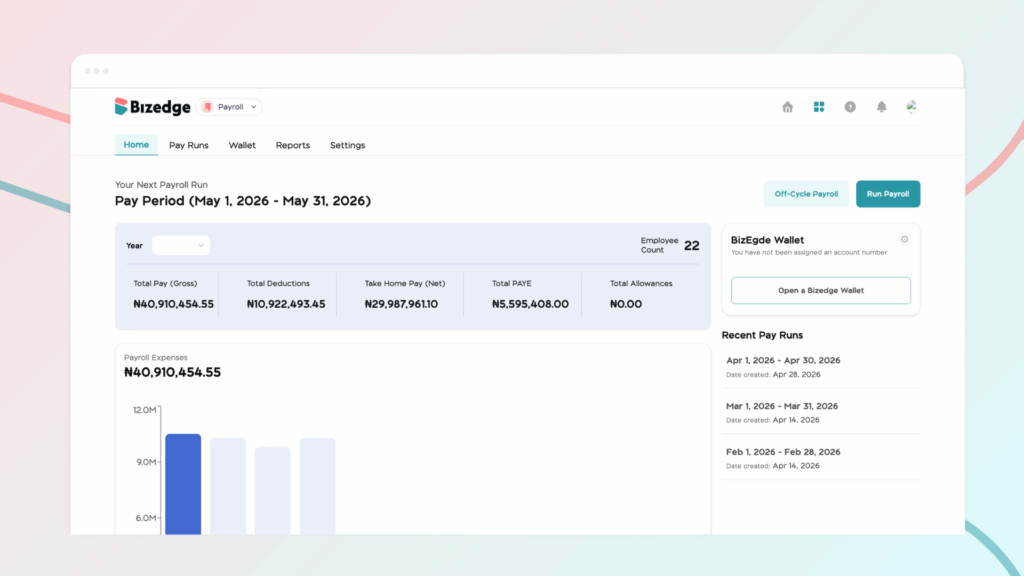
Duplicate entries for an employee can appear during payroll processing. This typically occurs when an employee’s compensation has multiple effective dates within the same pay period, meaning their salary was updated or reviewed more than once. Follow the steps below to identify and resolve the issue.
Step 1: Identify Duplicate Entries
In the Payroll Dashboard or Confirm & Review Employees section, look for any employees appearing more than once. Duplicate entries indicate that multiple compensation records may be affecting the same pay period.
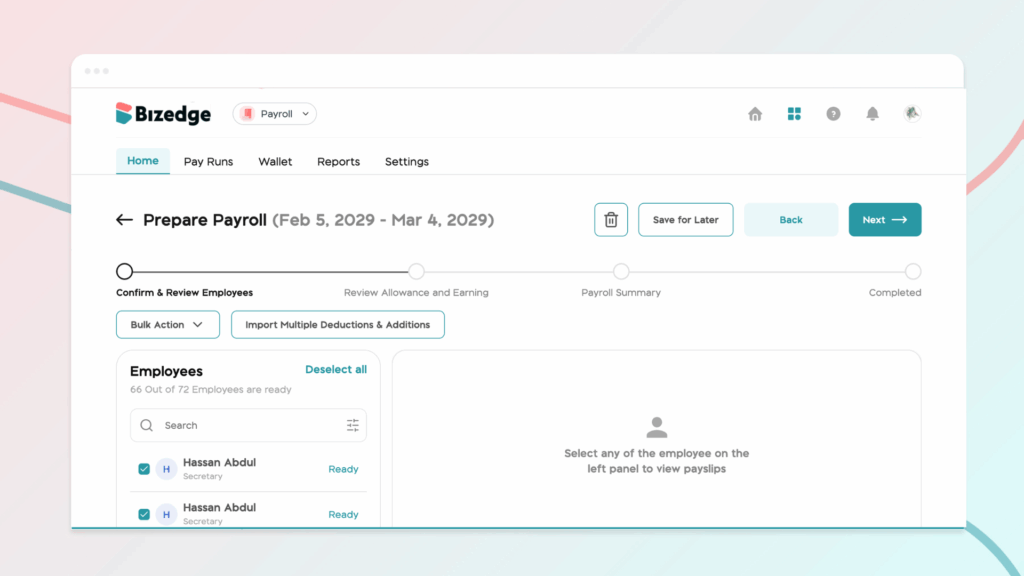
Step 2: Check Compensation Effective Dates
Review the effective date of each salary or compensation change recorded for the employee. Identify whether multiple updates have been made within the same pay period, as this is the most common cause of duplicate entries.
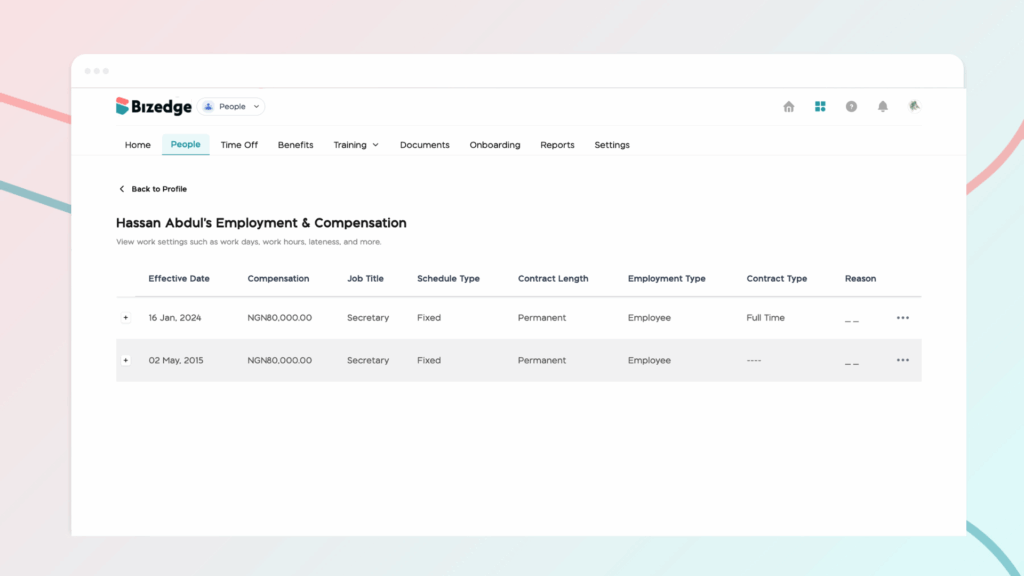
Step 3: Ensure Only One Compensation Review per Pay Period
Confirm that each employee’s compensation has only been reviewed once within the current pay period. Any additional entries that conflict with the intended salary for that period should be removed or adjusted accordingly.
Step 4: Confirm Effective Date Accuracy
Ensure that the compensation’s effective date falls either before or within the current pay period. Accurate effective dates are essential for correct payroll calculations and help prevent duplicate records from being generated.
Step 5: Understand Automatic Proration
When an effective date falls within the pay period, BizEdge automatically prorates the employee’s salary based on that date. This means the system calculates the correct payment for the portion of the pay period the compensation applies to, ensuring accuracy and preventing overpayment.
Step 6: Save and Refresh Payroll
Once the compensation records have been corrected, save the changes and refresh the payroll dashboard or return to the Confirm & Review Employees section. Verify that the duplicate entries have been resolved before proceeding with the payroll run.



