
How to Set Up Your Workspace Name on BizEdge
How to Use the MyTeam App
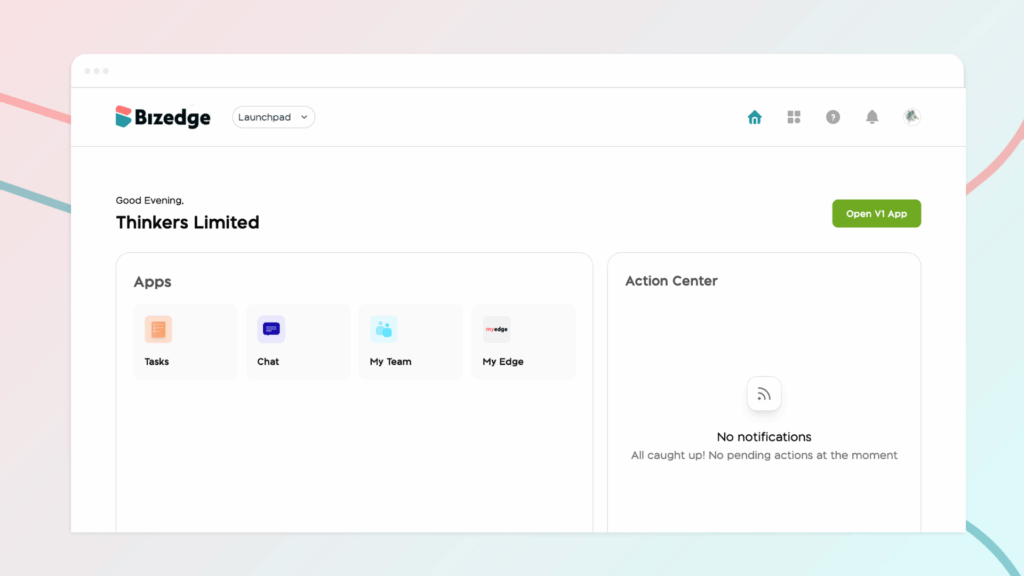
The MyTeam App on BizEdge helps line managers effectively oversee their teams. It provides visibility into team attendance, leave requests, time off schedules, and appraisal, making team supervision and approvals easier and more organized.
Follow the steps below to grant a line manager access:
Step 1: Assign Line Manager Role
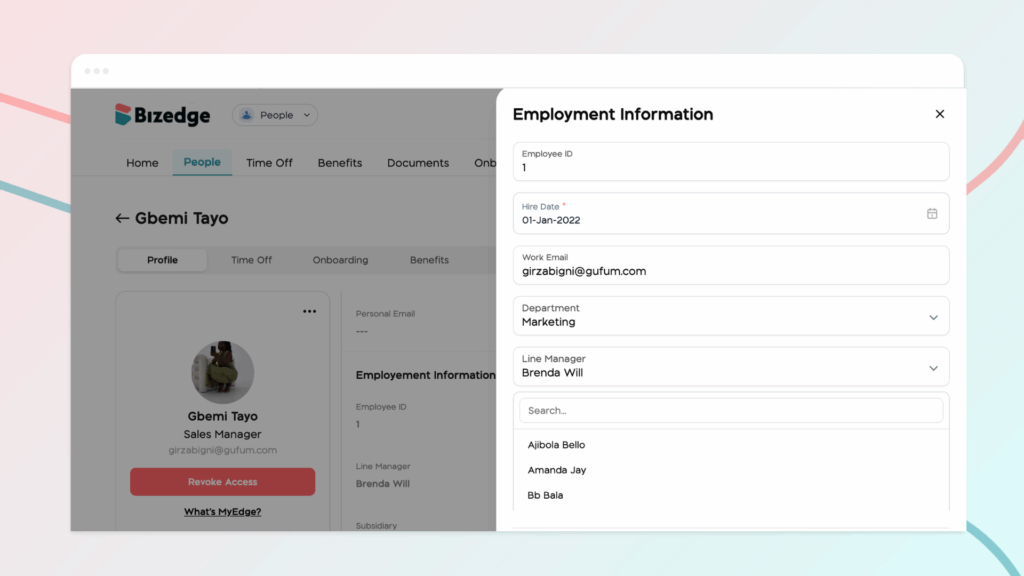
To get started, you’ll need to create a new employee profile or assign an existing employee the role of a line manager.
Step 2: Confirm Access to the MyEdge App
Ensure the line manager has access to the MyEdge App. If they do not have access, open the employee’s profile and send them an invitation to join MyEdge.
Step 3: Grant Access to the MyTeam App
1. Go to Settings
2. Click Invite & Access Level
3. Locate the employee and enable their access to the MyTeam App
Once access is granted, the employee will receive an email with a login link. They can sign in to BizEdge using their MyEdge login details.
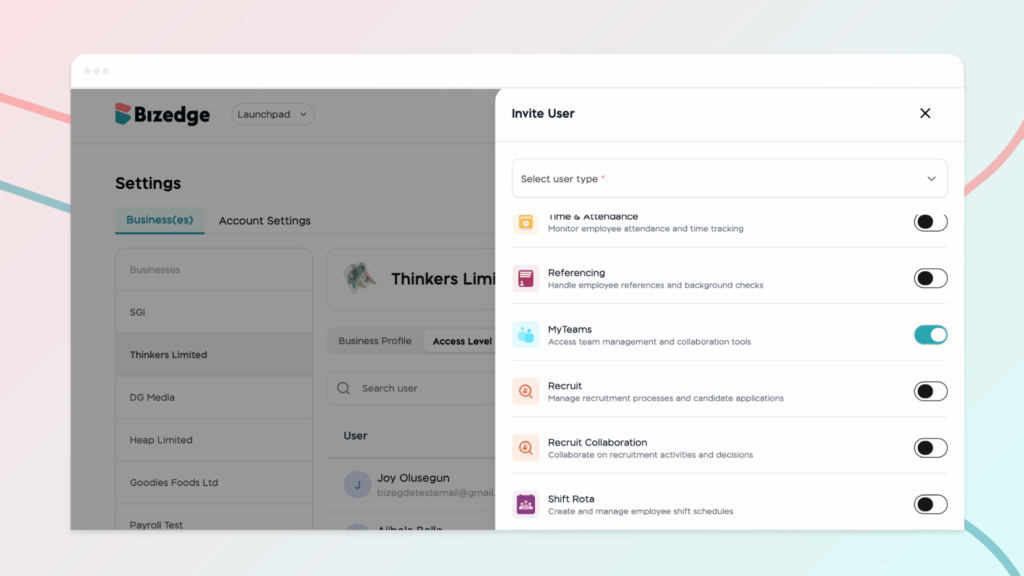
Step 4: Using the MyTeam App
After their BizEdge account is set up, the line manager will see the MyTeam App on their dashboard.
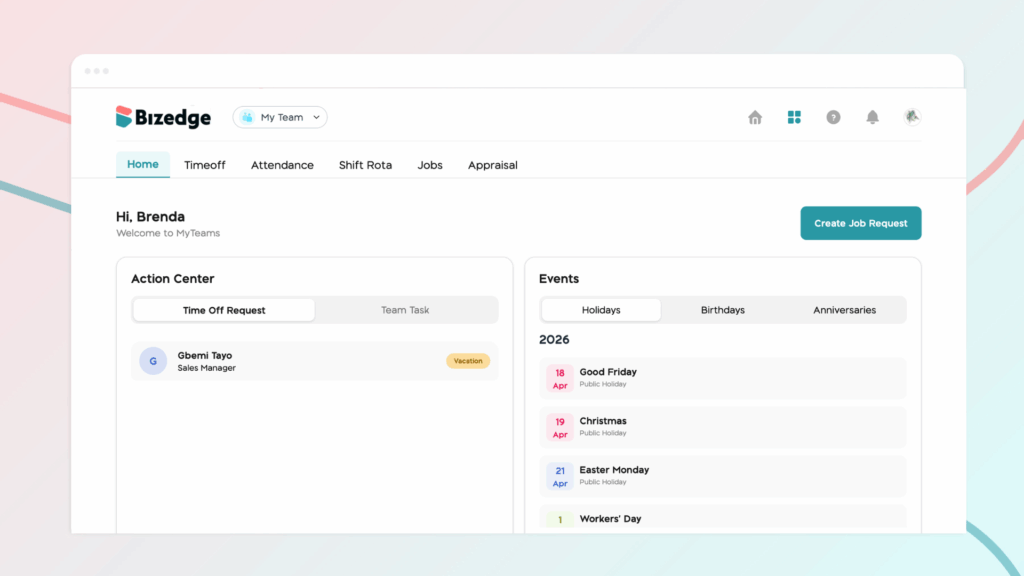
Within the app, line managers can:
- View their team members’ celebrations and important milestones
- Monitor attendance records
- Track employee time off schedules
- Review, approve, or decline leave requests from team members
You have successfully set up the MyTeam App, enabling your line managers to efficiently supervise and support their teams.



