
How to Send MyEdge Invite
How to Setup People Access Levels
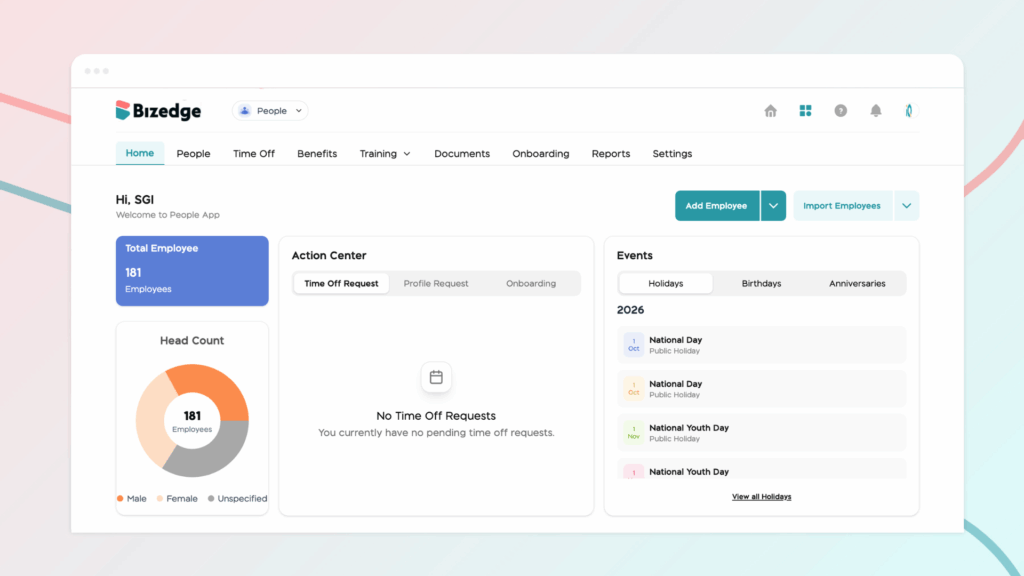
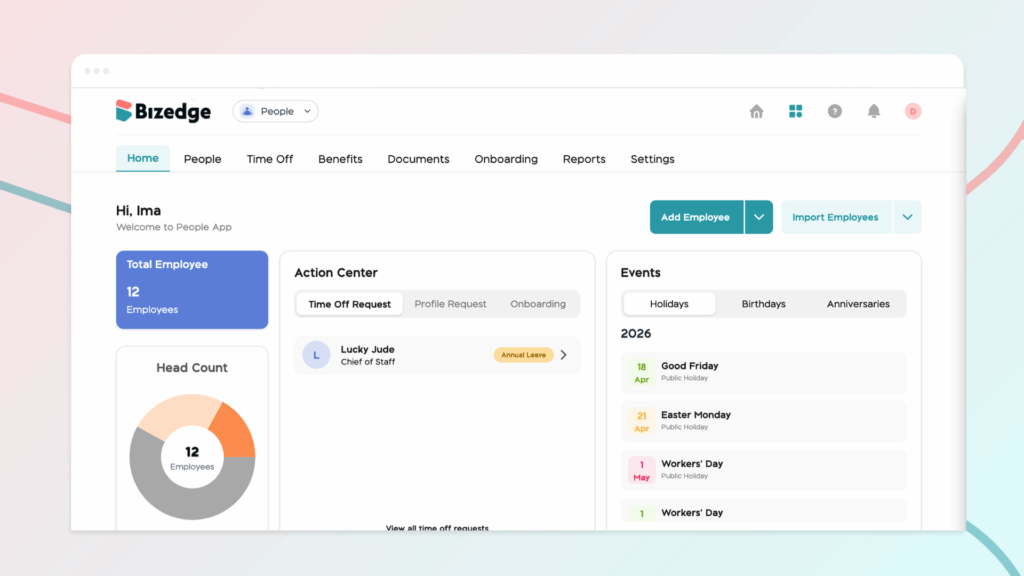
The Onboarding feature helps you create a smooth and organized experience for new employees before their first day. From sending a personalized welcome message and sharing company documents to requesting required information and notifying existing team members, you can manage every stage of the onboarding process from one place.
This guide walks you through how to set up and send an onboarding packet to a new hire, ensuring they have everything they need for a successful start.
Step 1: To manage the onboarding process for a new employee, navigate to the Onboarding section. Locate the newly added employee and click Start Onboarding to begin setting up the onboarding workflow.
This process allows admins to prepare important information that the new employee will need to complete before or after joining the organization.
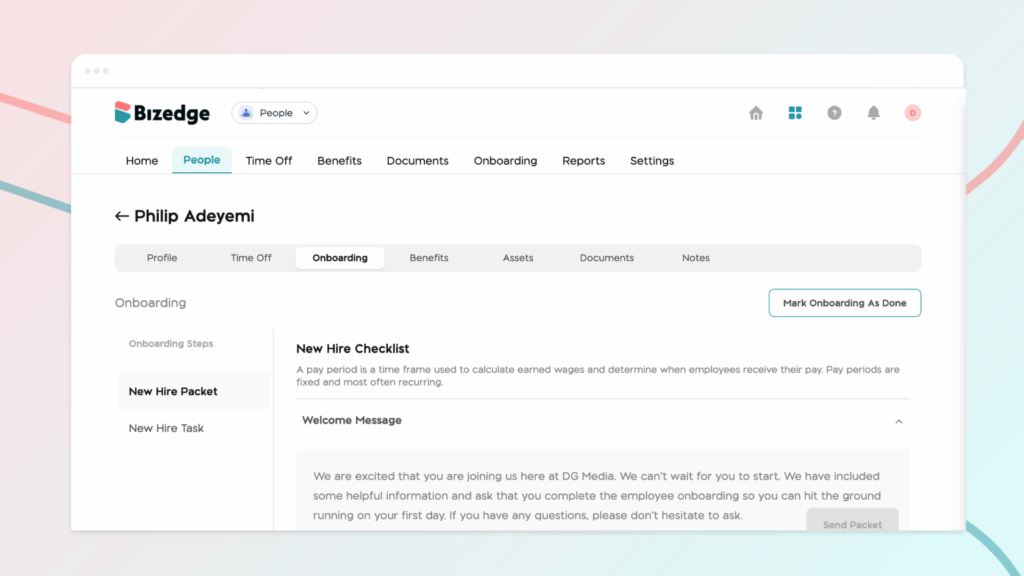
Step 2: Start with the Welcome Message section. Click Edit under the welcome message area and customize the message to warmly introduce the employee to the company. This message may include a brief introduction to the organization, expectations for the first day, or helpful information to guide the employee through their onboarding experience. After editing the message, click Save to apply the changes.ft
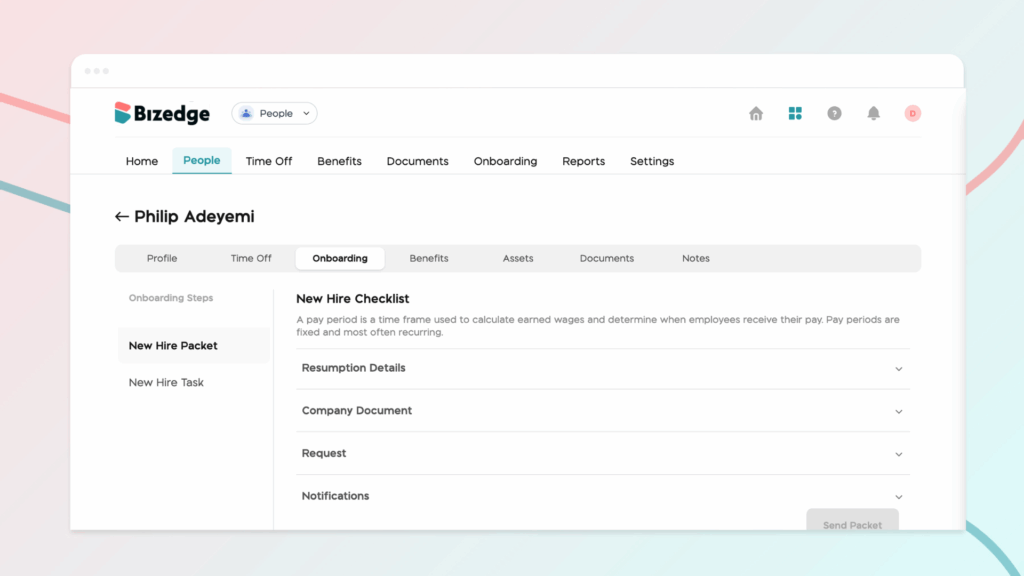
Step 3: Proceed to the Resumption Details section. Click the drop-down button beside Resumption Details and enter the required information. Once the details are entered, click Save to proceed to the next stage.
Step 4: Then move to the Company Documents section. Click the drop-down button beside Company Documents and select documents that the new employee needs to review or acknowledge. You can either select documents that were previously uploaded to the system or attach new ones directly from the system. After selecting the necessary documents, click Save to continue.
Step 5: In the Additional Document Request section, click Request Additional Document to specify any documents the employee must provide. Once the required documents are listed, enable the toggle button to activate the request so the employee can see and upload the requested documents.
Step 6: Next is the Employee Profile Update section. Here, enable the toggle button to allow the employee to update or complete their personal profile details. This feature helps ensure that the employee can provide or confirm important personal information, such as contact details or other personal records. After enabling the option, click Save.
Step 7: Proceed to the Reference Request section. In this section, you can request a personal or professional reference letter as part of the employee verification or documentation process.
Step 8: After that, move to the Notifications section. Enable the toggle button to notify existing employees about the new hire’s arrival. This notification typically helps the team prepare to welcome and support the new colleague. Once the notification settings are configured, click Save.
Step 9: Finally, review all the onboarding settings and click Send Packet. This action sends the onboarding package to the new employee.



