
How to Disburse Salaries
Employees not appearing or showing “Not ready” status on Payroll
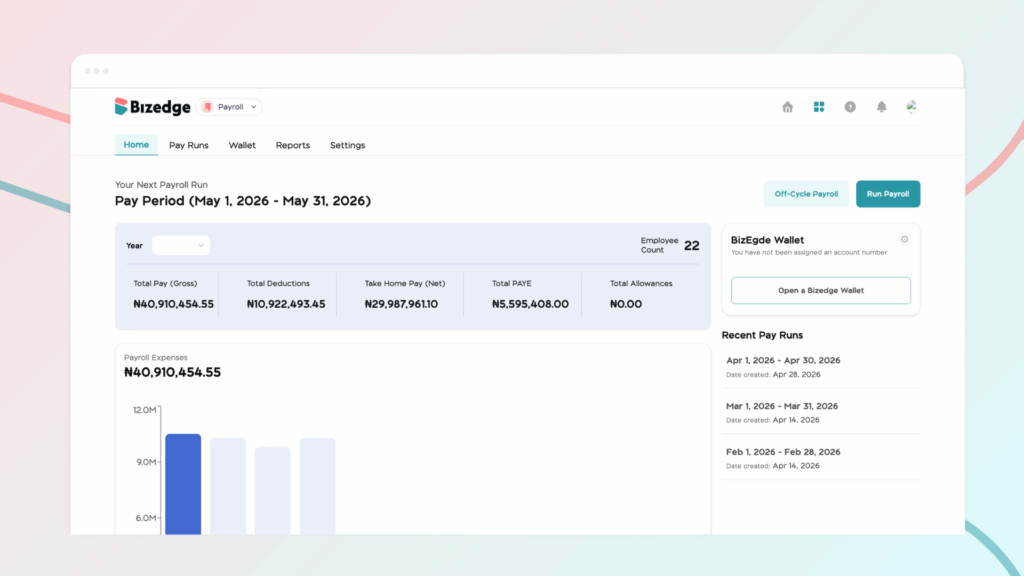
Payroll access levels determine who can view, initiate, review, and approve payroll within your organization. Properly configuring these levels ensures accountability and helps prevent errors throughout the payroll process.
Step 1: Go to Settings
From the BizEdge dashboard, navigate to the Settings section. This is where you manage user access, permissions, and system preferences across your organization.
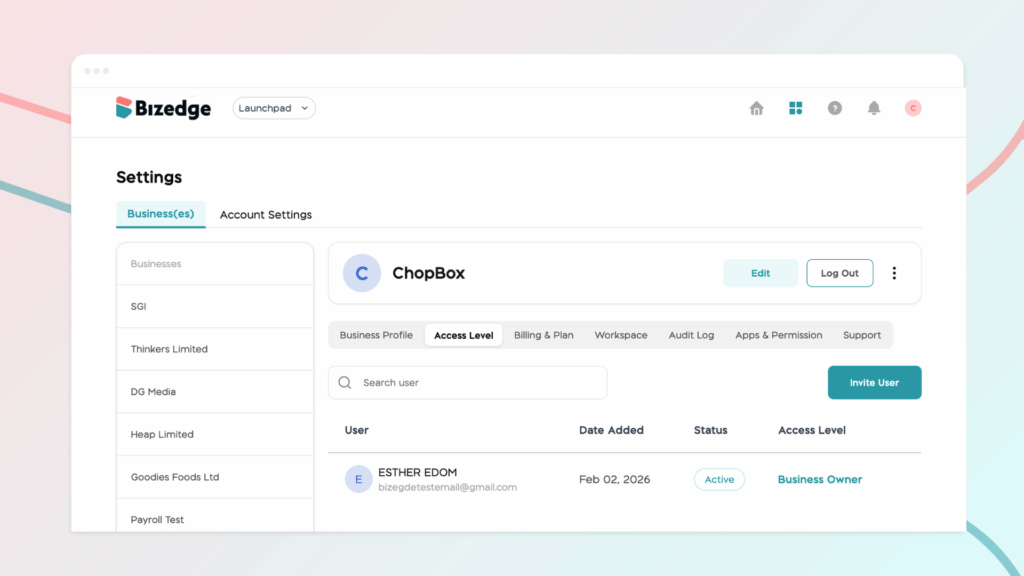
Step 3: Click on “Invite User”
Select the Invite Access option to send a secure invitation to the employee. Inviting them through the system ensures that their login credentials are correctly linked to the appropriate access level from the start.
Step 4: Select the Appropriate Approval Level
BizEdge offers three payroll approval levels to accommodate different organizational structures. The Single-Level Approver assigns one employee to handle the entire payroll process from start to finish, making it ideal for smaller teams. The Two-Level Approver introduces an Initiator, who prepares the payroll, and an Approver, who reviews and authorizes payments. The Three-Level Approver adds a Reviewer to the process, sitting between the Initiator and Approver, providing an extra layer of oversight suited to larger organizations. Select the level that best fits your company’s payroll workflow.
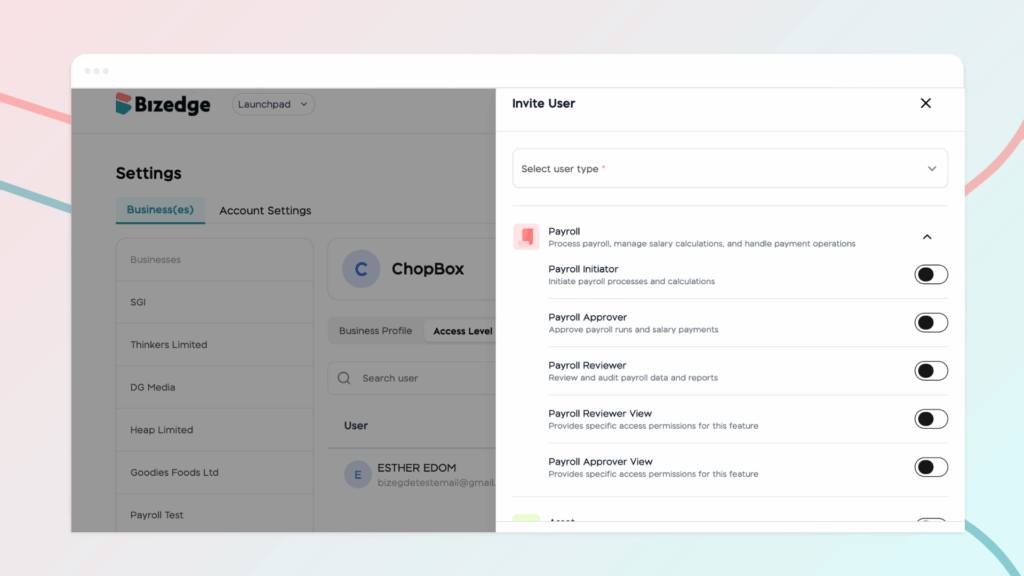
Step 5: Send the Invite Link
Once the appropriate access level has been selected, send the invitation. The employee will receive an email containing a link to set up their BizEdge Payroll account and activate their assigned permissions.
Step 6: Employee Login
After accepting the invitation, the employee can log in using their MyEdge credentials. They will immediately have access to the payroll options and tasks permitted under their assigned access level.



