
Handling Payroll for New Starters Mid-Period
How to set up Payroll Access Levels
Setting Up Your BizEdge Wallet (One-Time Setup)
Before you can pay salaries through BizEdge, you will need to create and fund your wallet. This is a one-time setup process that enables salary disbursements going forward.
Step 1: Create Your BizEdge Wallet
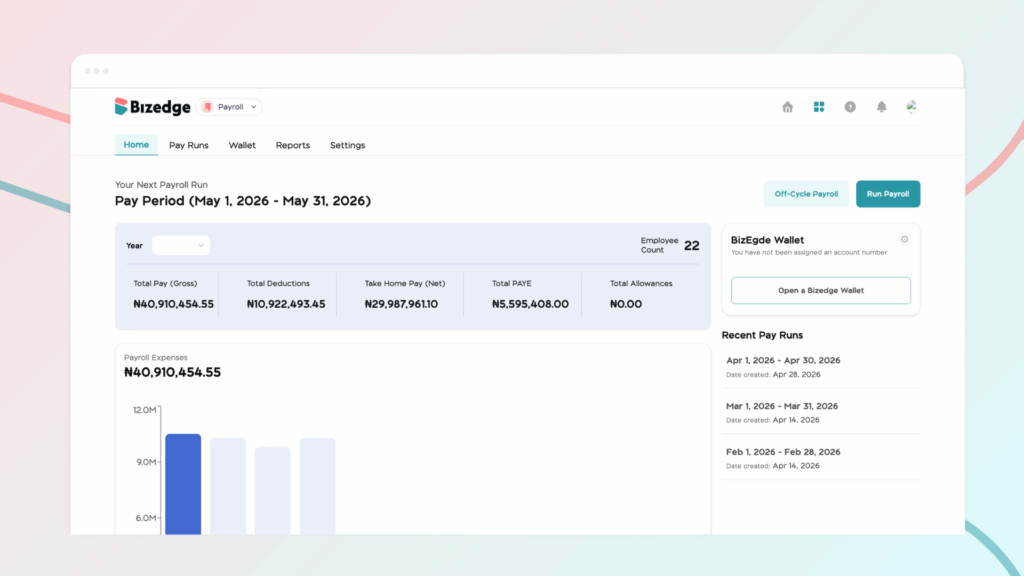
To get started, navigate to the Wallet section in BizEdge and click Create Wallet or Set Up Wallet. You will be prompted to provide your company’s BVN (Bank Verification Number). Submit the information to proceed.
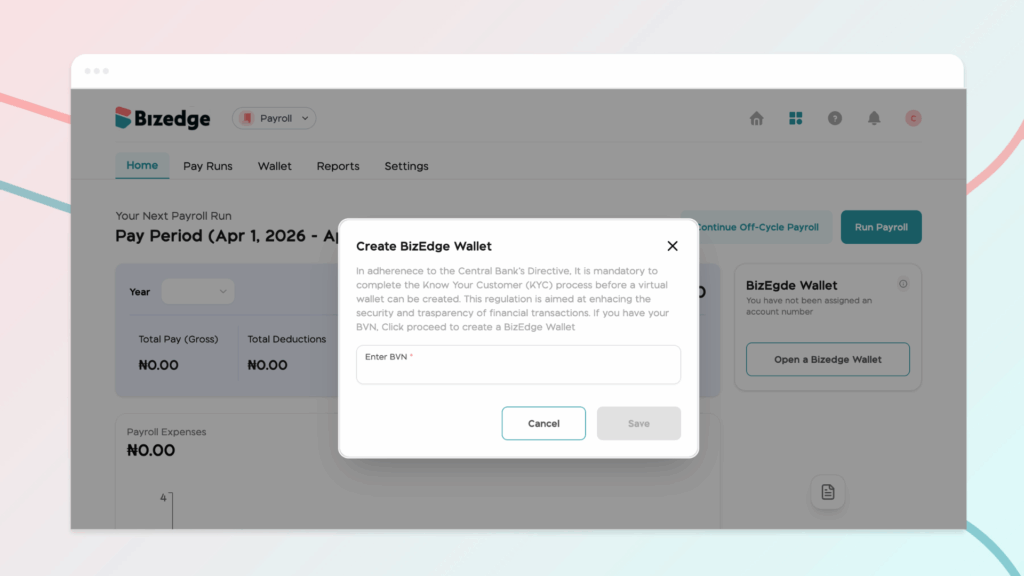
Step 2: Get Your Wallet Account Details
Once your BVN has been verified, you will receive unique account details tied to your BizEdge Wallet. This is a dedicated account exclusively for your wallet, so be sure to save these details as you will need them whenever you need to add funds.
Step 3: Fund Your Wallet
To fund your wallet, transfer money from your company bank account to the wallet account details provided by BizEdge. The transferred amount will reflect in your BizEdge Wallet balance once received. You can top up your wallet at any time as needed. Please ensure your wallet is sufficiently funded before attempting to disburse salaries.
Disbursing Salaries After Running Payroll
Step 1: Access the Payment Section
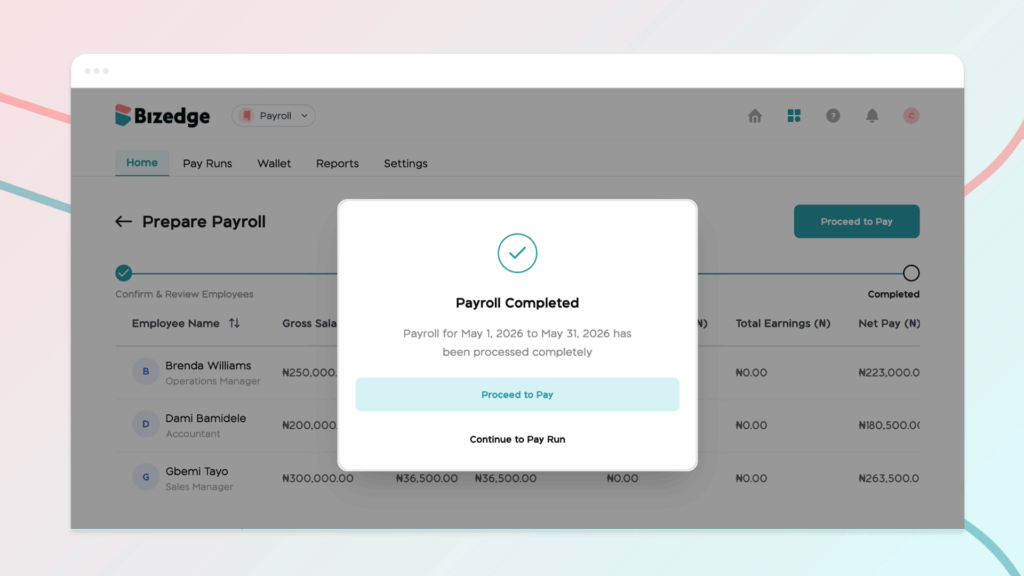
Once your payroll run is complete, go to the Pay Run section in Payroll and locate the payroll period you just processed. Click on the Payment section or tab, then click the Pay with Wallet button to begin the disbursement process.
Step 2: Review Employees for Payment
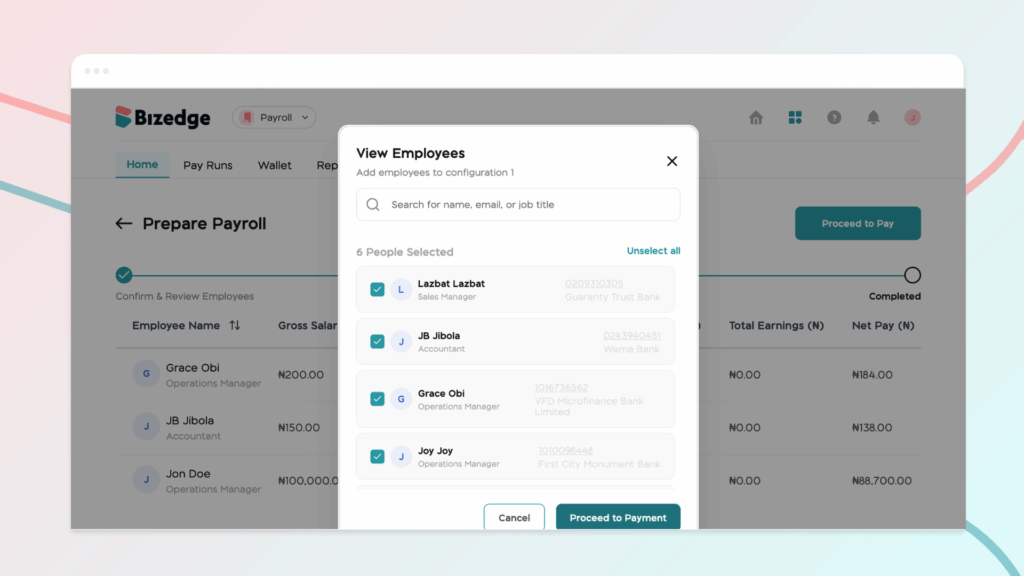
The system will display all employees who are ready to receive payment. Carefully review the list, checking each employee’s name, payment amount, and bank details to ensure everything is accurate. Once confirmed, click Proceed to Payment.
Step 3: Verify Payment Summary
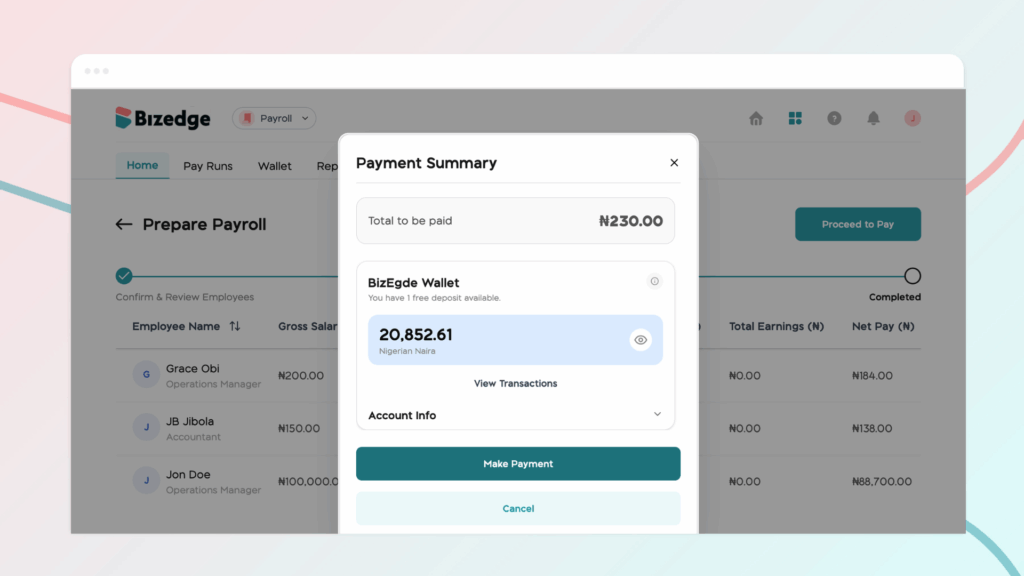
You will be presented with a payment summary showing your current wallet balance, the total amount to be disbursed, and the remaining balance after payment. Verify that you have sufficient funds to cover the full payroll. If your balance is insufficient, you will need to top up your wallet before continuing. If funds are sufficient, click Make Payment to proceed.
Step 4: OTP Verification
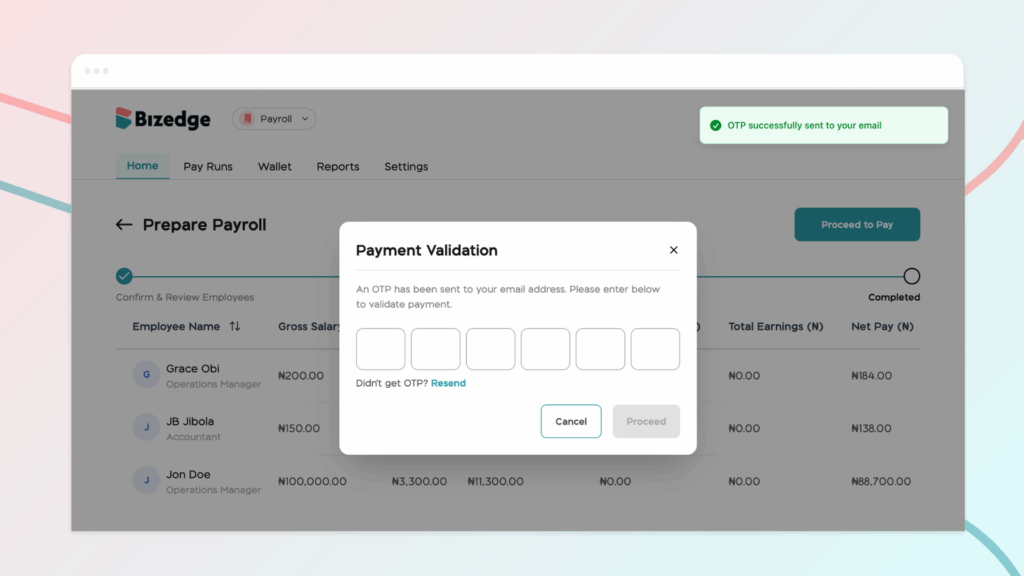
For security purposes, a One-Time Password (OTP) will be sent to your company’s registered business email address. Check your inbox, or your spam folder if needed, and copy the 6-digit OTP code. Return to BizEdge, enter the code in the verification field, and click Confirm.
Step 5: Disbursement Confirmation
Once the OTP is confirmed, the system will process the bulk payment and transfer salaries directly from your BizEdge Wallet to each employee’s bank account. A success message will appear on screen, employees will receive their bank credit alerts, and your wallet balance will be updated to reflect the disbursement.



