
How to Add and Assign Vehicles
How to add a New Vehicle Document
The Assets App allows you to log and track maintenance and repair activities for all your vehicles, keeping a complete service history in one place. Here is how to do this:
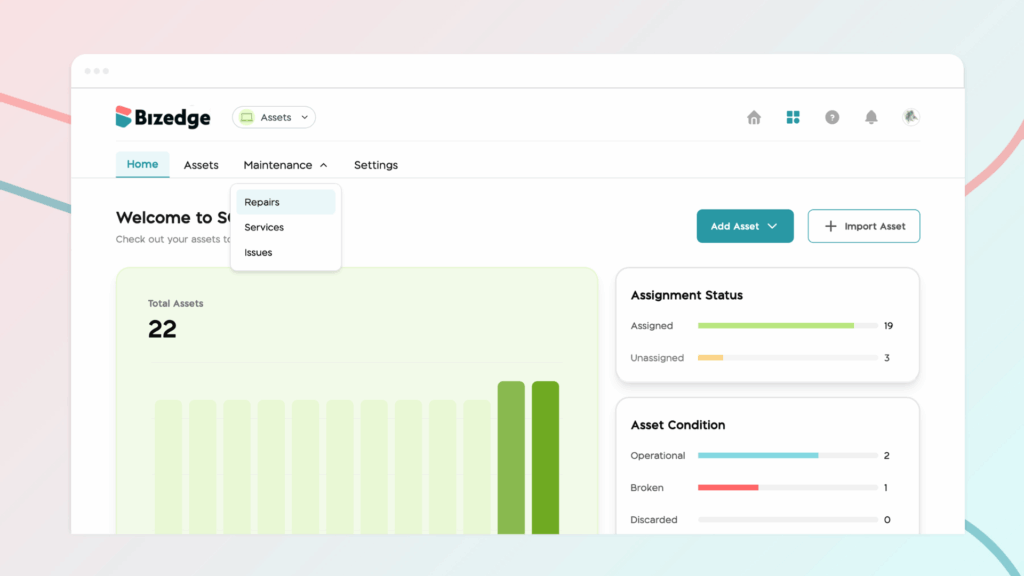
Step 1: Navigate to Repairs
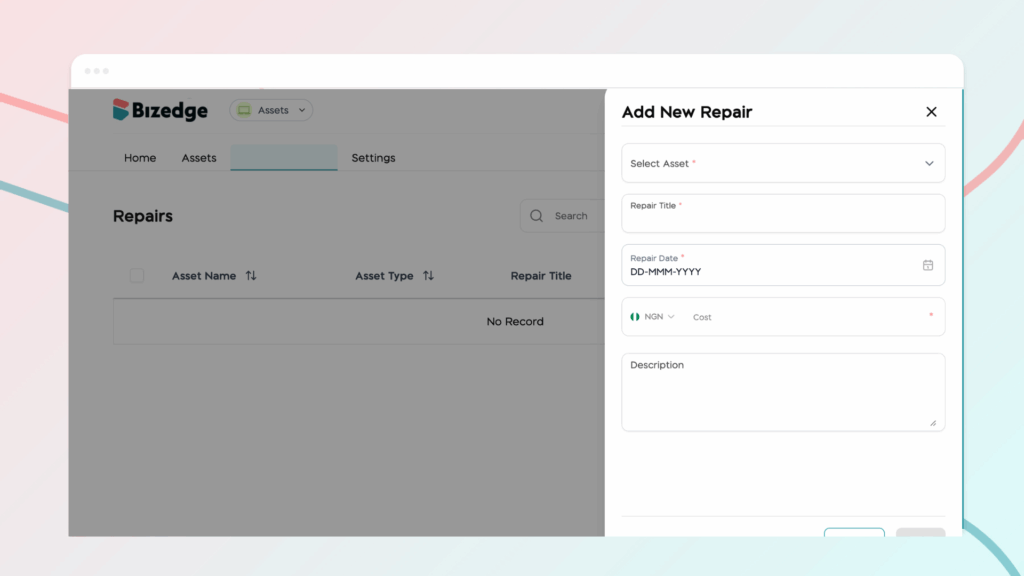
From the Assets dashboard, click on Maintenance and then select Repairs to access the repairs management section.
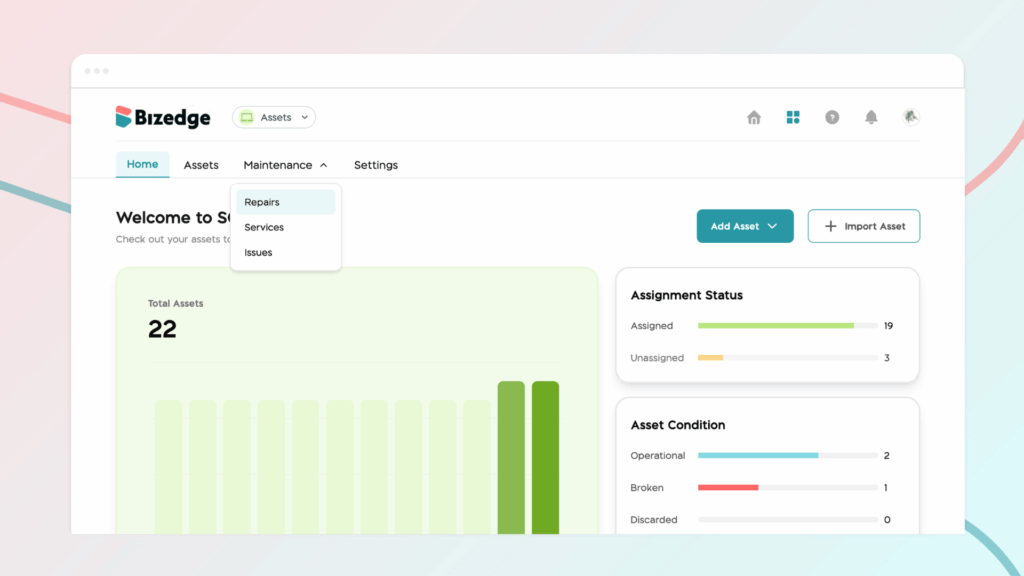
Step 2: Add a New Repair
Click the Add New Repair button at the top of the page. A form will appear for you to fill in the necessary details about the repair. You can also upload any relevant documents such as service records or invoices directly to the repair entry.
Step 3: Stay on Top of Reminders
Once a repair or maintenance entry has been saved, you will receive automatic notifications when upcoming reminders are approaching, ensuring that no scheduled maintenance is missed.
Step 4: View Maintenance and Repair History
To view a full history of all previous and upcoming maintenance and repair activities for a specific vehicle, click on the vehicle and select Maintenance and Repairs from the vehicle’s menu bar. This gives you a complete overview of the vehicle’s service record at a glance.



