
How to Add a New Asset Document
How to Add a New Repair
The Assets App makes it easy to add and manage your company’s vehicles in one place. Once a vehicle has been added, it can be assigned to an employee, ensuring clear accountability and accurate tracking across your organization.
Step 1: Open the Assets App
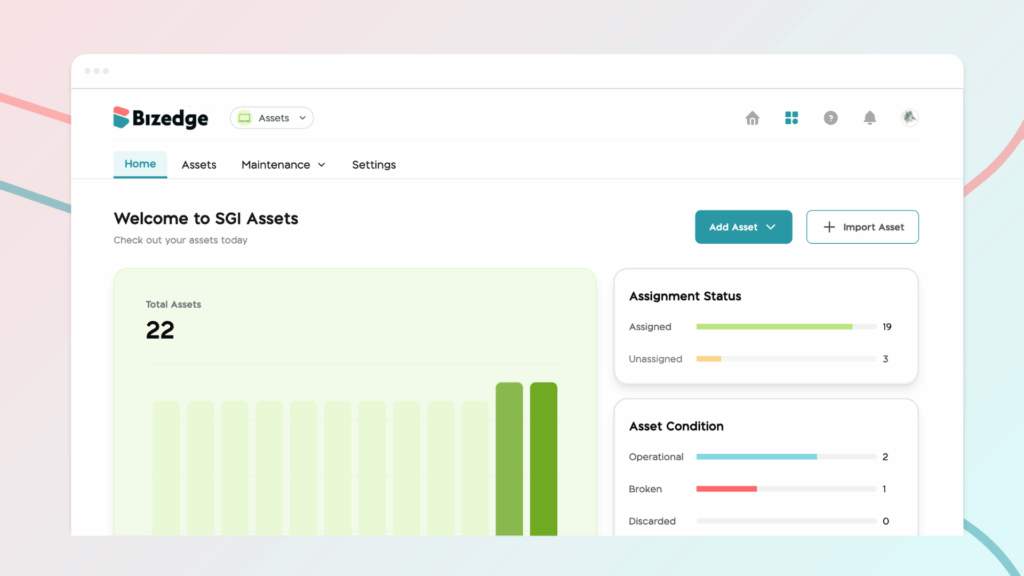
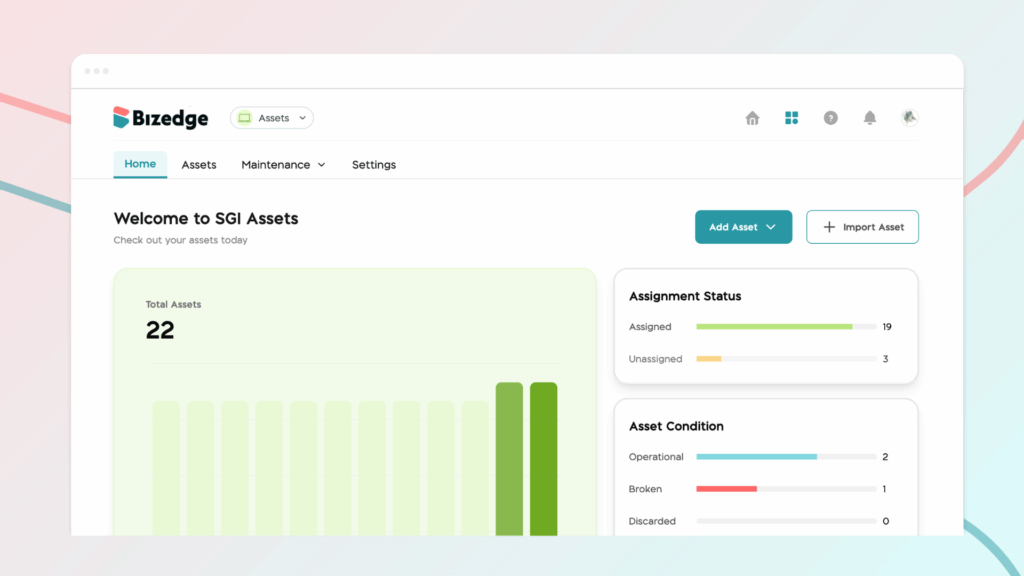
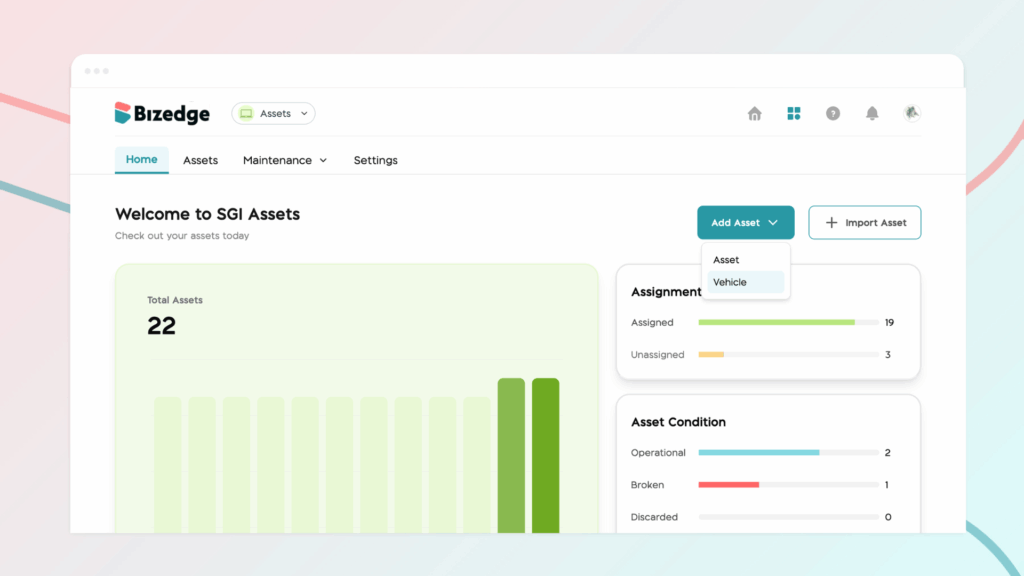
From the BizEdge launchpad, click on the Assets app and then click the Add Asset button at the top right corner of the dashboard.
Step 2: Select Vehicle
Choose Vehicle from the options provided. A form will appear for you to fill in the relevant details about the vehicle.
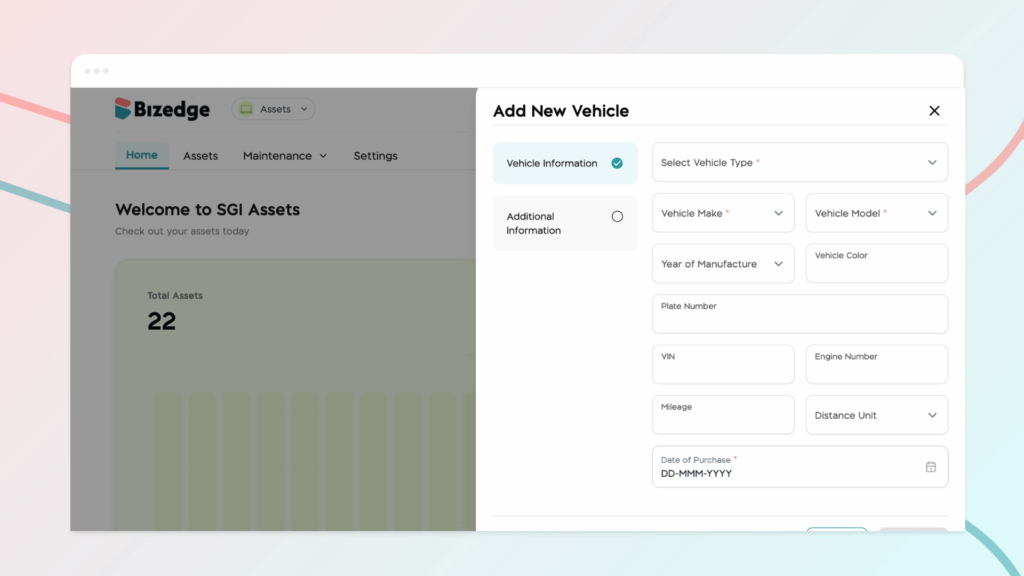
Step 3: Fill in Vehicle Details
Complete the form with as much detail as needed about the vehicle, then click Save. The vehicle has now been successfully added and will appear in your Assets list.
Step 4: Navigate to the Vehicle
To assign the vehicle, go to the Assets section on the dashboard and navigate to the Vehicle asset type. You will see a list of all vehicles that have been created.
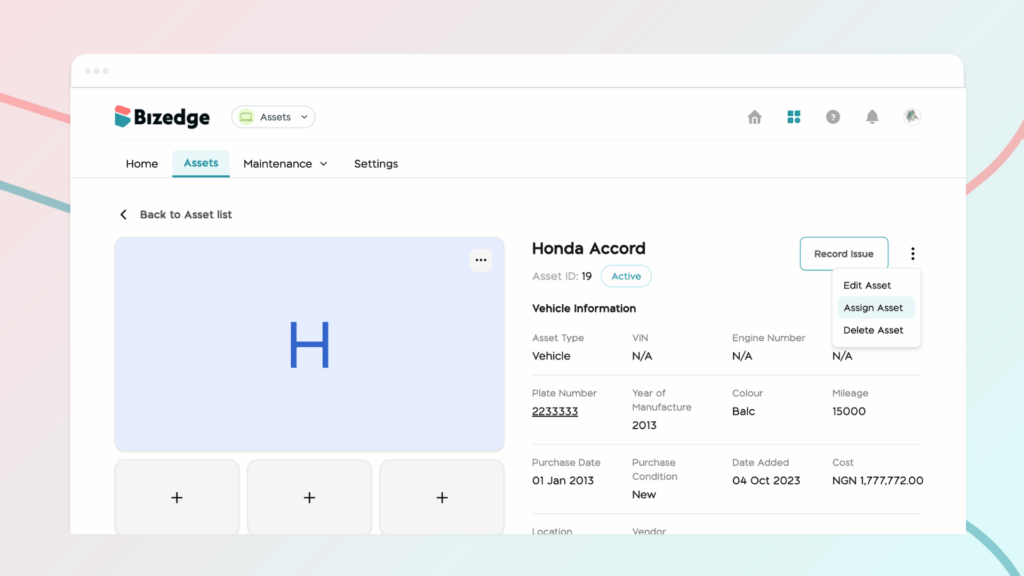
Step 5: Assign the Vehicle
Select the vehicle you would like to assign and click the three-dot menu (⋯) on the right. Click Assign, enter the assignee’s name and the assignment date, then click Save. The vehicle has now been successfully assigned.



