
How to Add a New Repair
How to Set up Access Levels in BizEdge
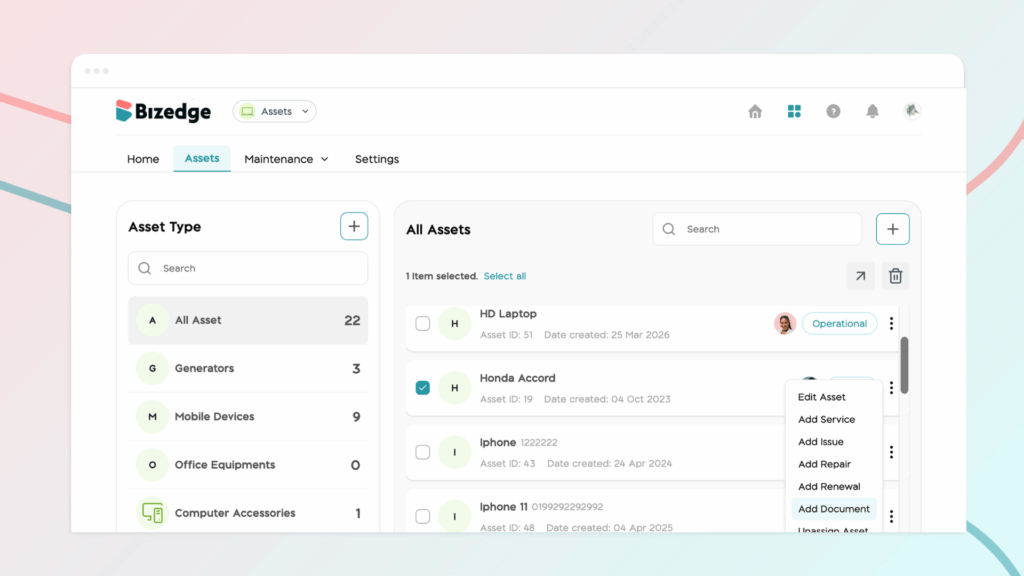
Keeping your vehicle documents up to date is essential for compliance and smooth operations. The Assets App allows you to store all vehicle-related documents in one place, set renewal reminders, and easily access them whenever needed. Here is how to do this:
Step 1: Select the Vehicle
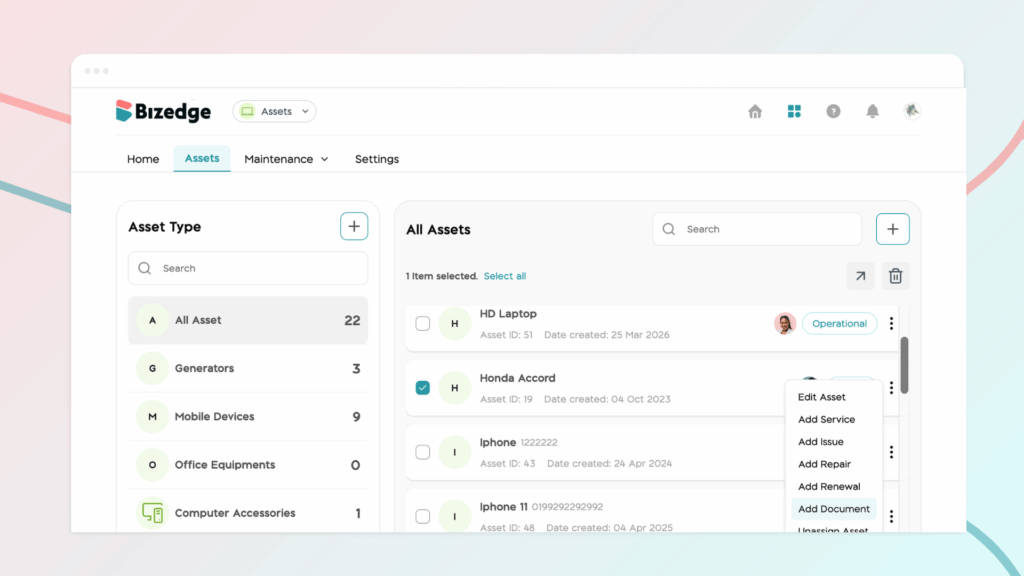
From the Assets App dashboard, navigate to the Vehicles section and select the vehicle you would like to add a document to.
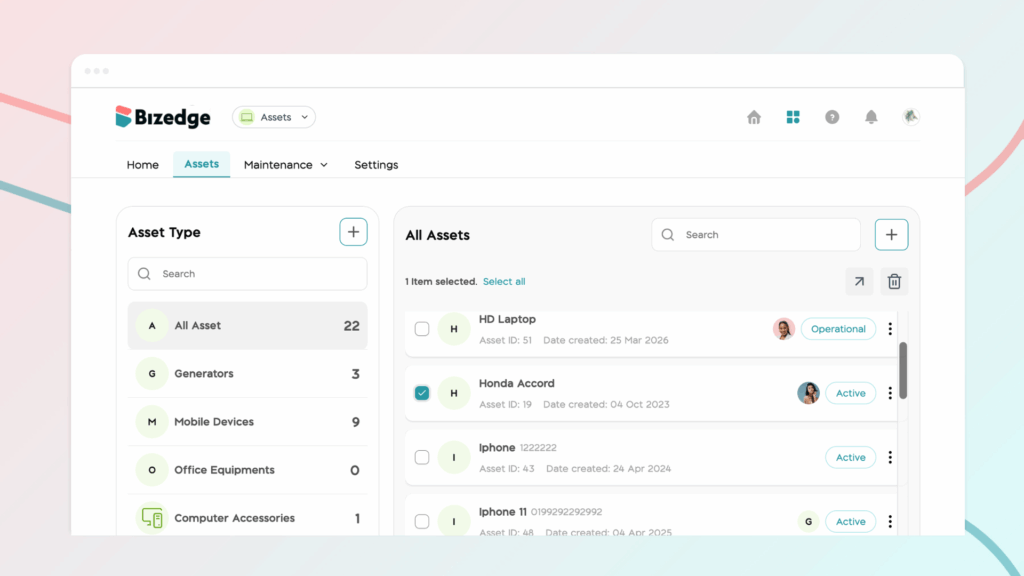
Step 2: Open the Document Form
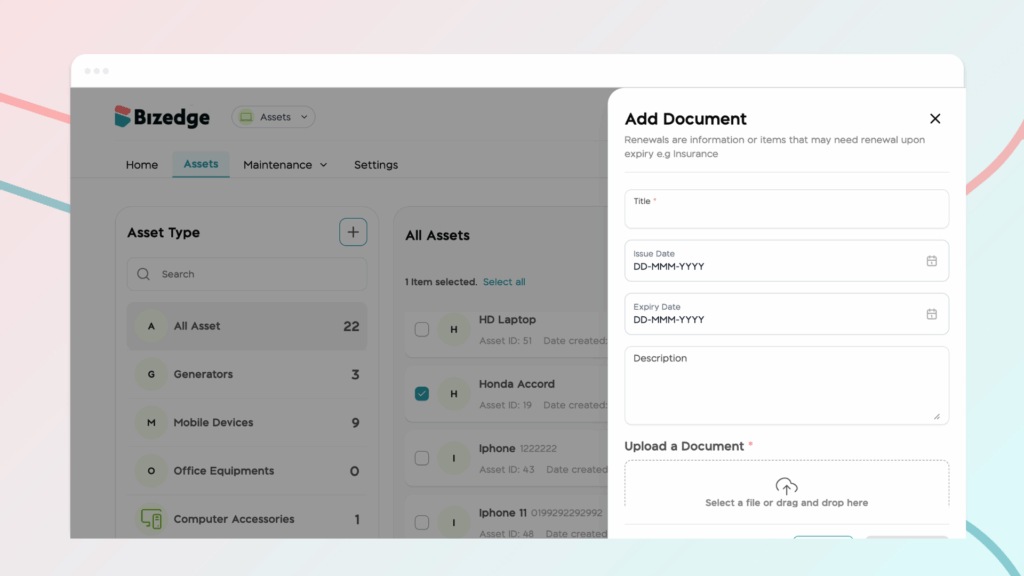
Once the vehicle has been selected, click the Add New Document button at the far right of the vehicle’s menu bar. A pop-up form will appear for you to fill in the document details.
Step 3: Fill in Document Details
Complete the form by entering the document type, date, and uploading an image of the document. You can also enable a renewal reminder if you would like to be notified when the document is due for renewal.
Step 4: Save the Document
Once all the details have been filled in, click Save. The document has now been successfully added to the selected vehicle.
Step 5: View All Vehicle Documents
To view all documents that have been uploaded for a vehicle along with their due dates, click on Statutory Documents from the selected vehicle’s dashboard. This gives you a clear overview of all active documents and upcoming renewals in one place.



