
How to add a New Vehicle Document
How to Set Up Your Workspace Name on BizEdge
Managing access levels ensures that each user within your organization has the right permissions for their role. BizEdge allows administrators to invite users, assign appropriate access levels, and control which apps and features each person can view and interact with, keeping your company data secure and well-organized.
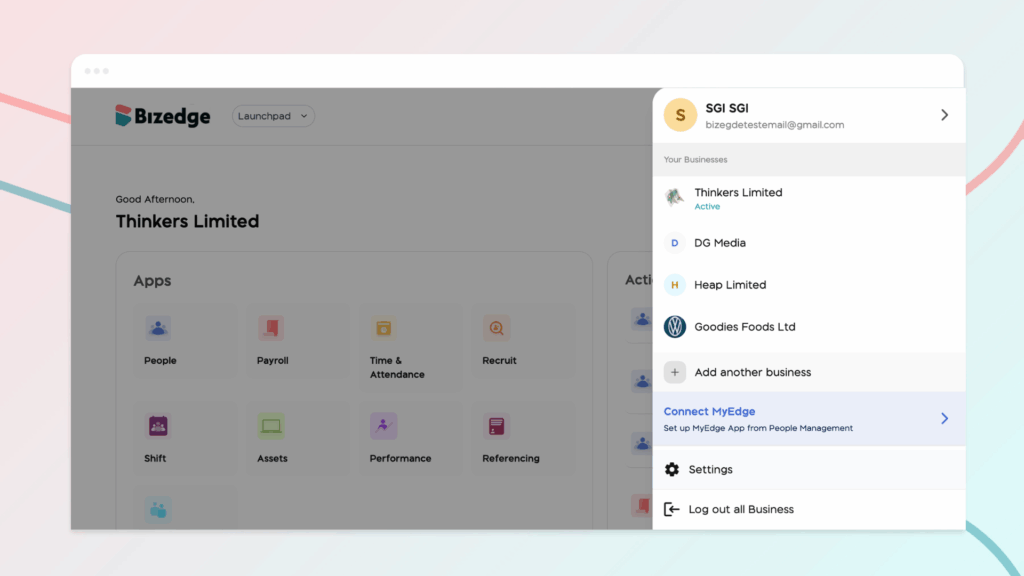
Step 1: To invite a new user and assign access permissions, log in to the BizEdge Dashboard and locate and click the Company Profile Picture or Logo to open the Company Settings, usually displayed at the top section of the dashboard where administrative and user management options are available.
Step 2: Once inside the settings page, navigate to the Access Level section. This section allows admins to manage user permissions, invite new users to the system, and define what level of access each user should have within the platform.
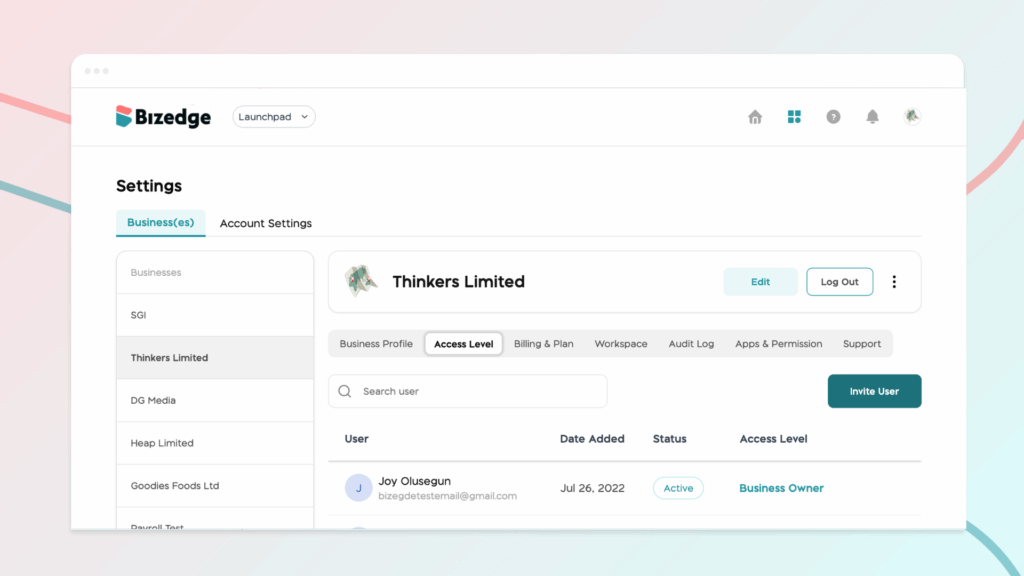
Step 3: Click on Invite User to begin the process of adding a new user either as an employee or as a guest.
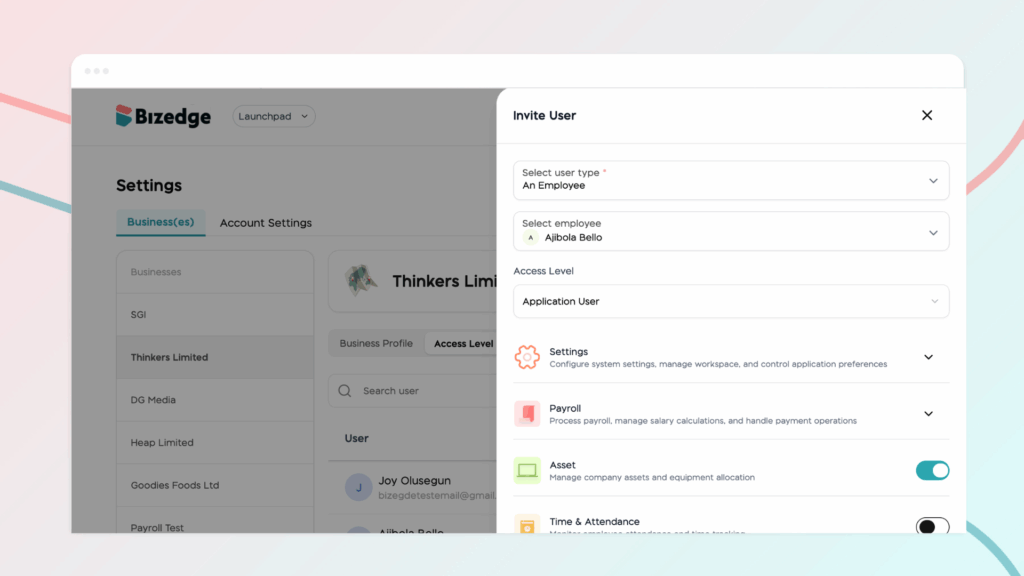
Step 4: Select the appropriate Access Level. The access level determines the permissions and actions the user will be able to perform within the BizEdge system.
Step 5: For users who require administrative or HR privileges, select Business Administrator as the access level. This role grants broader access to manage company settings, employees, and other administrative functions.
For users who are Line Managers or supervisors, select Application User as the access level. After selecting this option, enable the toggle buttons for the specific apps you want the user to have access to



