
People App Overview
How to Import Bank Information
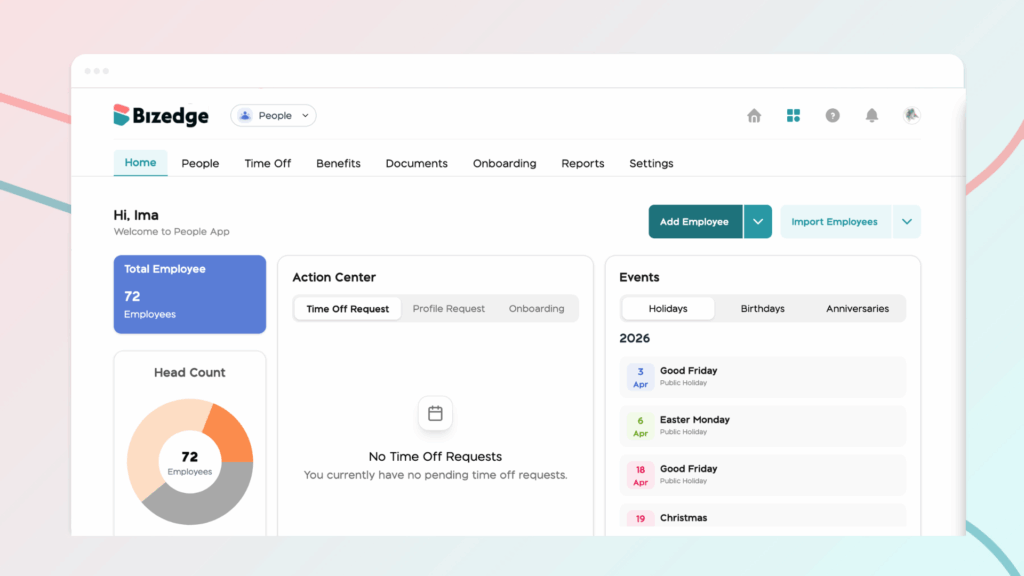
Step 1: From the BizEdge app dashboard, click on the People app. From the People app, click on the Add Employee button.
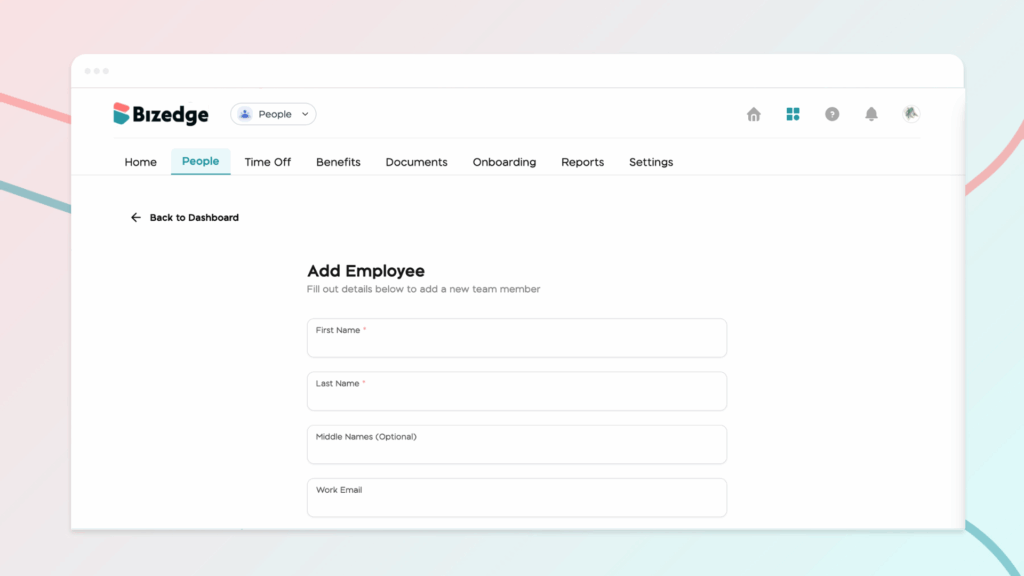
Step 2: Start by entering the employee’s details. Providing correct personal information helps the organization maintain proper identification and communication with the employee. Then, click on the Save button.
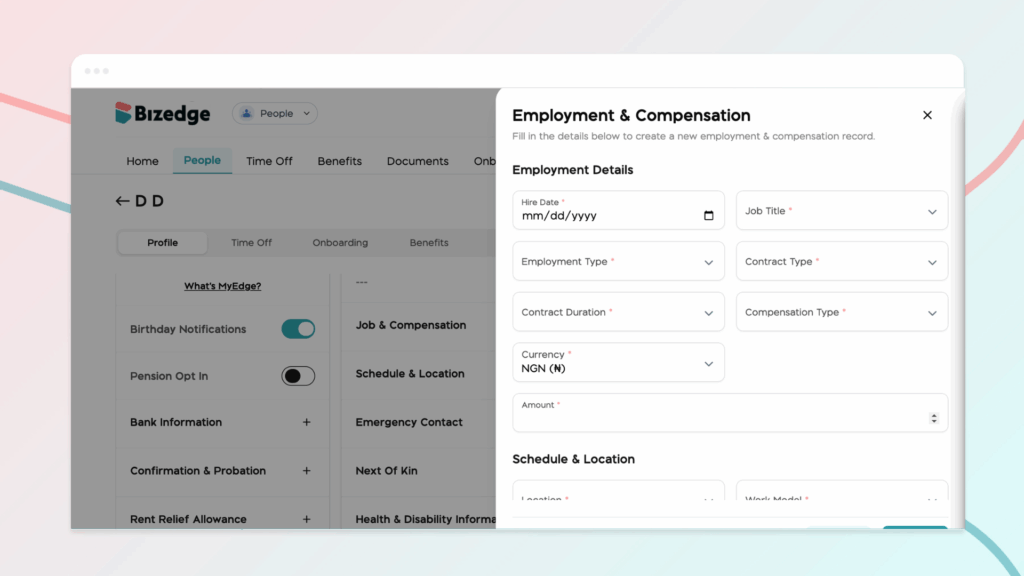
Step 3: From the employee’s profile, continue to fill in the employment details. This section helps to define the employee’s role within the company structure and ensures that they are properly aligned with the appropriate team and supervisor.
Step 4: You will be required to provide work-related settings, such as work schedule, etc. These details are important for managing attendance, scheduling, and other operational activities within the system.
Step 5: Once all the required fields have been completed and reviewed for accuracy, click Save in each field. After saving, the employee will be successfully added to the system and can be managed within the People App for further updates, onboarding, and administrative actions.
Importing Employees
Step 1: To import multiple employees into the system, open the People App on the BizEdge Dashboard and click on Import Employees. This feature allows you to add several employees at once using a prepared spreadsheet instead of entering each employee manually.
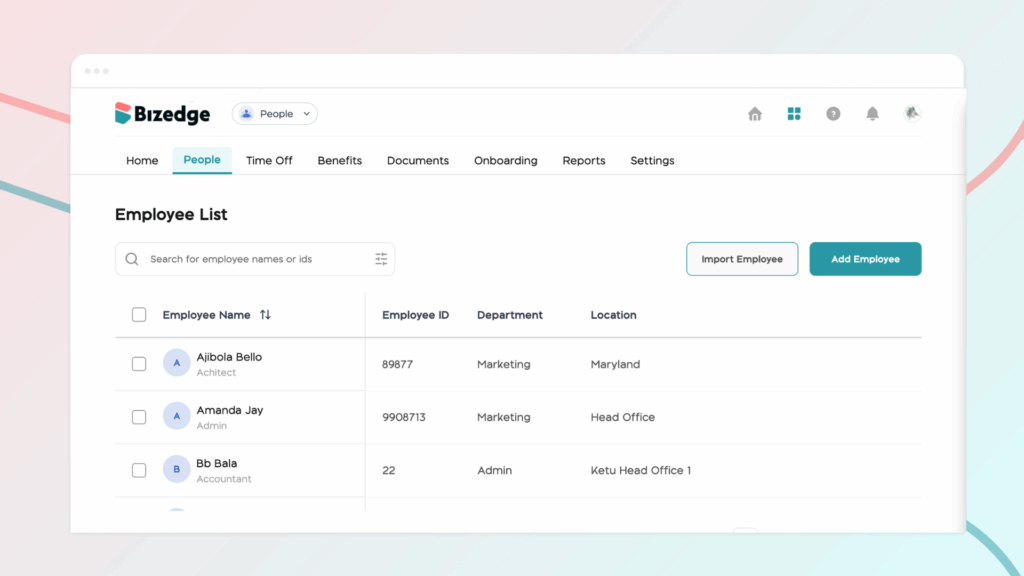
Step 2: Click Proceed to Import. At this stage, you will be prompted to upload the employee import sheet, usually provided as a CSV template. This template should be downloaded and filled with the required employee information before uploading.
Step 3: After preparing the sheet, upload the completed and updated CSV file. The file should contain accurate employee details such as employee names, email addresses, phone numbers, job titles, departments, hire dates, and other required fields. Ensuring that all required columns are correctly filled and formatted will help prevent errors during the import process.
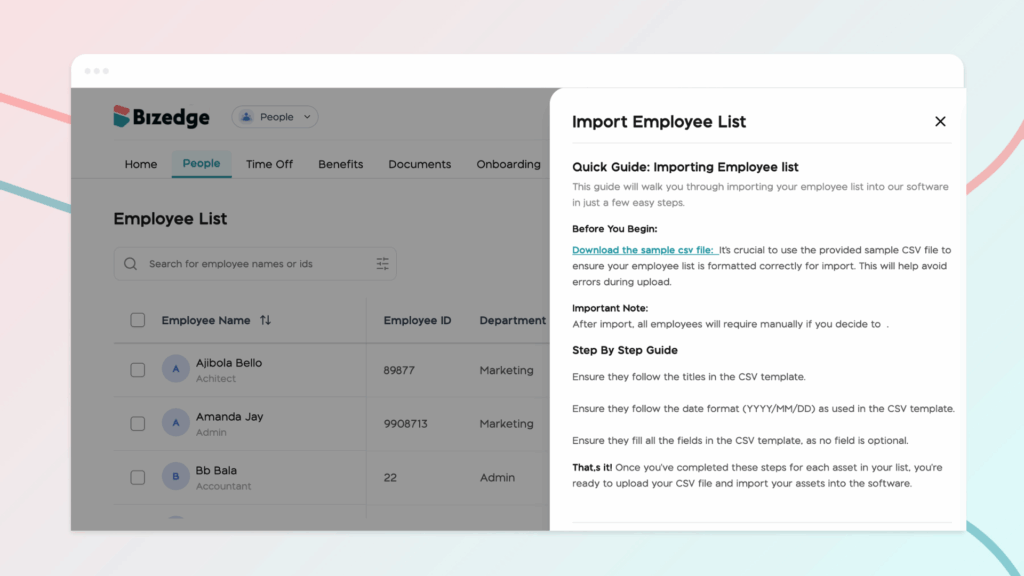
Step 4: Once the file has been uploaded, review the information to confirm that it matches the system’s required format. Finally, complete the process by confirming and finalizing the import, which will automatically create employee profiles for all the records included in the uploaded sheet.
Closing: You now know how to update or edit employee records using the CSV import feature in the BizEdge People App, making it easier to manage and update multiple employee details efficiently.



