How to Copy Shift
How to Add and Assign Assets
The BizEdge Assets App helps organizations track, manage, and maintain their company assets and vehicles from a single platform. The app is organized into four sections: Home, Assets, Maintenance, and Settings.
Home Dashboard
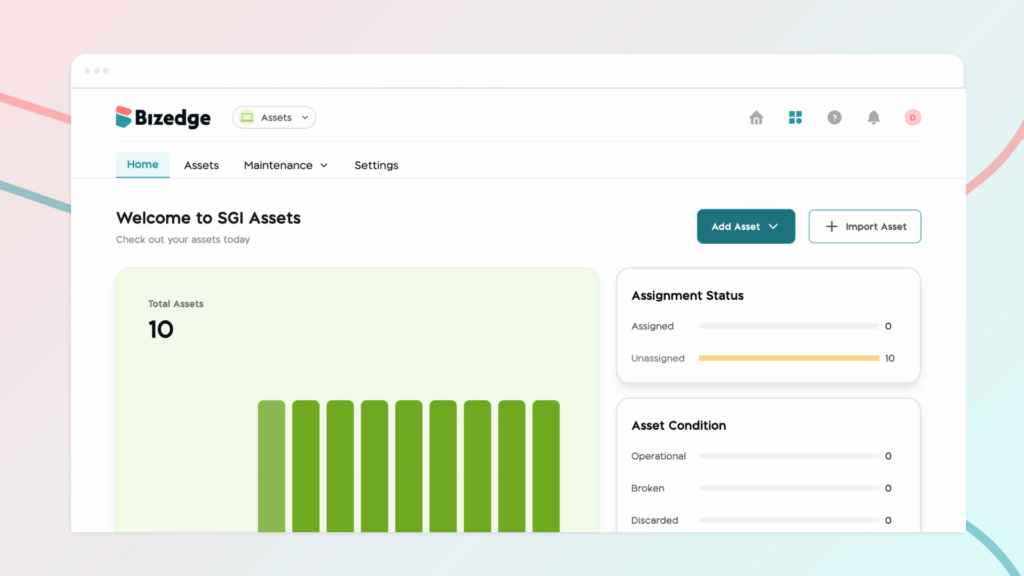
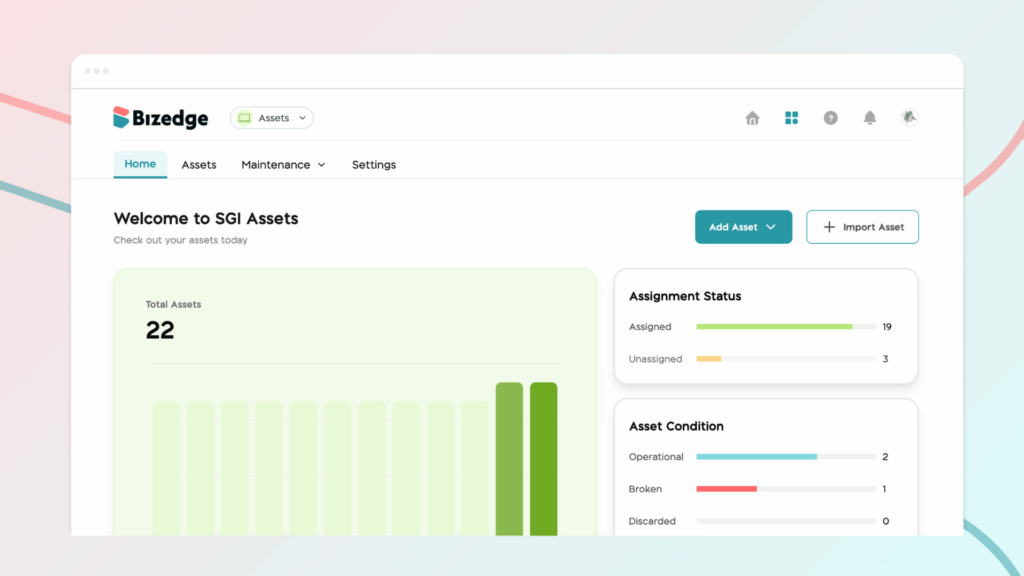
The Home dashboard provides a real-time summary of all company assets. Administrators can view the total number of assets, monitor assignment status showing how many assets are assigned or unassigned, and track asset conditions across categories such as Operational, Broken, Discarded, Missing, and Sold. New assets can be added individually or imported in bulk directly from the dashboard.
Assets
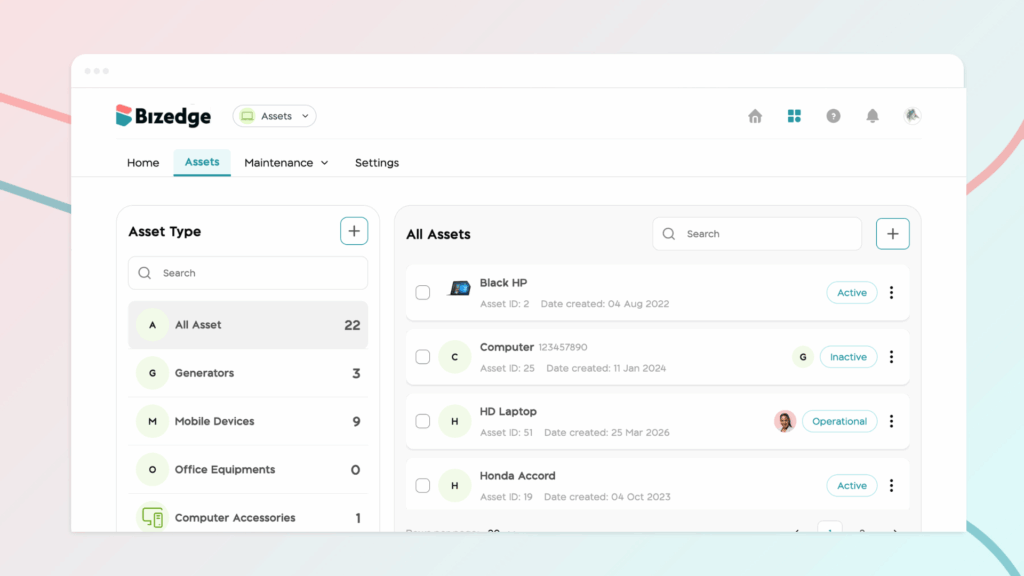
The Assets section provides a complete list of all company assets, organized by asset type. Assets can be filtered by category such as Laptops, Generators, Mobile Devices, and Office Equipment, making it easy to locate specific items. Each asset entry displays its name, asset ID, date created, assigned employee, and current status, which can include Operational, Active, or In Repair. New asset types can also be created to suit the organization’s needs.
Maintenance
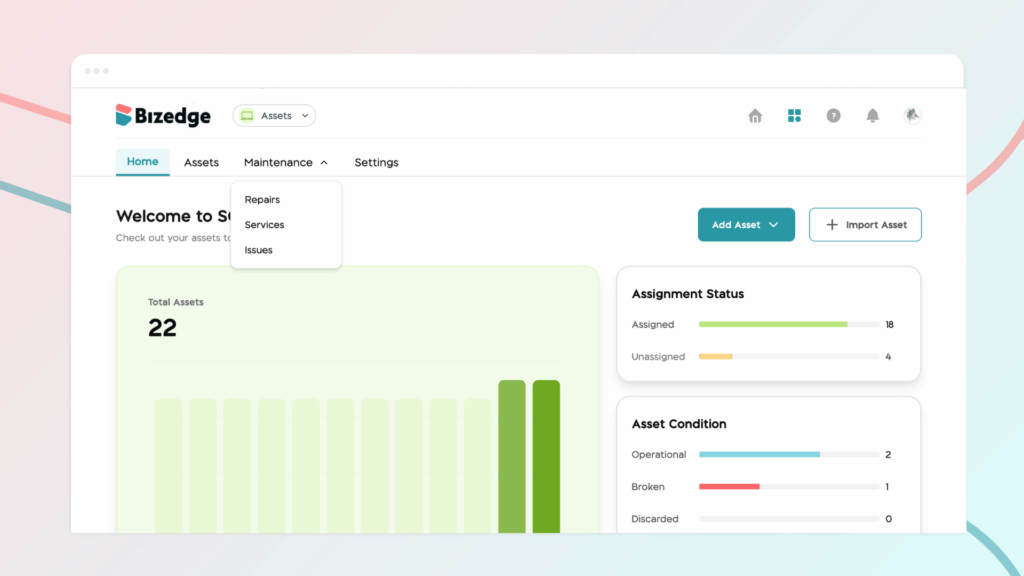
The Maintenance section allows administrators to log and track repairs, services, and issues for each asset. The Services view displays each asset’s last service date, upcoming service date, mileage where applicable, cost, and reminder status. This helps ensure that assets are regularly serviced and that maintenance tasks are never overlooked.
Settings
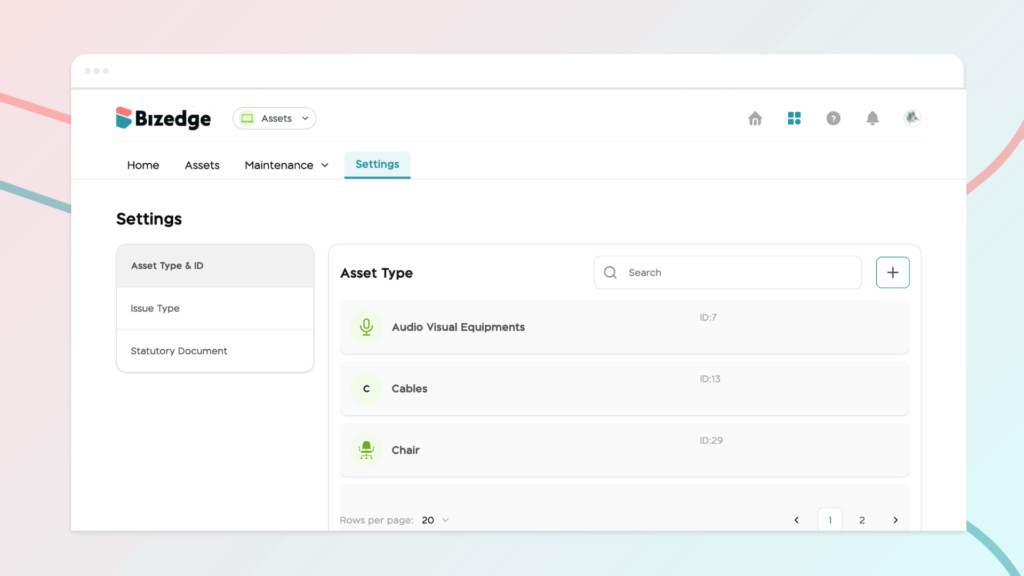
The Settings section allows administrators to configure Asset Types and IDs, define Issue Types, and manage Statutory Documents. These configurations ensure that assets are correctly categorized and that all compliance and documentation requirements are met.