
How to set up Payroll Access Levels
Employees on Payroll Showing Duplicate Entries
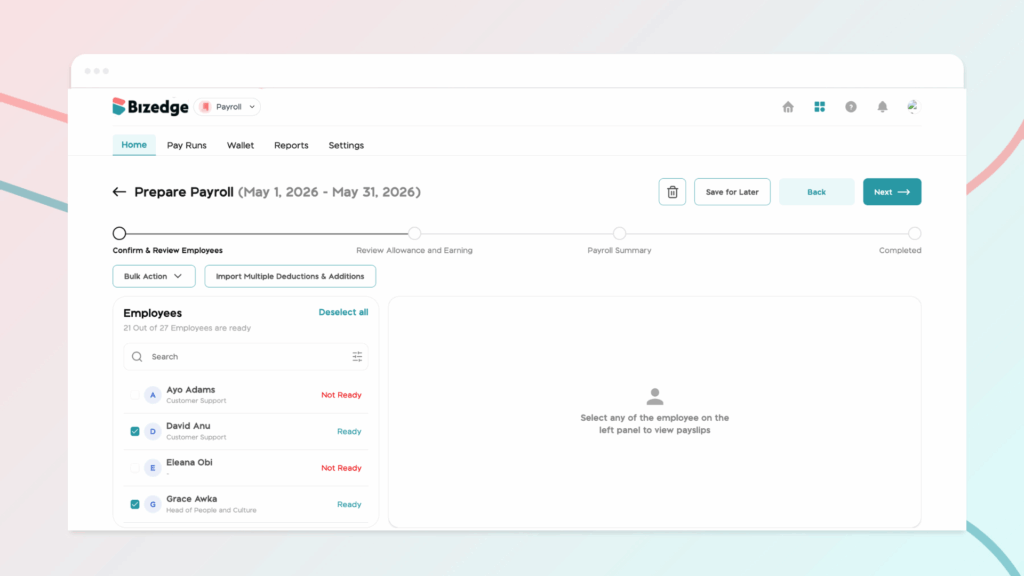
When running payroll, you may notice certain employees marked as “Not Ready.” This status indicates that their payroll information is incomplete or inconsistent, which prevents their salary from being processed. Follow the steps below to identify and resolve the issue.
Step 1: Identify Employees with “Not Ready” Status
In the Payroll Dashboard or Confirm & Review Employees section, look for any employees marked as ‘Not Ready’. This status flags records that require attention before payroll can be successfully processed.
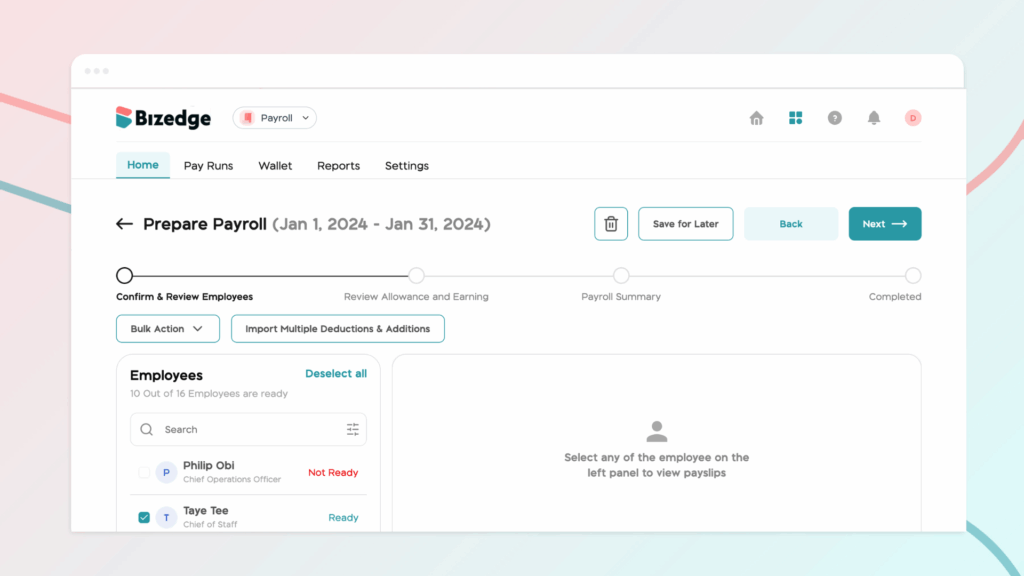
Step 2: Check and Update Work Information
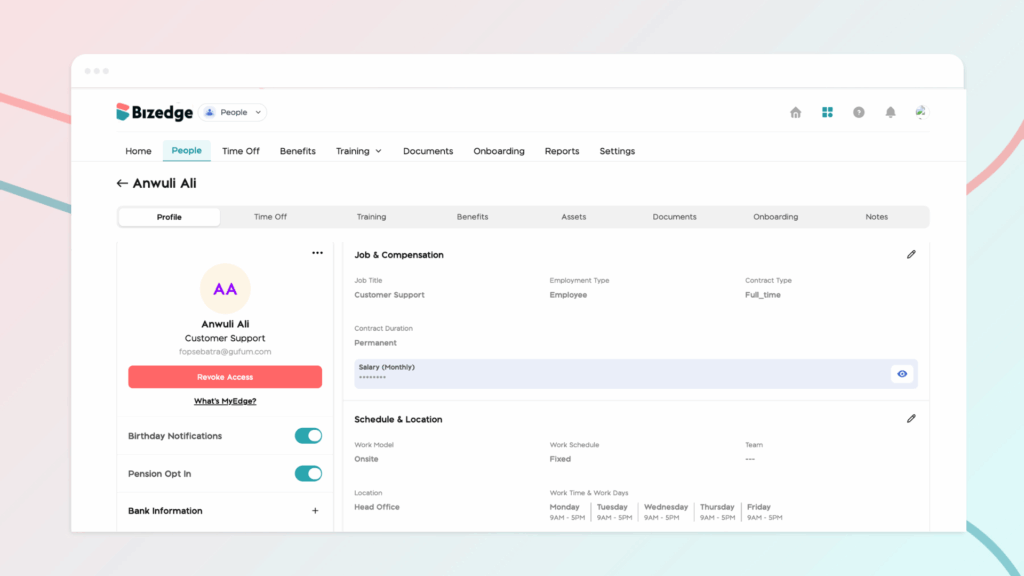
Ensure that the employee’s work schedule, workdays, and hours are correctly recorded in the system from the People app. Missing or inaccurate work information can prevent salaries from being calculated correctly.
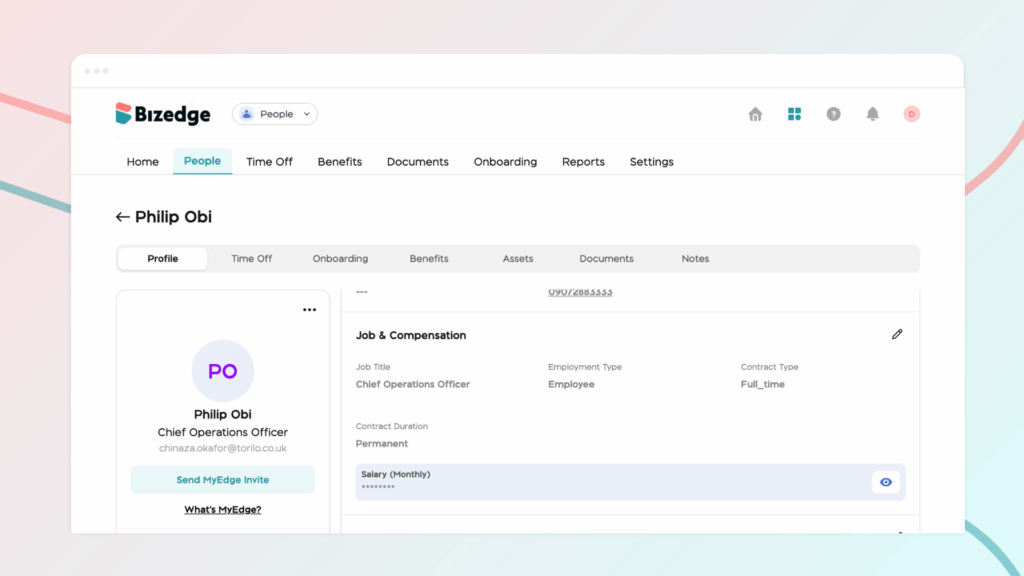
Step 3: Verify Bank Information
Confirm that the employee’s bank account details are complete and valid. Payroll cannot be disbursed to any employee whose banking information is missing or incorrect.
Step 4: Check Employment Dates
Verify that the employee’s Hire Date and Compensation Effective Date fall on or before the current pay period. Employees with dates that fall outside the pay period may be flagged as “Not Ready” as a result.
Step 5: Review Other Required Employee Information
Ensure that all mandatory fields in the employee’s profile have been filled in. This includes their Employee ID, tax information where applicable, pension or NHF contributions, and any custom payroll additions or deductions that may have been set up for them.
Step 6: Save Changes and Refresh Payroll
After updating all the necessary information, save the changes and refresh the payroll dashboard or return to the Confirm & Review Employees section to allow the system to reflect the updates.
Step 7: Confirm Status Change
Once all required data is complete and accurate, the employee’s status will automatically update to Ready, and they will be eligible to be included in the payroll run.



